
Business Process Flow
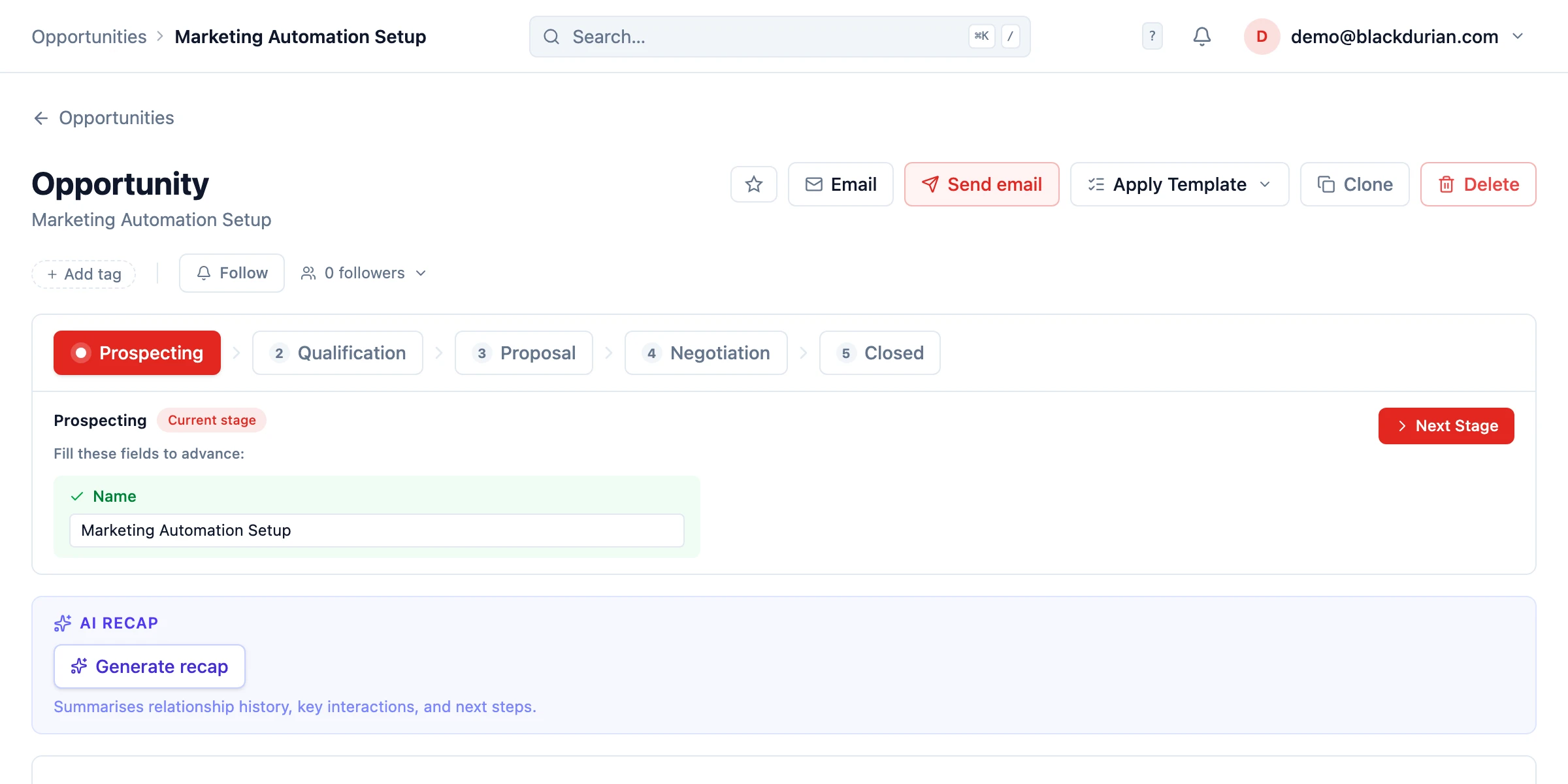 Business Process Flow (BPF) turns your methodology into a guided, step-by-step process inside HARi. The active record follows a defined path, with required fields enforced at each stage so nothing important is missed.
What is a BPF?
Section titled “What is a BPF?”A BPF is a horizontal stage bar shown at the top of a record page. It shows:
- All stages in the process (e.g. Qualification, Proposal, Negotiation, Closed)
- The current stage (highlighted)
- Each stage’s required fields, with a checkmark or warning icon depending on whether the field is filled
You can click any stage in the bar to inspect its required fields without changing where the record currently sits. The active stage’s fields are editable inline — fill them in, then advance.
Setting up a BPF
Section titled “Setting up a BPF”BPFs are configured per entity from the Schema Editor.
- Open Settings > Schema and pick the entity you want a process on (typically Lead or Opportunity).
- Switch to the Process tab.
- Enable Process and add stages in order:
- Stage name (e.g. “Discovery”)
- Required fields for this stage — pick from the entity’s existing fields
- Save. The BPF appears immediately on every record of that entity.
Each entity can have one active BPF.
Stage validation
Section titled “Stage validation”When a user clicks Next stage, HARi checks that all required fields for the current stage are filled. If any are missing, the advance button stays disabled and the missing fields are highlighted with an amber warning icon. Filled fields show a green checkmark.
This keeps data quality high at every step — no more deals stuck in “Proposal” without a quoted amount.
How users interact with BPF
Section titled “How users interact with BPF”Viewing stages
Section titled “Viewing stages”The stage bar is always visible at the top of the record. Click any stage to see what’s required for it and what’s already filled in. This is read-only inspection — clicking a stage does NOT move the record.
Advancing stages
Section titled “Advancing stages”The Next stage button moves the record forward one step once the current stage’s required fields are complete. If the next stages include both “Closed Won” and “Closed Lost”, the renderer shows two explicit close buttons instead of a single Next.
Going back
Section titled “Going back”A user can move a record back to an earlier stage when needed (e.g. a deal returns to negotiation after a failed close). No data is lost — the field values are kept.
Recovery from removed stages
Section titled “Recovery from removed stages”If an admin deletes a stage that a record was sitting on, the renderer shows an inline amber notice and a “Reset to no stage” button instead of a broken stage bar. The record is preserved; only the stage pointer is cleared.
Combining BPF with workflows
Section titled “Combining BPF with workflows”BPF stage transitions emit events that workflows can react to. Typical patterns:
- When stage changes to “Proposal” then create a task “Send proposal” assigned to the deal owner
- When stage changes to “Negotiation” then notify the sales manager
- When stage changes to “Closed Won” then start an onboarding workflow
- When stage changes to “Closed Lost” then schedule a 90-day re-engagement reminder
Workflows are configured separately in Settings > Workflows.
Multiple processes
Section titled “Multiple processes”You can configure different BPFs on different entities — for example a “B2B Enterprise” pipeline on Opportunity and a lighter “Inbound” process on Lead. Each entity holds its own definition.
Best practices
Section titled “Best practices”- Keep it simple — 4 to 6 stages is ideal. More than 7 creates friction.
- Require only essential fields per stage — ask for data when it becomes relevant, not all upfront.
- Use clear stage names — “Demo Booked” beats “Stage 3”.
- Combine with workflows to automate follow-ups at each stage transition.