
How to Export Your Data as CSV
How to Export Your Data as CSV
Section titled “How to Export Your Data as CSV”HARi CRM lets you export any list of records as a CSV file that you can open in Excel, Google Sheets, or any spreadsheet application. This is useful for reporting, external analysis, or keeping a backup of your data.
Exporting Records
Section titled “Exporting Records”- Navigate to the entity list you want to export (e.g. Contacts, Opportunities)
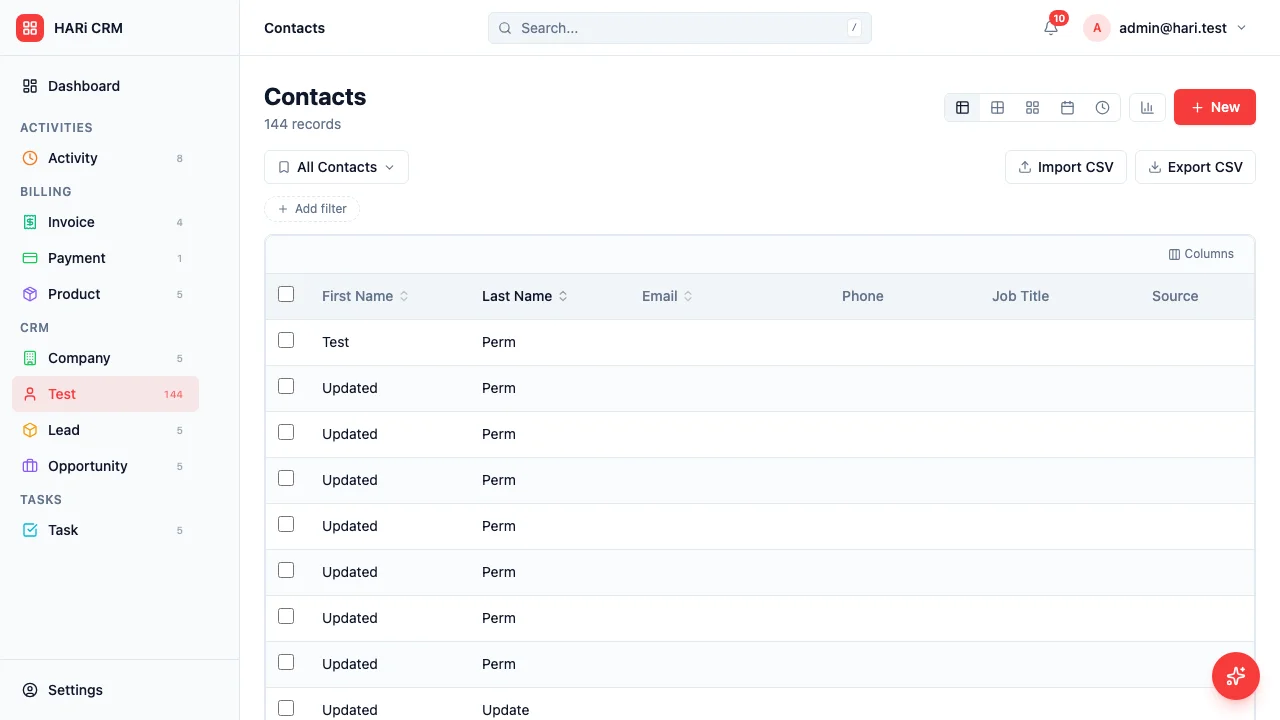
- Switch to Table view (the export button only shows in table mode)
- Apply filters if you only want a subset of records (e.g. only active deals, only contacts in Hong Kong)
- Click the Export CSV button in the toolbar
- The CSV downloads to your computer immediately
What the Export Includes
Section titled “What the Export Includes”- One row per record — every record matching the current filters becomes a row
- All pages — the export is not limited to the rows visible on screen; it includes the full filtered set
- Column headers — uses the field labels from the schema
- Related records — Linked-record fields export the display value (e.g. “Acme Ltd”), not the raw ID
Need a Full Workspace Backup?
Section titled “Need a Full Workspace Backup?”For a complete data export across every entity (CSV per entity + attachments), use the Workspace Export feature:
- Go to Settings > Billing
- In the Data Privacy card, click Export workspace
This produces a downloadable ZIP with one CSV per entity plus a manifest. See Workspace Export for details.
Opening the CSV
Section titled “Opening the CSV”- Excel — Double-click the file, or use File > Open and select the CSV
- Google Sheets — Upload the file to Google Drive, then open with Google Sheets
- Numbers (Mac) — Double-click the file
If special characters (accented letters, Chinese characters) look garbled, make sure your application is set to read UTF-8 encoding.
- Filter first — Export only what you need. A focused export is easier to work with than a full database dump.
- Use saved views — If you regularly export the same data, create a saved view with your filters pre-set.
- Your data, your control — HARi never locks your data in. You can export everything at any time.