
Process Templates
A process template is a reusable checklist of tasks you can drop onto any record with a single click. Build the checklist once — “New client onboarding”, “Deal-won handover”, “Property viewing follow-up” — and every time you apply it, HARi creates the whole set of follow-up tasks against that record, already linked and ready to work through. You configure them under Settings > Process Templates.
What is a process template?
Section titled “What is a process template?”A process template captures a repeatable procedure as an ordered list of steps. Each step becomes a task when you apply the template, so nobody has to remember the sequence or re-type it. It is the difference between “I hope the rep remembered to send the welcome email, book the kickoff, and file the contract” and knowing those three tasks appear automatically the moment a deal is won.
Repeatable work goes better with a checklist. In a landmark eight-hospital study, introducing a simple 19-item surgical checklist cut the death rate from 1.5% to 0.8% and inpatient complications from 11.0% to 7.0% (Haynes et al., New England Journal of Medicine, 2009). Surgeon and author Atul Gawande, who led that work, put it plainly: “Good checklists … are precise. They are efficient, to the point, and easy to use even in the most difficult situations.” Process templates bring the same discipline to your everyday business processes — onboarding, follow-ups, handovers.
If you want a rule to run automatically (for example, apply a checklist whenever a contact reaches a stage), pair templates with Workflows. Process templates are the manual, one-click counterpart. New to HARi? Start with the introduction.
Building a template
Section titled “Building a template”Click + New Template and give it a name. Then add the Steps — each step has a title (this becomes the task’s title) and an optional description (instructions for whoever picks the task up). Drag steps to reorder them; the order is the order the tasks are created in.
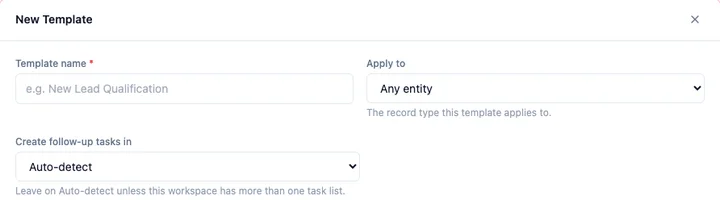
Two dropdowns at the top of the editor control where the template and its tasks go.
Apply to: which records use this template
Section titled “Apply to: which records use this template”The Apply to dropdown chooses the record type this template is meant for — a contact, a deal, a property, or Any entity if the checklist is generic. This is what decides which records offer the template as a one-click action. A “Deal-won handover” template set to your deals entity shows up on deal records; it won’t clutter a contact.
Create follow-up tasks in: choosing the task list
Section titled “Create follow-up tasks in: choosing the task list”The Create follow-up tasks in dropdown chooses which list the generated tasks are created in. It defaults to Auto-detect, and for most workspaces you should leave it there — HARi finds your task list on its own and creates the tasks there.
This control exists because every workspace names things differently. HARi is metadata-driven, so a workspace can rename its task list to “Activities”, “Actions”, or a term in another language (a French real-estate workspace might call it “tâches”). Auto-detect resolves the right list by looking at what your workspace actually has, rather than assuming a fixed name — so applying a template works even when your task list isn’t literally called “Task”.
When should you override Auto-detect?
Section titled “When should you override Auto-detect?”Override Auto-detect only when your workspace has more than one list that could hold follow-up tasks — for example a “Tasks” list and a separate “Activities” list. In that case, pick the exact one you want the template’s tasks created in, so they don’t land in the wrong place. The choice is saved with the template, so a “Viewing follow-up” template can pin its tasks to “Activities” while another template uses “Tasks”.
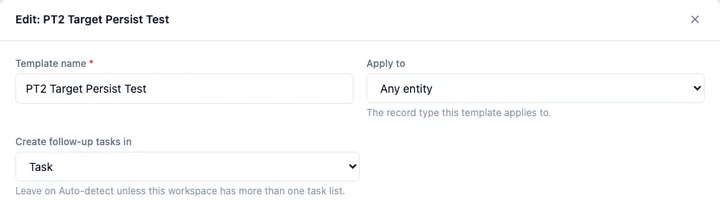
If your workspace has just one task list — which is the usual case — leave the dropdown on Auto-detect and forget about it.
Applying a template to a record
Section titled “Applying a template to a record”Open a record of the type the template applies to and choose the process template. HARi creates one task per step, in order, each linked back to that record so the whole checklist lives on the record’s timeline. From there your team works the tasks like any other — assign them, set due dates, tick them off. The generated tasks respect your workspace permissions, so people only see the records and tasks they’re allowed to.
Because a template is reusable, editing it changes what future applications create — tasks already generated on past records are left untouched, so you can refine the process over time without disturbing work in flight.