
Create a Saved View
Create a Saved View
Section titled “Create a Saved View”Saved views let you store a specific combination of filters, columns, and sort order so you can switch between different perspectives of your data instantly. Instead of re-applying filters every time, pick a saved view from the view picker and see exactly the data you need.
What is a Saved View?
Section titled “What is a Saved View?”A saved view remembers:
- Which columns are visible and their order
- Filter conditions (e.g. Status equals Active, City equals Hong Kong)
- Sort order (e.g. Created Date descending)
- View mode (Table, Cards, Kanban, Calendar, or Timeline)
Creating a View
Section titled “Creating a View”- Navigate to any entity list (e.g. Contacts)
- Set up the view the way you want it:
- Add or remove columns using the column settings button
- Apply filters by clicking Filter and adding conditions
- Sort by clicking a column header
- Switch view mode if desired
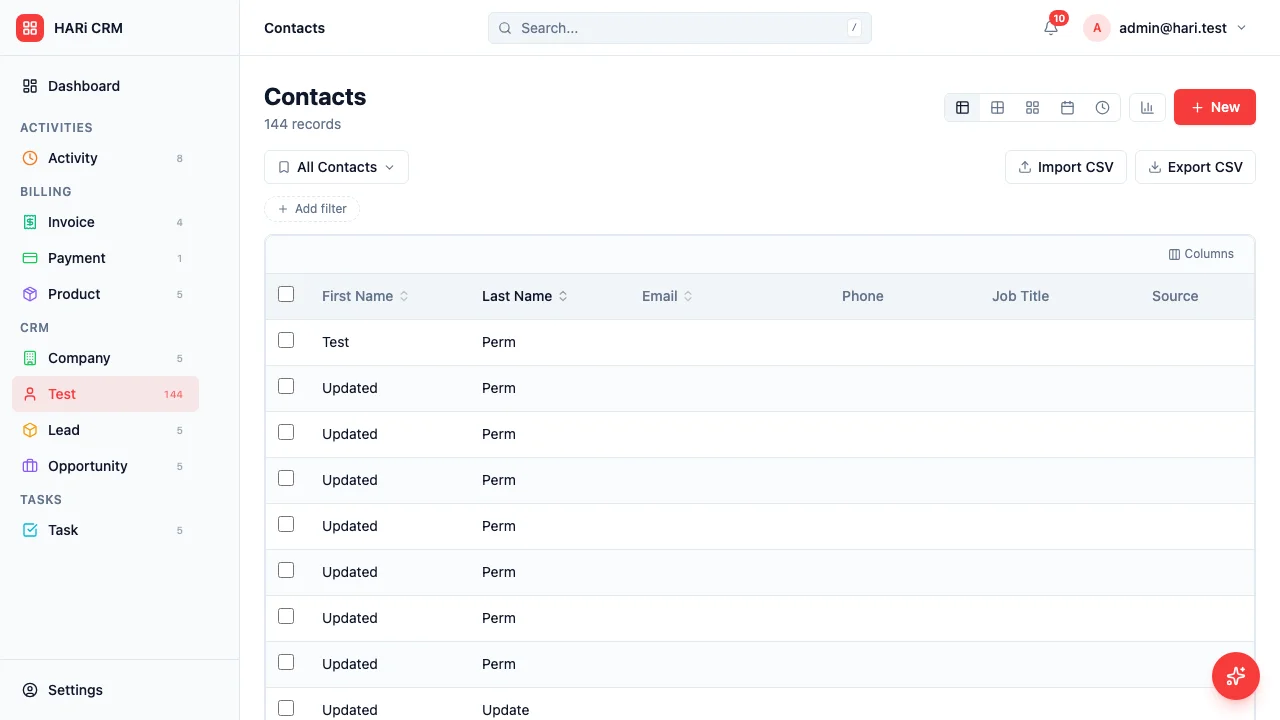
- Click the view picker button at the top-left (it shows the current view name, e.g. All Contacts, with a bookmark icon)
- In the dropdown, click Save current view
- Enter a name (e.g. “My Active Leads”, “Hong Kong VIP Contacts”)
- (Optional) Tick Smart List to make HARi keep an unread count next to the view in the sidebar
- Click Save
Using Saved Views
Section titled “Using Saved Views”Saved views appear inside the same view-picker dropdown that you used to create them. Click any name to switch instantly. A check mark indicates the active view.
Editing a Saved View
Section titled “Editing a Saved View”- Switch to the view you want to edit
- Adjust filters, columns, sort order, or view mode
- Open the view picker and click Save current view again — when the active view already has a name, the change is recorded against it
Practical Examples
Section titled “Practical Examples””My Open Deals”
Section titled “”My Open Deals””- Entity: Opportunities
- Filters: Owner equals Me, Stage is not Closed Won, Stage is not Closed Lost
- Sort: Expected Close ascending
- Columns: Name, Company, Amount, Stage, Expected Close
”Hot Leads”
Section titled “”Hot Leads””- Entity: Leads
- Filters: Estimated Value > 50000
- Sort: Estimated Value descending
- View Mode: Cards
”Overdue Tasks”
Section titled “”Overdue Tasks””- Entity: Tasks
- Filters: Due Date is before Today, Status is not Completed
- Sort: Due Date ascending
- Columns: Subject, Owner, Due Date, Related To
”This Month’s Pipeline”
Section titled “”This Month’s Pipeline””- Entity: Opportunities
- Filters: Expected Close is this month, Stage is not Closed Lost
- View Mode: Kanban (grouped by Stage)
Deleting a View
Section titled “Deleting a View”- Open the view picker dropdown
- Hover the view you want to remove — a trash icon appears
- Click the trash icon and confirm
The built-in “All [entity]” option cannot be deleted; system-managed views (shipped by a solution) also lack the trash icon by design.
Next Steps
Section titled “Next Steps”- Segment Contacts for advanced filtering strategies
- Customizing Your Dashboard to use saved views in dashboard widgets
- Interface Guide for an overview of the list view interface