
A company's Timeline includes its contacts' conversations
Open a company and click Timeline. You see the emails, calls and meetings logged on its contacts — and on other linked records such as deals — mixed with the company’s own rows. A chip on each rolled-up card says via Contact: Grace Park. Click This Company to hide them.
Gartner’s research on the B2B buying journey finds that the typical buying group for a complex solution involves six to 10 decision makers, each arriving with four or five pieces of information they must reconcile as a group (Gartner, The New B2B Buying Process). Brent Adamson, Distinguished VP, Advisory at Gartner, puts the problem in one sentence: “The single biggest challenge of selling today is not selling, it is actually our customers’ struggle to buy.” A company Timeline that only showed the company’s own rows would hide the conversations with those six to ten people.
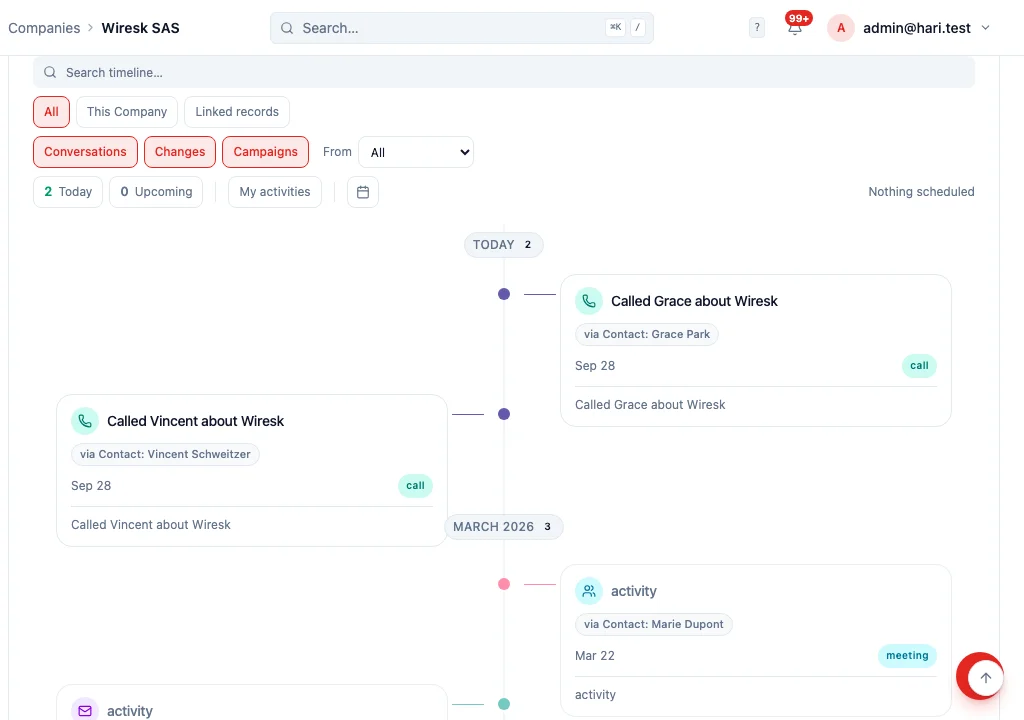
How do I see conversations from the people at a company?
Section titled “How do I see conversations from the people at a company?”- Open the company.
- Click the Timeline tab.
- Leave All selected (that is the default).
- Read the cards. A rolled-up row shows a via Contact: (or via Opportunity:) chip with the person’s or deal’s name. Click the chip to open that record.
If the list looks empty, click Show all dates — the period chips (Today, Upcoming) may be hiding older rows.
What does the via chip mean?
Section titled “What does the via chip mean?”via Contact: Grace Park means the email, call or meeting was logged on Grace, who is linked to this company. It is not a company-only event. The chip is a link: click it to open Grace.
A row without a via chip belongs to the company itself.
What do All, This Company, and Linked records do?
Section titled “What do All, This Company, and Linked records do?”Three scope chips sit above the list when the company is set up to include linked records:
| Chip | What you see |
|---|---|
| All | The company’s own rows plus the rolled-up rows from its people and other linked records. Default. |
| This Company | Only rows stored on the company. Conversations logged on contacts disappear. |
| Linked records | Only the rolled-up rows. Conversations is on; Campaigns is off, so campaign opens and clicks stay hidden until you turn that chip on. |
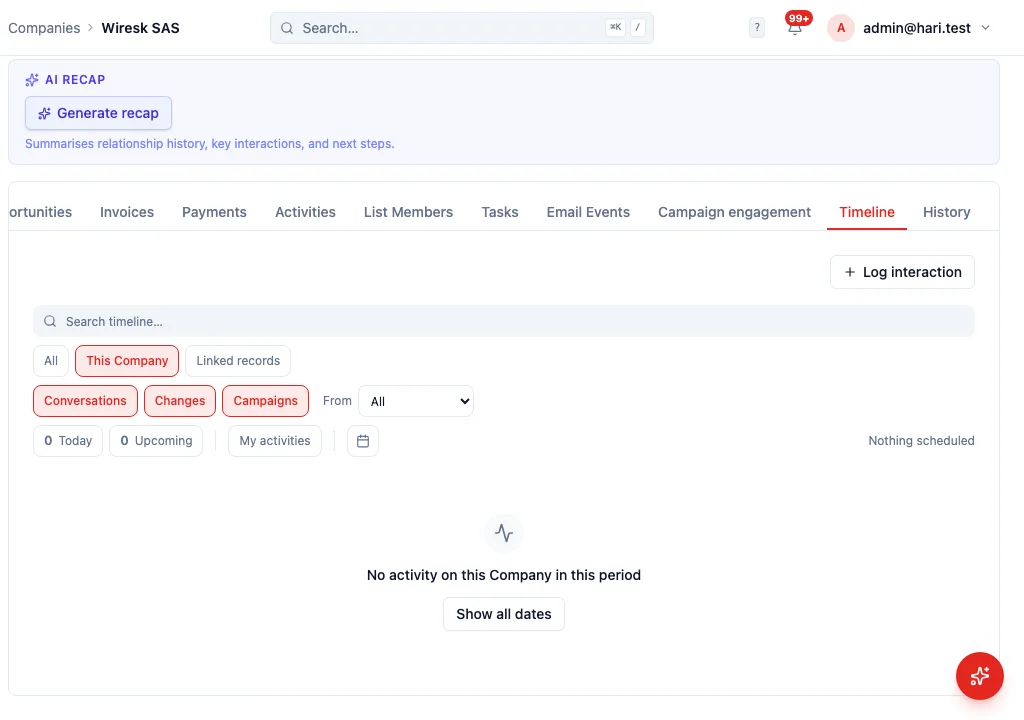
Conversations, Changes and Campaigns still filter by kind, on top of the scope. Search, Today, Upcoming and My activities work the same way as on a contact.
The list-page mode that arranges records by a date field is a different surface — see Timeline view.
How do I add a call from the company Timeline?
Section titled “How do I add a call from the company Timeline?”Use Quick create: Call, Email, Meeting, Log interaction, or New Tasks on the company’s Timeline. The new row is stored on the company. To log a call with a person, open that contact (or click their via chip) and log it there — it then appears on the company Timeline with a via chip.
See Track interactions and Log a phone call or meeting.
Who can see a rolled-up row?
Section titled “Who can see a rolled-up row?”You only see a rolled-up conversation if you could already open that contact or deal. A teammate who cannot open Grace does not see Grace’s calls on the company. See Who can see this record?.
How does an administrator choose which linked records appear?
Section titled “How does an administrator choose which linked records appear?”- Go to Settings → Schema.
- Open the entity (Company, or another you created).
- Find Timeline — also show activity from linked records.
- Tick the relations that should roll up (on Company, that is typically Contacts by Company, and Opportunities by Company).
- Save.
Clearing every box turns the rollup off. The scope chips then hide, and the Timeline shows only that entity’s own rows.
See Custom entities for the Schema Editor.