
Configure Stage Fields
Configure Stage Fields
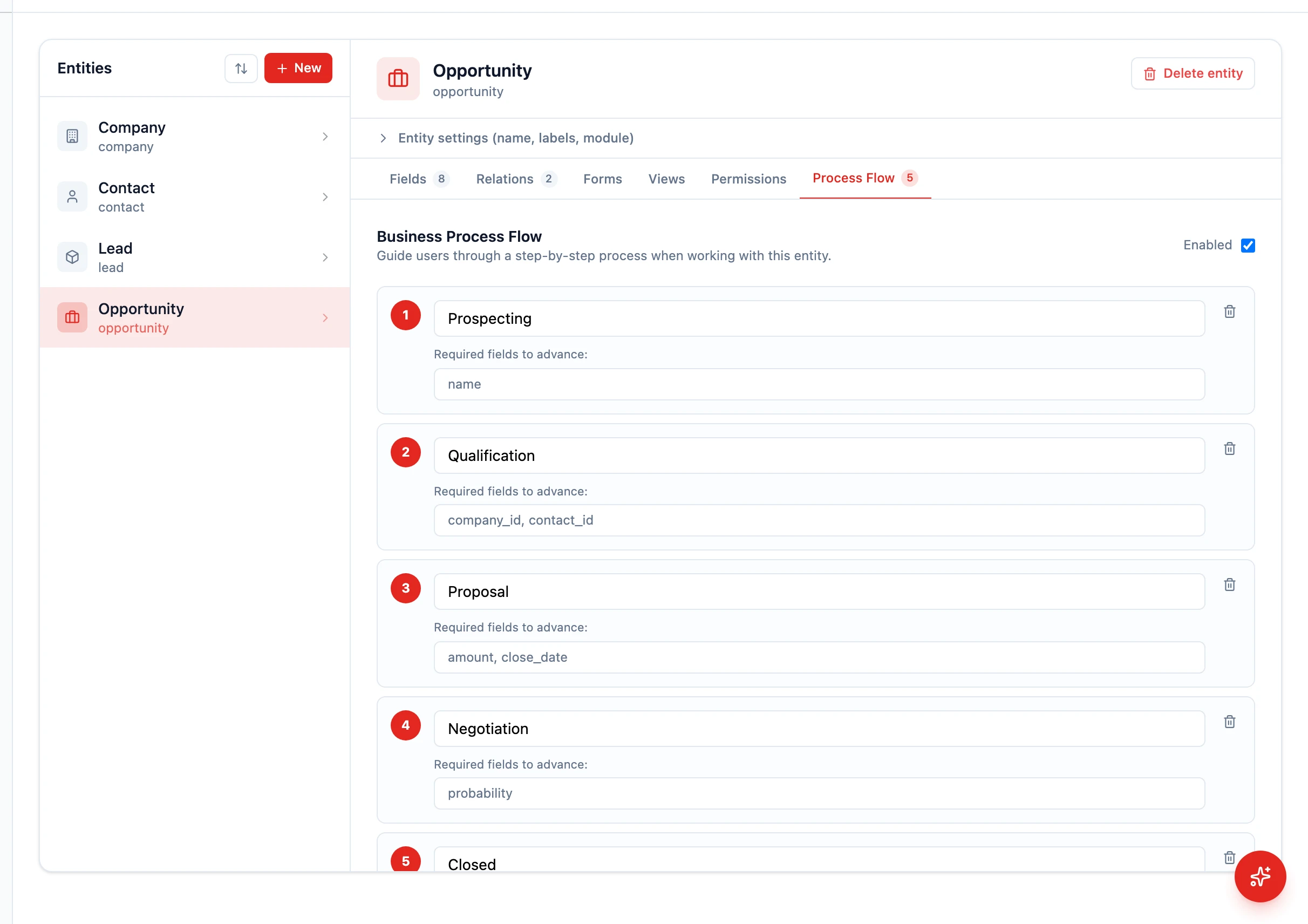
Section titled “Configure Stage Fields”In HARi CRM, you can define which fields must be filled in at each stage of a Process Flow (also called a Business Process Flow). This ensures your team captures the right information before advancing a deal and keeps your data consistent.
Why Required Stage Fields?
Section titled “Why Required Stage Fields?”Without required fields, sales reps might move deals to “Proposal” without entering a budget or “Closed Won” without a close date. Stage-required fields enforce data discipline without slowing your team down — they only need to fill in what is relevant for each stage.
Accessing the Process Flow Editor
Section titled “Accessing the Process Flow Editor”- Go to Settings > Schema
- Select the entity that has — or should have — a Process Flow (e.g. Opportunity)
- Click the Process Flow tab
The editor shows a single Process Flow per entity (one flow, many stages). Toggle Enabled to turn the flow on for the entity.
Configuring Required Fields per Stage
Section titled “Configuring Required Fields per Stage”For each stage you’ve added:
- Type the stage name (e.g. “Qualification”)
- In Required fields to advance, type a comma-separated list of field machine names (e.g.
amount, close_date, decision_maker) - Repeat for each stage
- Click Save Process Flow
Tip: To find a field’s machine name, open the Fields tab — the small grey label next to each field is its name. Custom field names default to the slugified label (e.g.
decision_makerfor “Decision Maker”).
Recommended Field Configuration
Section titled “Recommended Field Configuration”Here is a suggested setup for a typical B2B opportunity pipeline. Field machine names are shown — add the missing custom fields first via Add a Custom Field.
| Stage | Required fields (comma-separated) |
|---|---|
| Prospecting | contact_id, company_id |
| Qualification | amount, decision_maker, timeline |
| Proposal | amount, proposal_date |
| Negotiation | close_date |
| Closed Won | close_date, amount |
| Closed Lost | loss_reason |
How It Works for Users
Section titled “How It Works for Users”When a sales rep tries to advance a deal to the next stage:
- HARi checks if all required fields for the current stage are filled
- If any are missing, HARi shows a clear message listing the missing fields
- The user fills in the fields and tries again
- Once all requirements are met, the deal advances
The Process Flow bar at the top of the record shows a visual breadcrumb of the stages, making it clear which stage the deal is in.
Removing a Required Field from a Stage
Section titled “Removing a Required Field from a Stage”- Open Settings > Schema > Opportunity > Process Flow
- Edit the stage’s Required fields to advance input — remove the field name from the comma-separated list
- Click Save Process Flow
Removing a Stage
Section titled “Removing a Stage”- In the Process Flow editor, click the trash icon next to the stage row
- Click Save Process Flow
Next Steps
Section titled “Next Steps”- Build a Sales Pipeline for the full pipeline setup guide
- Manage Deals to see how stage fields work in practice
- Add a Custom Field to create new fields before adding them as stage requirements