
How to Set Up Multi-Currency
How to Set Up Multi-Currency
Section titled “How to Set Up Multi-Currency”If your business deals in multiple currencies, HARi CRM lets you track deals, invoices, and financial data in the currency that matches each transaction — while still showing totals in your base currency for reporting.
Setting Up Currencies
Section titled “Setting Up Currencies”- Go to Settings > Currency
- Your base currency is shown at the top (this is your primary reporting currency)
- Choose a rate strategy:
- Manual — You set every exchange rate yourself
- Automatic (daily) — Rates refresh daily from market data
- Automatic + manual overrides — Daily market rates by default, your manual rates take priority
- Choose When a rate is missing: block the save, or allow it and flag for review
- Click Save strategy
- Under Exchange rates, click Add rate, pick the currency pair, and enter the rate (or click Refresh from market to pull live rates)
Repeat for each currency pair you trade in.
Setting the Base Currency
Section titled “Setting the Base Currency”Your base currency is the one used for:
- Dashboard totals and charts
- Pipeline value summaries
- Financial reports
- Default currency on new records
To change the base currency (admin only):
- Go to Settings > Currency
- Click Change base currency
- Pick the new base currency
- Confirm by typing the currency code — HARi shows you how many values will be recalculated and a warning that the change cannot be undone
Updating Exchange Rates
Section titled “Updating Exchange Rates”If you’re on the manual strategy, update rates periodically:
- Go to Settings > Currency
- Find the currency pair under Exchange rates
- Edit the rate value
- Save
If you’re on an automatic strategy, click Refresh from market to pull the latest rates immediately.
Existing records keep the exchange rate from when they were saved — only new records use the updated rate.
Using Multi-Currency in Records
Section titled “Using Multi-Currency in Records”Deals (Opportunities)
Section titled “Deals (Opportunities)”- Open or create a deal
- Select the Currency field
- Choose the transaction currency (e.g., USD)
- Enter the Value in that currency
- The system automatically calculates and stores the base currency equivalent for reporting
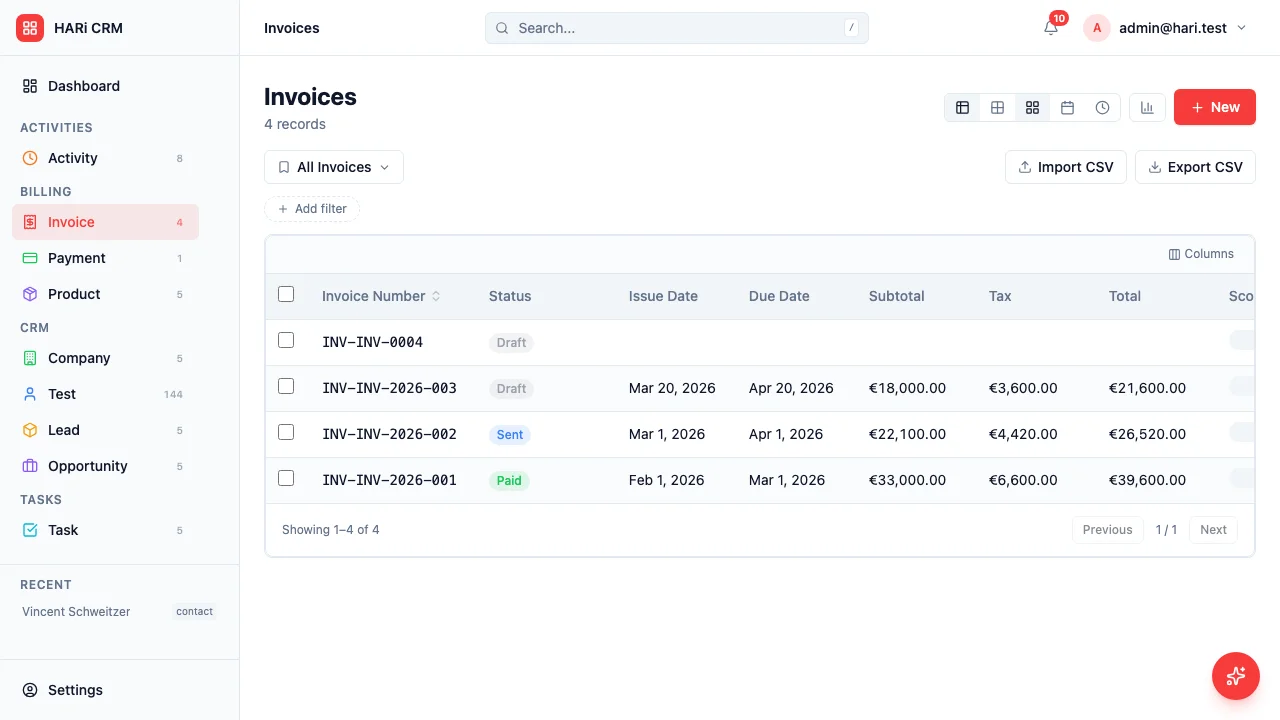
Invoices
Section titled “Invoices”- Create a new invoice
- Select the customer’s preferred currency
- Line items are priced in the selected currency
- The invoice total and PDF reflect the chosen currency
Reporting in Base Currency
Section titled “Reporting in Base Currency”All dashboard charts and pipeline summaries convert foreign currency values to your base currency using the exchange rate at the time each record was created. This gives you a unified view of revenue across all currencies.
- Update rates monthly — For most SMEs, monthly rate updates are sufficient
- Use the transaction currency — Always record deals in the currency the customer pays in. Let the system handle conversion.
- Check rates before big reports — Ensure exchange rates are current before quarterly reviews