
B2B Sales Pipeline Template
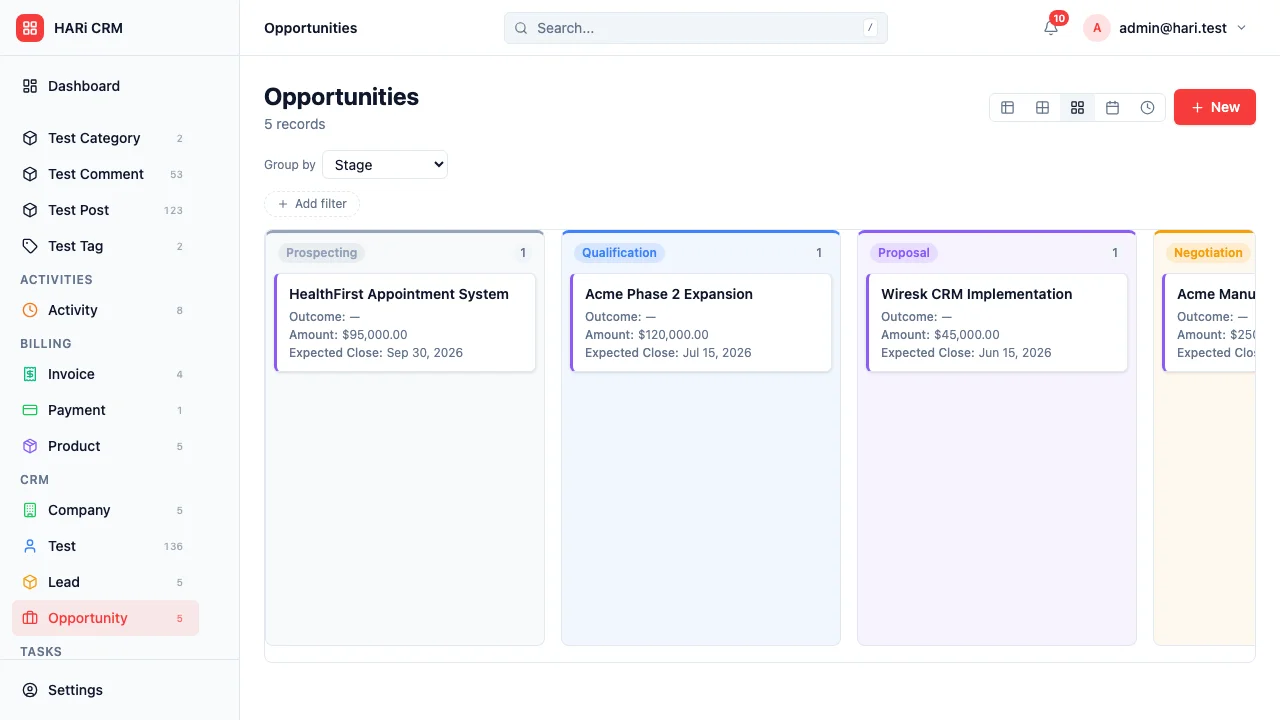
Selling to other businesses means longer sales cycles, more decision-makers, and bigger deal sizes. Without a structured pipeline, reps lose track of where each deal stands, managers can’t forecast revenue, and promising opportunities fall through the cracks.
Configuration recipe. This page is a guide to configuring HARi for a typical B2B sales motion. It is not a one-click install — the stages, fields and workflows below are ones you set up on top of the core CRM solution using the Schema Editor and Workflow Editor.
Common B2B sales challenges
Section titled “Common B2B sales challenges”- Long sales cycles — deals take weeks or months, making it easy to lose momentum
- Multiple stakeholders — buyers, influencers, and gatekeepers all need to be tracked
- Complex proposals — custom pricing, SOWs, and multi-product bundles require careful management
- Forecast accuracy — without consistent stage definitions, pipeline reports are unreliable
How HARi handles this
Section titled “How HARi handles this”The CRM solution ships with Company, Contact, Lead, and Opportunity entities. You configure the sales motion by defining a Business Process Flow on Opportunity and adding the fields and workflows below.
Pipeline stages
Section titled “Pipeline stages”Configure these as the BPF on the Opportunity entity (Settings > Schema > Opportunity > Process tab).
| Stage | Purpose | Typical actions |
|---|---|---|
| Prospect | Initial identification of potential fit | Research company, find contacts |
| Qualification | Confirm budget, authority, need, timeline | Discovery call, qualify with BANT |
| Proposal | Present solution and pricing | Send proposal, demo the product |
| Negotiation | Handle objections, finalize terms | Negotiate pricing, review contract |
| Closed Won | Deal signed | Send welcome email, begin onboarding |
| Closed Lost | Deal did not proceed | Log reason, schedule re-engagement |
Entities and fields to set up
Section titled “Entities and fields to set up”- Companies — industry, size, annual revenue, website
- Contacts — role, decision-making authority, direct phone
- Opportunities — deal value, expected close date, pipeline stage, probability
- Activities — calls, meetings, emails linked to each opportunity
Suggested workflows
Section titled “Suggested workflows”Configure these in Settings > Workflows:
- Stage-based reminders — if an opportunity stays in Qualification for more than 7 days, notify the owner
- Win notification — when a deal moves to Closed Won, notify the team and create an onboarding task
- Lost follow-up — when a deal is marked Closed Lost, schedule a re-engagement activity in 90 days
Key dashboard widgets
Section titled “Key dashboard widgets”- Pipeline value by stage (funnel chart)
- Win rate over time (line chart)
- Average deal cycle length
- Deals closing this month
Get started
Section titled “Get started”- Sign up for a free HARi account and install the CRM solution from Settings > Solutions to get Company, Contact, Lead, and Opportunity.
- Open Settings > Schema > Opportunity > Process tab and configure the pipeline stages above with their required fields.
- Configure the suggested workflows in Settings > Workflows.
- Build a pipeline dashboard from Dashboards with the suggested widgets above.