
How to Use Calendar View
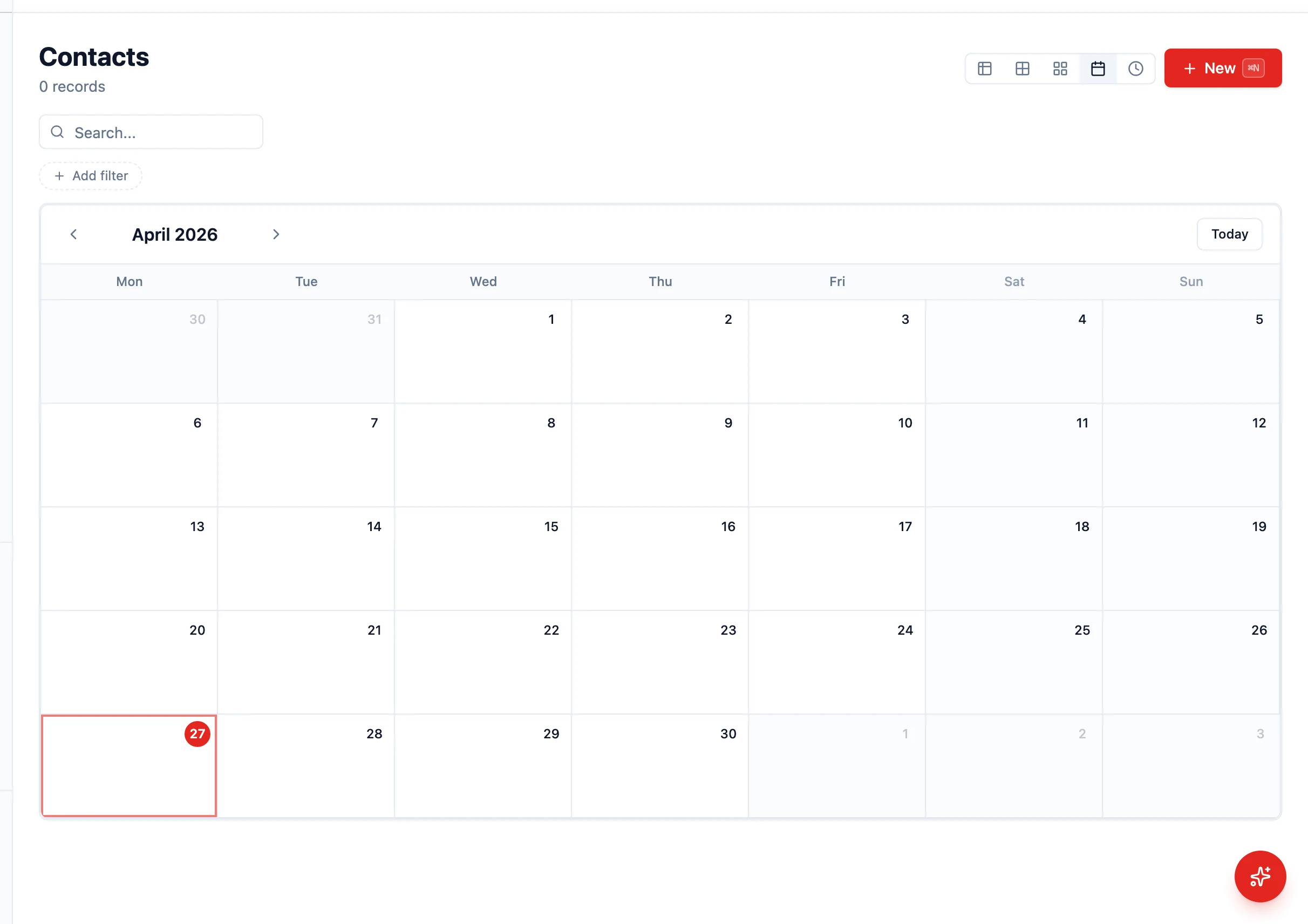
How to Use Calendar View
Section titled “How to Use Calendar View”The Calendar view displays records on a month grid based on a date field on the entity. It is ideal for activities, tasks, follow-ups, invoices with due dates, or any entity with a date or date-time field.
Switching to Calendar View
Section titled “Switching to Calendar View”- Navigate to an entity list that has a date or date-time field (e.g., Activities, Tasks, Invoices)
- In the view toolbar, click the Calendar icon
- The list switches to a month grid
If the entity has no date fields, the Calendar option does not appear.
Navigating the Calendar
Section titled “Navigating the Calendar”- Today — Click the Today button to jump back to the current month
- Previous / Next month — Use the arrow buttons next to the month label
- Click a date — Clicking an empty day takes you to a new-record form with that date pre-filled (if you have create permission)
- Click an event — Clicking a record block opens that record
Understanding What You See
Section titled “Understanding What You See”Each block on the calendar shows the record’s display field (the entity’s primary label, e.g. the name of an opportunity, the subject of an activity). The date used to position the record is configurable — if the entity has more than one date field, change which field the calendar uses via the URL or the saved view.
Filtering the Calendar
Section titled “Filtering the Calendar”- Click Filter in the toolbar (same filter bar as the table view)
- Add conditions (e.g. Owner = me, Type = Meeting)
- The calendar redraws to show only matching records
Saving a Calendar View
Section titled “Saving a Calendar View”- Open the calendar with the filters and date field you want
- Open the views menu and click Save current view
- Give it a descriptive name (e.g. “My meetings this month”)