
Teams and roles
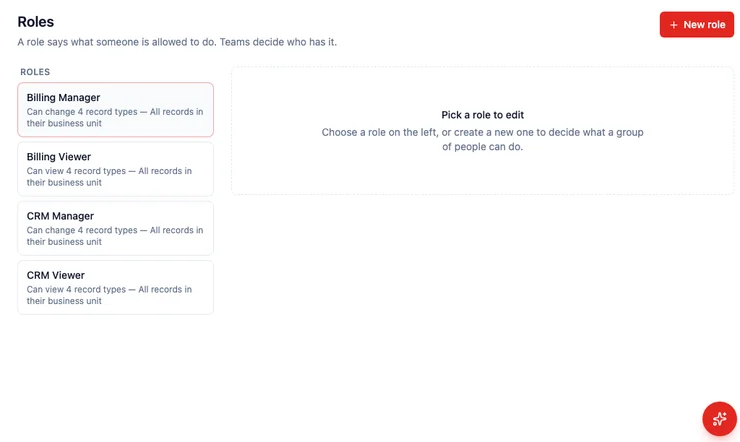
A role says what someone is allowed to do. A team says who has that role. Every record belongs to a team, so who can open it is a function of team membership — not a one-off share, and not “this person owns it, therefore they can see it.”
Open Settings → Access. Roles, Users, Teams, Business Units, and Access Inspector sit in that group.
How do roles and teams work together?
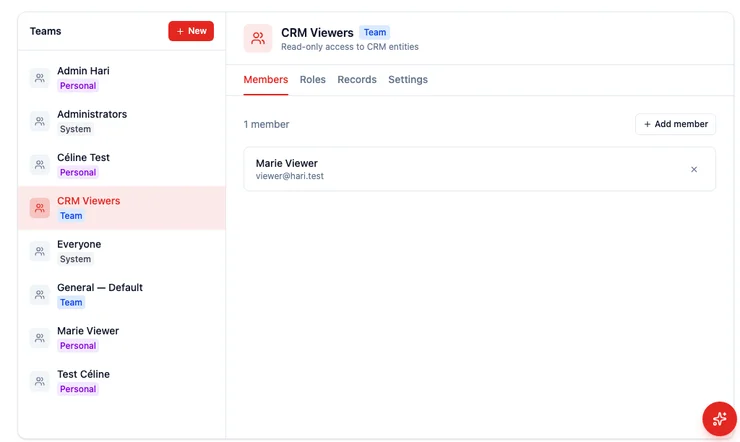
Section titled “How do roles and teams work together?”You never attach a role to a person. You attach the role to a team, then add people to that team. Someone in two teams gets the wider of the two.
That split is the least-privilege idea in ordinary language. Jerome Saltzer put it: “Every program and every privileged user of the system should operate using the least amount of privilege necessary to complete the job” (Communications of the ACM, 1974). HARi’s version is: pick a starting point (Viewer, Editor, Manager…), attach it to the team that actually does the work, and stop there.
Verizon’s 2024 Data Breach Investigations Report found the human element was a component of 68% of breaches — error, stolen credentials, or social engineering, not a clever exploit (Verizon, 2024 DBIR summary). Giving a sales team “see the whole workspace” because it is easier than picking a team is how that 68% gets a foothold in a CRM.
What does a role actually grant?
Section titled “What does a role actually grant?”For each record type a role can grant five actions, each with a reach:
| Reach | What it means |
|---|---|
| No access | They cannot do this |
| Records their teams own | Only records held by a team they are on |
| All records in their business unit | Everything in the unit their team belongs to |
| Every record in the organization | The whole workspace |
The five actions are Create, View, Edit, Delete, and Reassign (move the record to another team). Reassign is its own right — editing a contact does not let you hide it.
Starting points on Settings → Access → Roles:
- Baseline — sees records their teams own; cannot change anything
- Viewer — sees everything in their business unit; cannot change anything
- Editor — can create and edit records their teams own; can view the business unit; cannot reassign
- Manager — can view and edit the business unit, including reassign; delete stays on their teams
- Administrator — every record in the organization
- Custom — you set every cell
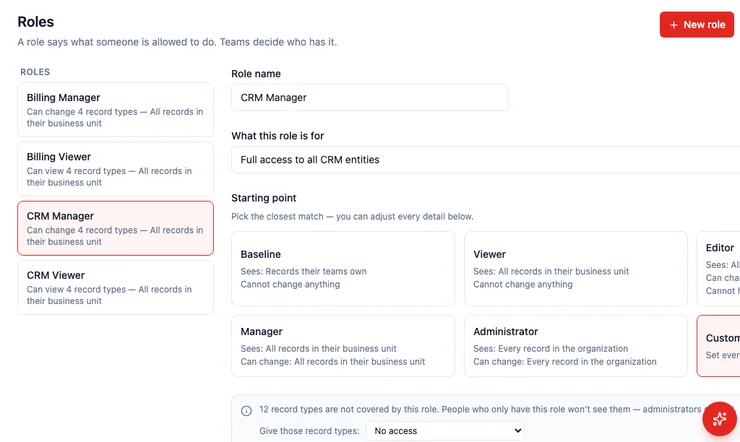
Fine-tune by record type when a starting point is close but not exact. New record types the role does not mention stay at the fallback you pick (usually No access).
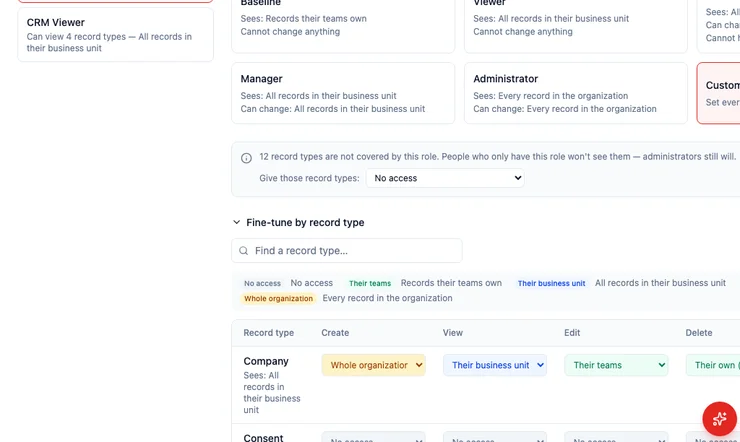
Saving a role shows who will gain or lose access before it commits. The Everyone team can only carry read-only, workspace-wide roles — editing rights go on a real team.
Which teams are special?
Section titled “Which teams are special?”- Personal — one per person, they cannot leave it. Records kept there are private from teammates (see private records).
- Everyone — the whole workspace. Read-only roles only.
- Administrators — built in. Name, members, and roles cannot be changed on the team screen.
- General — Default — created with the workspace. New records land here unless the person picks another team.
Work teams (Sales, Finance, CRM Viewers) are the ones you create. Add members, attach roles, and — when it matters — see how many records the team already holds before you move them.
What about the Owner field?
Section titled “What about the Owner field?”Owner is the person responsible for follow-up. Changing Owner does not change who can see the record. Who can see it is the team that holds it. Reassign / Claim on the record header change the person; Change team moves the record. See who can see what and record ownership.
Where next?
Section titled “Where next?”- Who can see what — the popover on every record
- Business units — when one team is not enough
- Set up role permissions — a walkthrough
- Inviting your team — add people with a team on day one
- Permissions and security — the overview