
How to Recover Archived Records
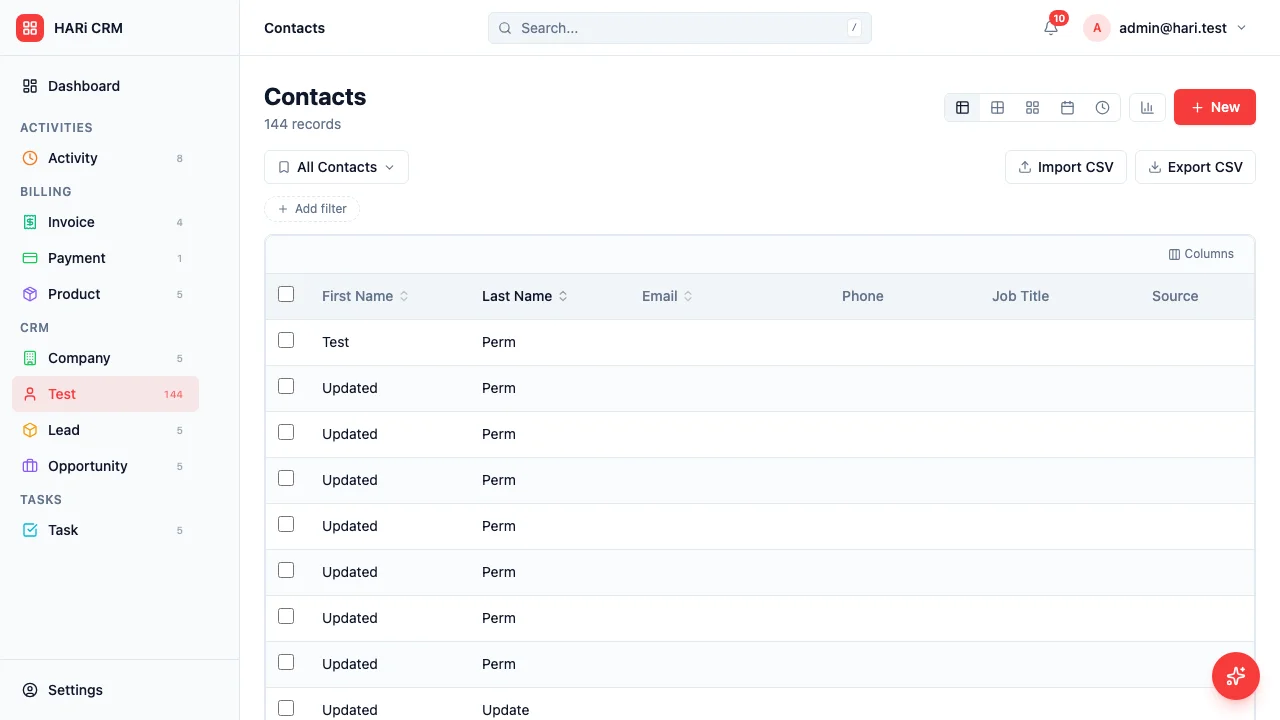
You or a team member archived a record and now you need it back.
Understanding archived records
Section titled “Understanding archived records”In HARi, every record has a state: Active, Inactive, or Archived. Archived records are hidden from default list views but are not deleted. All their data, related records, and history are preserved.
Step-by-step recovery
Section titled “Step-by-step recovery”- Navigate to the entity list (e.g., Contacts, Companies).
- Look for the state filter above the list view. By default, it shows “Active” records only.
- Change the filter to “Archived” or “All states”.
- Find the record you want to recover.
- Open the record.
- Change the State field from “Archived” to “Active”.
- Save the record.
The record will now appear in default list views again, and all its related records and history are intact.
Preventing accidental archiving
Section titled “Preventing accidental archiving”- Use confirmation dialogs: HARi shows a confirmation before archiving. Read the confirmation message carefully before confirming.
- Check permissions: If only certain team members should be able to archive records, configure the appropriate permissions in Settings > Profiles.
- Review the audit log: If you’re not sure who archived a record or when, check the record’s audit log to see the change history.
Archived vs. deleted
Section titled “Archived vs. deleted”Archiving hides the record but keeps it visible to admins via the state filter. Deleted records are soft-deleted: they disappear from list views but are kept for 30 days before permanent purge. During that 30-day window, an administrator can restore the record. After 30 days, the record is permanently purged and cannot be recovered through the UI.
When in doubt, archive instead of delete — archived records have no expiry.
Still stuck?
Section titled “Still stuck?”If you can’t find the record even with the state filter set to “All states”, it may have been deleted rather than archived. Ask your administrator to check the deleted-records view (within the 30-day grace window). After 30 days a deleted record is permanently purged and cannot be recovered.