
Add a User
Add a User
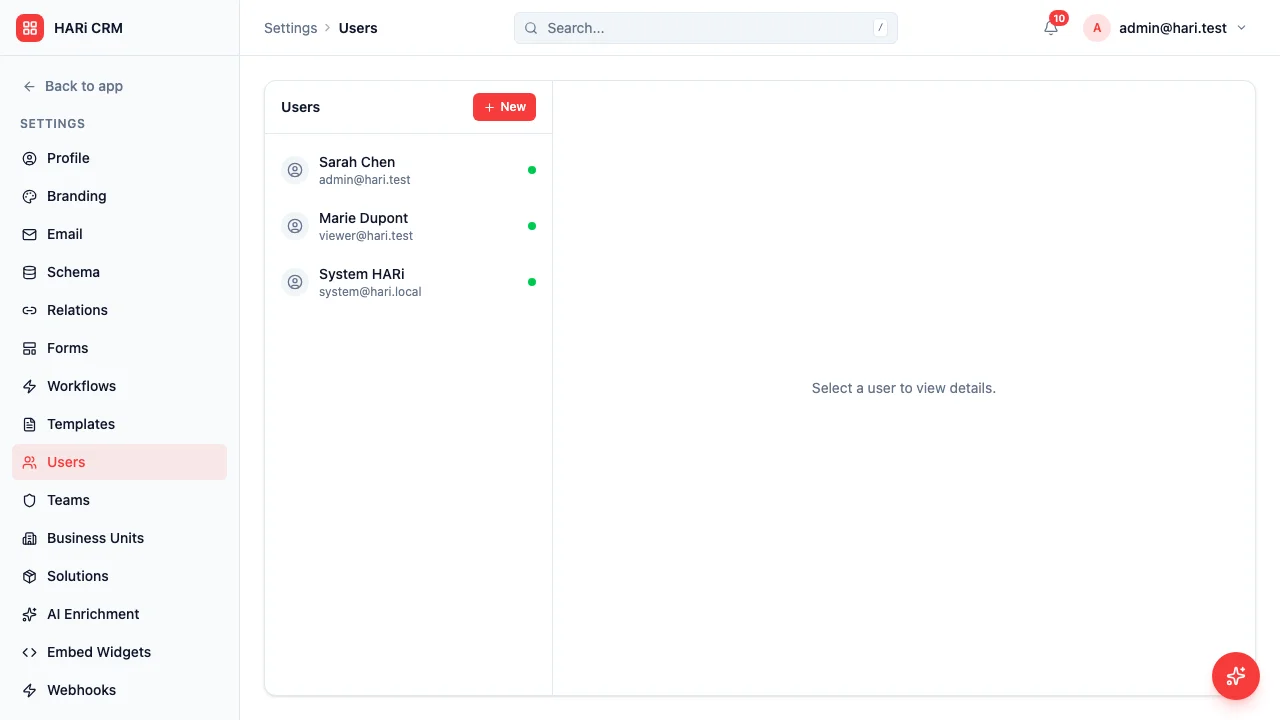
Section titled “Add a User”Adding people to HARi CRM is straightforward. Every workspace includes unlimited users — there is no per-seat fee.
Inviting a new user (recommended)
Section titled “Inviting a new user (recommended)”They pick their own password.
- Go to Settings → Access → Users
- Click the invite button
- Fill in:
- Email — their login
- Team — required. They inherit that team’s roles. Their new records go to this team unless you later change their default working team
- Submit
HARi sends an email with a one-time link. They set a password and land in the workspace.
Creating a user directly
Section titled “Creating a user directly”If you need a known password (for example a service account):
- Go to Settings → Access → Users
- Click New
- Fill in email, password (min. 8 characters), name
- Put them on a team
- Create the user
Administrator or member
Section titled “Administrator or member”- Administrator — full workspace access, including teams and roles. Use sparingly.
- Member — everyday user. Access comes from the teams they belong to, not from a profile ticked on the user.
Roles via teams
Section titled “Roles via teams”- Settings → Access → Roles — create or pick a role
- Settings → Access → Teams — attach the role, add the person
Change the team’s roles, and every member updates. Walkthrough: set up role permissions.
Deactivating a user
Section titled “Deactivating a user”- Settings → Access → Users
- Open the user
- Deactivate
They cannot log in. Records held by work teams stay on those teams. Records on their personal team are moved so they are not stranded — you will see a warning about who gains sight of them. You can reactivate later; moved records do not slide back by themselves.