
Manage Deals
Manage Deals
Section titled “Manage Deals”Once your pipeline is set up, managing deals is where your team spends most of their time. This guide covers moving deals through stages, tracking progress, and recording outcomes.
Moving a Deal to the Next Stage
Section titled “Moving a Deal to the Next Stage”There are two ways to advance a deal:
From the Kanban View
Section titled “From the Kanban View”- Navigate to Opportunities and switch to Kanban view
- Find the deal card in its current stage column
- Drag the card to the next stage column
- If the stage has required fields, HARi will prompt you to fill them before confirming the move
From the Record Page
Section titled “From the Record Page”- Open the opportunity record
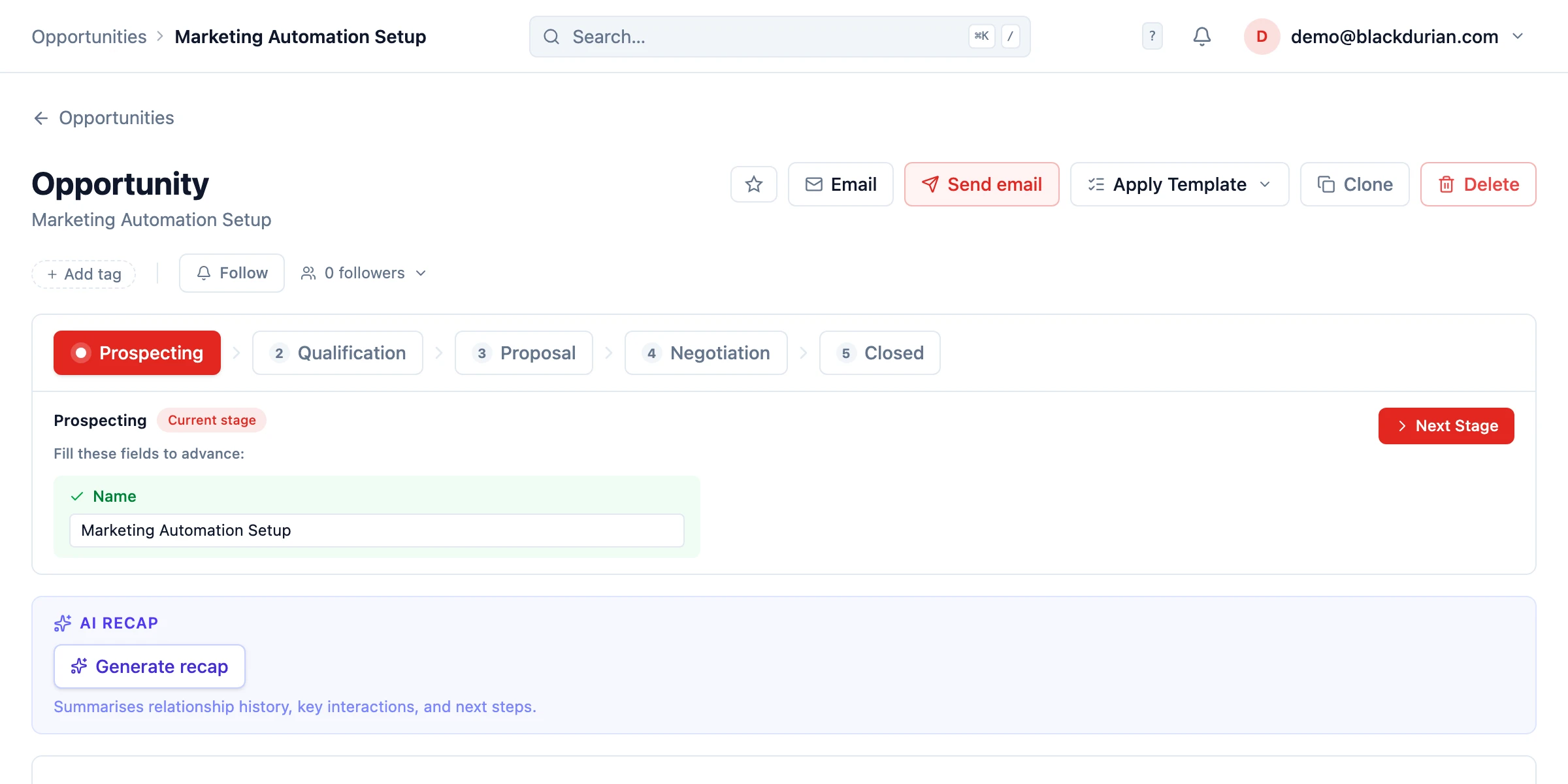
- Look at the process bar at the top of the page — it shows all stages with the current stage highlighted
- Click any stage to see what fields are required for that stage (this is informational and does NOT move the deal)
- Fill in any required fields shown for the current stage — you can edit them inline
- Once all required fields are filled, click the Next Stage button on the right of the process bar
- When the deal reaches the final decision stages, the buttons change to Close Won and Close Lost
Required Fields and Validation
Section titled “Required Fields and Validation”When a stage has required fields configured, HARi enforces them before allowing the deal to move forward. This keeps your data clean and ensures your team follows the process.
If a required field is missing:
- HARi displays a clear message listing the fields that need to be filled
- The deal stays in its current stage until all requirements are met
- You can fill the fields right from the prompt without navigating away
Tracking Win/Loss
Section titled “Tracking Win/Loss”When a deal reaches its final outcome:
- Use the Close Won or Close Lost buttons on the process bar (or drag the card to the corresponding column in Kanban view)
- For Close Won: The deal value is added to your revenue totals and dashboard metrics
- For Close Lost: Record a loss reason on the deal (e.g. “Price too high”, “Went with competitor”, “No decision”)
Recording loss reasons helps you identify patterns and improve your sales process over time.
Deal Timeline
Section titled “Deal Timeline”Every deal record has a timeline showing all interactions:
- Emails sent and received
- Notes added by team members
- Stage changes with timestamps
- Tasks completed
- Meetings logged
This gives any team member full context on a deal without asking colleagues for updates.
Filtering and Sorting Deals
Section titled “Filtering and Sorting Deals”Use saved views to focus on what matters:
- My Open Deals — Filter by assigned user and exclude closed stages
- Closing This Month — Filter by expected close date within the current month
- High Value — Sort by deal value descending, filter above a threshold
Next Steps
Section titled “Next Steps”- Lead Qualification to set up qualification rules before deals enter the pipeline
- Follow-Up Reminders to automate reminders for stale deals
- Track Interactions to log all communication on deals