
How to Generate a PDF from a Record
How to Generate a PDF from a Record
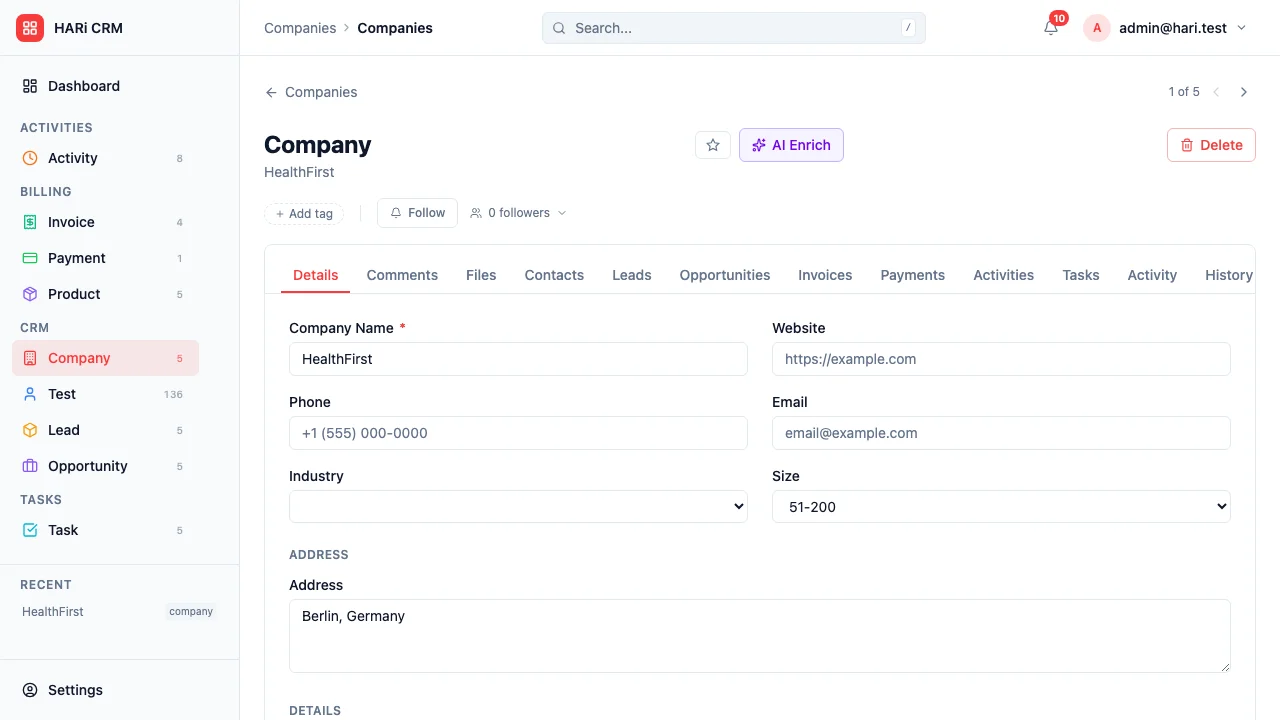
Section titled “How to Generate a PDF from a Record”HARi CRM can generate professional PDF documents from any record — invoices, quotes, proposals, or any custom entity that has a PDF template assigned.
Generating a PDF
Section titled “Generating a PDF”- Open the record you want to generate a PDF for (e.g. an invoice)
- Click the PDF button in the record toolbar (visible only if a PDF template exists for the entity)
- The PDF is generated and downloaded to your computer
The button is hidden when no template is configured for the entity. Add one in Settings > Templates before trying again.
Sharing the PDF
Section titled “Sharing the PDF”After download:
- Send by email — Click Send Template in the same toolbar to compose an email using one of your email templates. The PDF is not auto-attached; drag-and-drop the downloaded file into the composer if you want to include it.
- Attach to the record — Drag the PDF into the Files tab on the record so colleagues can find it later.
How Templates Work
Section titled “How Templates Work”PDF templates define the layout and content of the generated document. They pull data directly from the record:
- Header — Your company logo, name, and address
- Customer details — Pulled from the linked contact or company
- Line items — For invoices and quotes, the items table is generated automatically
- Footer — Payment terms, notes, or legal text
Templates are managed in Settings > Templates. You can have multiple templates for different purposes (e.g. a formal invoice template and a simple receipt template). Today, the PDF button uses the first matching template for the entity.
Template Variables
Section titled “Template Variables”Templates use placeholders that are replaced with actual data when the PDF is generated:
- Record fields (invoice number, date, total)
- Related record fields (customer name, address)
- Calculated values (subtotal, tax, grand total)
- Your company information (from workspace settings)
- Preview before sending — Always review the PDF to catch formatting issues
- Use your branding — Add your logo and brand colors to the template for a professional look
- Multiple formats — Create different templates for different document types (invoice vs. quote vs. contract)