
How to Log a Phone Call or Meeting
How to Log a Phone Call or Meeting
Section titled “How to Log a Phone Call or Meeting”Logging calls and meetings in HARi CRM ensures your team has a complete history of every customer interaction. When someone else takes over a deal or a colleague needs context before a meeting, the full story is right there.
Logging from the Activities List
Section titled “Logging from the Activities List”The clearest way to log a call or meeting:
- Go to Activities in the left sidebar
- Click New at the top of the list
- Fill in the details:
- Type — pick Call, Meeting, Email, or Note
- Subject — brief description (e.g. “Initial discovery call”)
- Date — when it happened (defaults to now)
- Duration — how long it lasted, in minutes (calls and meetings)
- Description — key points discussed, decisions made, next steps
- Contact / Company / Opportunity — link the activity to the relevant records (these are Linked record fields)
- Click Save
The activity now appears on every linked record’s Timeline tab.
Logging from a Record’s Subgrid
Section titled “Logging from a Record’s Subgrid”When you’re already on a contact, company, or opportunity:
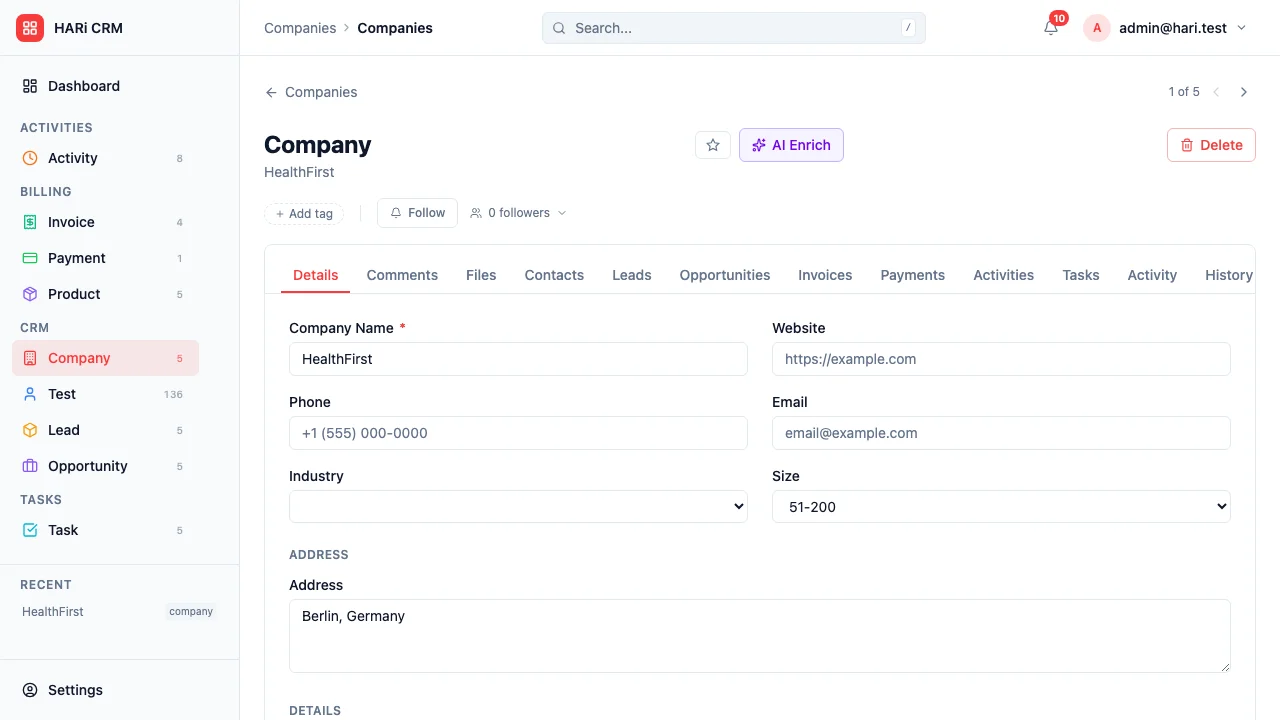
- Scroll to the Activities subgrid on the record
- Click New within the subgrid — the contact / company / opportunity link is pre-filled
- Pick the type, fill the details, and save
What to Include in the Description
Section titled “What to Include in the Description”Good activity notes help your future self (and your teammates). Include:
- Key discussion points — what did the customer say? What concerns did they raise?
- Decisions made — any agreements or commitments from either side
- Next steps — what needs to happen next, and by when?
- Attendees — who was on the call or in the meeting
Creating Follow-Up Tasks
Section titled “Creating Follow-Up Tasks”After logging an activity, you often need to follow up. The Tasks entity is separate from Activities — to spawn a task:
- Go to Tasks (or scroll to the Tasks subgrid on the contact / company)
- Click New and set the subject, due date, and link it to the same contact or deal
- Save — the task shows up on the contact’s record and in the assignee’s task list
Viewing Interaction History
Section titled “Viewing Interaction History”To see all interactions with a contact or company:
- Open the record
- Scroll to the Activities subgrid (or the Activity sidebar widget if it’s on the form)
- All calls, meetings, emails, and notes appear in chronological order