
Set Up a Lookup Field
Set Up a Lookup Field
Section titled “Set Up a Lookup Field”In HARi the field type that creates a link between two entities is called a Relation field. The terms “lookup” and “relation” mean the same thing here — a field whose value points to another record.
How Relations Work
Section titled “How Relations Work”A relation field stores a reference to a record in another entity. In the form it appears as a searchable picker — when you start typing, HARi searches the linked entity and shows matching records.
The link works in both directions:
- On the source entity: a relation picker field appears on the form
- On the target entity: a subgrid appears showing all records that reference it
Creating a Relation Field
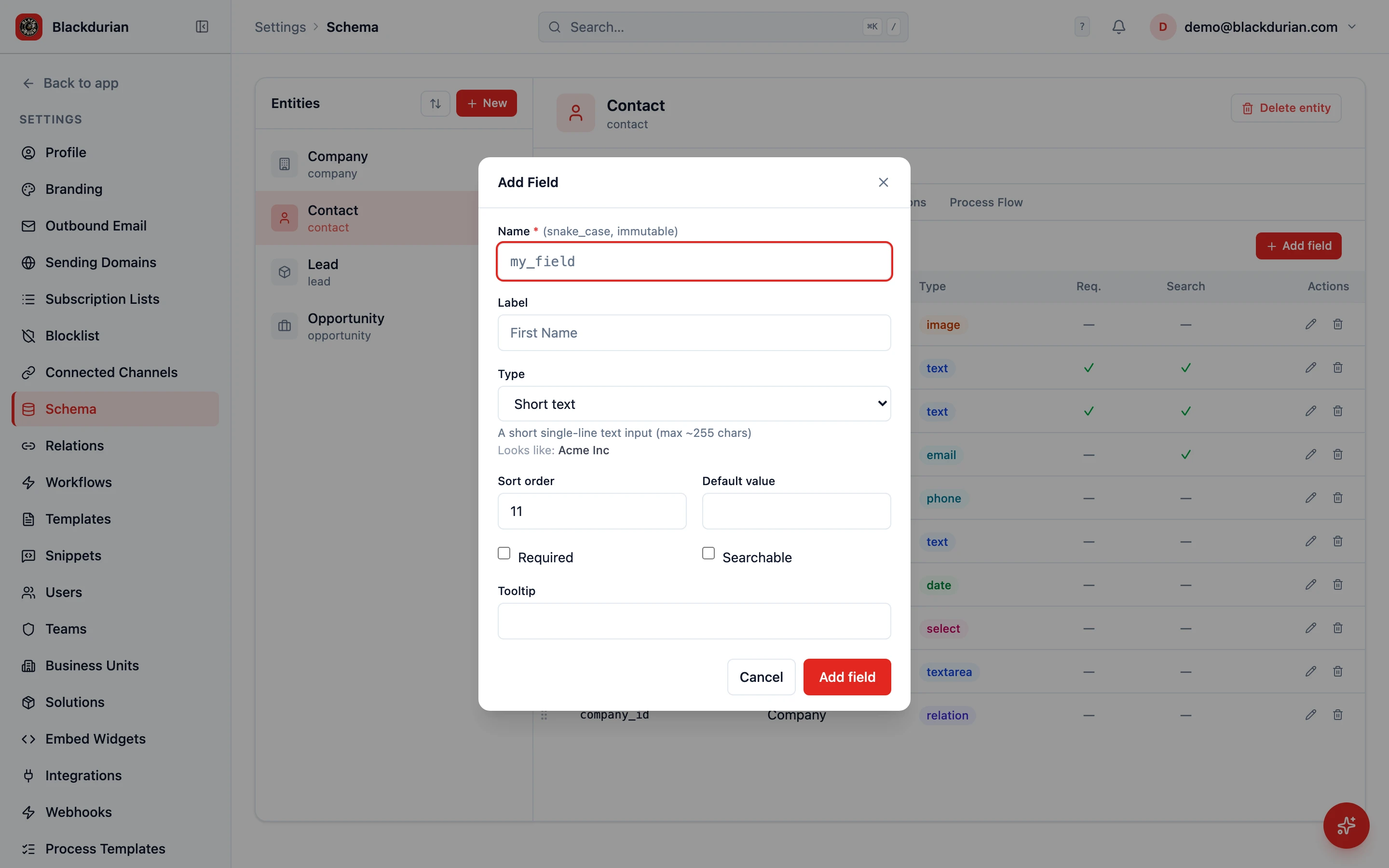
Section titled “Creating a Relation Field”- Go to Settings > Schema
- Select the entity where you want to add the field (e.g. “Contact”)
- Open the Fields tab
- Click to add a new field
- Configure:
- Name + Label: A clear label (e.g. “Company”, “Primary Contact”, “Related Project”)
- Type: Select Relation
- Related Entity: Choose the entity this field should reference (e.g. “Company”)
- Required: Toggle on if every record must have this relationship
- Save
Using the Relation on a Record
Section titled “Using the Relation on a Record”Once created, the relation field appears on the record form:
- Open a record (e.g. a Contact)
- Find the relation field (e.g. “Company”)
- Start typing the name of the related record
- HARi searches the related entity in real time
- Select the correct record from the results
- Save
The contact is now linked to that company.
The Subgrid (Reverse Relationship)
Section titled “The Subgrid (Reverse Relationship)”On the target entity (e.g. Company), a subgrid automatically appears showing all records that reference it:
- Open a Company record
- Scroll to the Contacts subgrid
- You see all contacts linked to this company
- Click + in the subgrid to create a new contact with the company pre-filled
Multiple Relations
Section titled “Multiple Relations”You can have multiple relation fields on the same entity. For example, an Opportunity might have:
- Company — The company this deal is with
- Primary Contact — The main contact person
- Owner — The assigned sales rep (a relation to the Users entity)
Each relation creates its own link and subgrid.
One-to-Many vs. Many-to-Many
Section titled “One-to-Many vs. Many-to-Many”A relation field creates a one-to-many link (one company has many contacts). For many-to-many links (a contact can belong to multiple lists, for example), use the Relations tab in the schema editor to define a habtm (has-and-belongs-to-many) relationship between the two entities.
Next Steps
Section titled “Next Steps”- Link Contacts to Companies for a practical example of using lookups
- Create a Custom Entity to build the entity before adding lookups
- Customize Form Layout to position your lookup field on the form