
Quick create — add a task or log an email without leaving
Open a contact or a company and add a task, or log an email, a call or a meeting, without leaving the record. A side panel opens on the right, already linked. You fill it in, click Create, and you are still on the person you were talking about. The tab that holds this history is now called Timeline — it used to be labelled Activity. When you log an interaction by hand, it also appears as an activity on that Timeline. Interactions written by automations do not.
Salesforce’s State of Sales, 6th edition — a double-anonymous survey of 5,500 sales professionals across 27 countries (8 March–18 April 2024) — found that reps spend 70% of their time on nonselling tasks (Salesforce, 50 Sales Statistics). Quick create is the short path: stay on the record, log what happened, go back to the conversation.
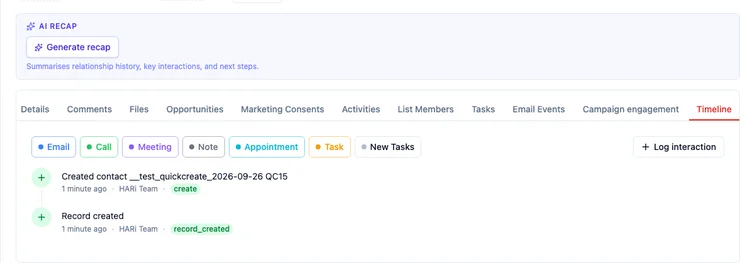
How do I add a task or log an email from a contact?
Section titled “How do I add a task or log an email from a contact?”- Open the contact or the company.
- Click the Timeline tab.
- Click Email, Call, Meeting, Note, Appointment, Task, or New Tasks.
- A side panel opens on the right, already linked to the record you are on.
- Fill the fields and click Create. You stay on the contact. Create and add another keeps the panel open for the next one.
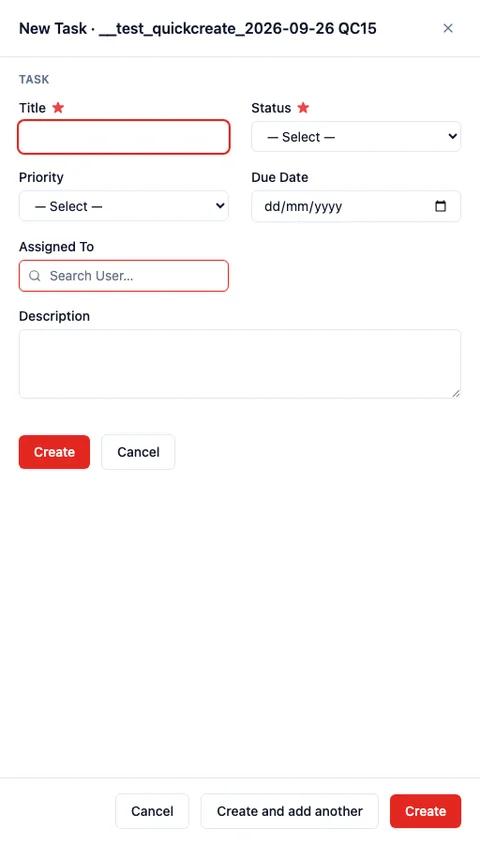
The same panel opens from + New on a related list — the Tasks tab, the Activities tab — when that entity has a Quick create form, and from Create new on a lookup.
On a phone the panel is full-screen. Close it with the × or Cancel. If you already typed something, HARi asks before discarding the draft.
What is the Timeline tab?
Section titled “What is the Timeline tab?”Every record has a Timeline tab. It is the chronological list of what happened on that record: emails, calls, meetings, notes, tasks, and the create and update events. It used to be labelled Activity. The Activities tab next to it is still the related list of activity rows, if you want the table. History is the field-by-field change log.
Above the list, when there is something to filter, HARi shows a search box and shortcuts for Today, Upcoming, and My activities. Log interaction sits to the right of the type buttons.
The list-page mode that arranges records by a date field is a different surface — see Timeline view.
What happens when I log an interaction?
Section titled “What happens when I log an interaction?”Log interaction is the “what happened?” picker: Email, LinkedIn message, WhatsApp message, WeChat message, Phone call, In-person meeting, Note / Other.
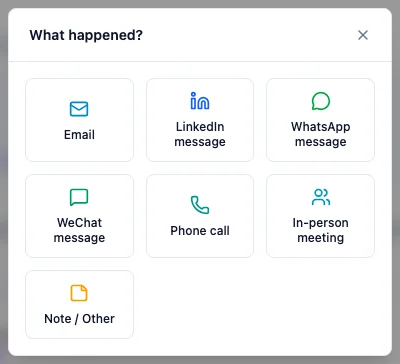
- On the Timeline, click Log interaction.
- Pick Email (or a call, a meeting, a note).
- Add a subject and a short description if you want, then save.
A hand-logged interaction now also creates an activity on the same record, so it shows on the Timeline as an email, a call, or a meeting — not only as a one-line interaction. Automations that log an interaction (a campaign send, a workflow) do not create that extra activity; those already have their own Timeline cards.
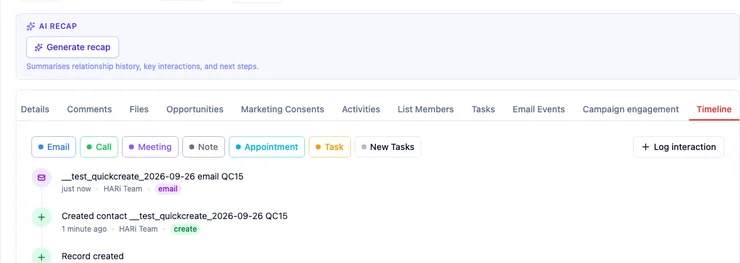
Send email in the header still sends. Log interaction → Email records that an email happened, including one you sent outside HARi.
How do I set up Quick create for an entity?
Section titled “How do I set up Quick create for an entity?”Administrators own the forms.
- Go to Settings → Schema.
- Pick the entity (Task, Activity, or one you created).
- Open the Forms tab.
- Add a form, or open the Quick create form that already exists.
- Set Type to Quick create — in the type list that option is labelled Quick popup from lookups.
- Put only the fields people need to fill in a hurry. Every required field must be on the form, or save is refused.
See Customise form layout for tabs, sections, and field order.
What does create_type_field do?
Section titled “What does create_type_field do?”On the Activity Quick create form, a layout setting named create_type_field is set to type — the Type choice (Email, Call, Meeting, Note, Appointment). That is why the Timeline shows one button per type instead of a single New Activity.
A Task form does not set create_type_field, so the Timeline shows one New Tasks button.
If you add a Quick create form on another entity that has a single-choice field, set create_type_field to that field’s name to get one Timeline button per choice. If the key is missing, or does not name a single-choice field, HARi shows one New {entity} button.
When does a related list use the side panel?
Section titled “When does a related list use the side panel?”The rule is per entity, not global:
- The related entity has a Quick create form, and you are allowed to create it → + New on that related list opens the side panel, already linked.
- It does not → the related list stays an inline row, as before.
- Timeline buttons and lookup Create new also use the Quick create form when one exists, and a Create form if not.
HARi uses one Quick create form per entity — the first of that type. You only see a button for an entity you are allowed to create. If you cannot create Tasks, New Tasks is not there.
A workspace that already has Tasks and Activities installed gets these forms on a new install. If you already customised a form with the same name, an upgrade leaves yours in place.