
Connect your AI app to HARi
Copy the link at the top of Settings → Connect to AI, paste it into your AI app, and sign in with your HARi email and password. Tick the workspaces that app may open, then press Allow. It can read those records. It can change them only if you also tick Read and change records, and by default it still asks you before each change.
Connect in one minute
Section titled “Connect in one minute”Copy the link, sign in, and tick workspaces. That is the whole connection. Until you press Allow, the app cannot open your records.
- Go to Settings → Connect to AI.
- Copy the link at the top of the page.
- In your AI app, add HARi and paste that link.
- Sign in with the email and password you already use for HARi.
- Tick each workspace this app may open. If you have one workspace, it is already ticked. If you have several, none are ticked until you choose.
- Leave Read and change records unticked if the app should only look. Tick it if the app may create and update records.
- Press Allow. Cancel connects nothing.
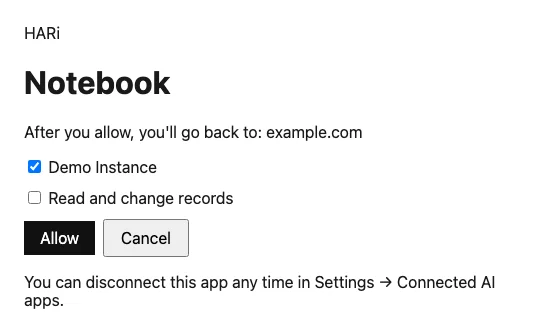
You are choosing which of your workspaces the app may open, and whether it may change records there. Hong Kong’s Privacy Commissioner quotes Data Protection Principle 3 in one line: “Personal data shall not, without the prescribed consent of the data subject, be used for a new purpose.” (Privacy Commissioner for Personal Data, Hong Kong). Letting an app read customer records is a new use of that data. Ticking a workspace does not replace the consent your own customers must give when the law requires it.
Which AI apps work in Hong Kong
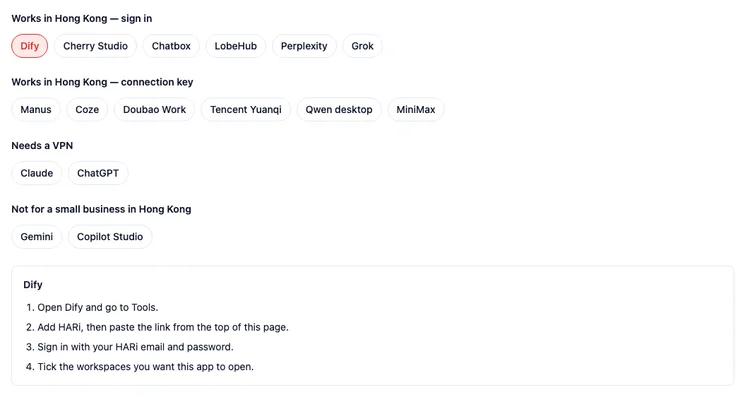
Section titled “Which AI apps work in Hong Kong”Settings → Connect to AI lists apps in four groups, in the order a small business in Hong Kong can actually open them. The list is what that page shows. It is not a pass mark from a test of every app on your computer.
As at March 2026, Hong Kong had some 360,000 small and medium-sized enterprises. They were over 98 per cent of the business sector and employed 1.2 million people (HKSAR Government, 31 August 2026).
Works in Hong Kong — sign in. Dify, Cherry Studio, Chatbox, LobeHub, Perplexity, and Grok. Open the app, add HARi, paste the link, sign in, and tick workspaces. Dify starts in Tools. Cherry Studio and Chatbox start in tool settings. LobeHub starts in plugin settings. Perplexity starts in connector settings.
Works in Hong Kong — connection key. Manus, Coze, Doubao Work, Tencent Yuanqi, Qwen desktop, and MiniMax. These apps do not show HARi’s sign-in page. Use a connection key, as the next section describes.
Needs a VPN. Claude and ChatGPT do not work in Hong Kong without a VPN. For Claude, use the website or the desktop app. The phone app is still in testing. For ChatGPT, use the website, turn on developer mode, and paste the link. The phone app cannot add this. Changing records works only on ChatGPT Business, Enterprise, or Education plans.
Not for a small business in Hong Kong. The everyday Gemini app, and Copilot Studio. HARi points you to an app higher on the page, such as Dify or Cherry Studio.
Apps without sign-in: use a connection key
Section titled “Apps without sign-in: use a connection key”A connection key is the way in for an app that cannot show HARi’s sign-in page. On that app’s tab, press Create connection key. Leave the choice on Read only unless you want the app to change records. Tick the workspaces the key may open. A name is optional — “Laptop” is enough. Press Create connection key, then copy the key. You will not see it again. Paste it into the app.
The key opens only the workspaces you ticked. It keeps working until you disconnect it. Your keys are listed under Your connection keys on the same page. If you have none yet, the page says so and tells you to open an app that uses a key, then create one.
Changes need your OK
Section titled “Changes need your OK”Changes wait for your OK. On Settings → Profile, under Preferences, Ask me before AI apps change records starts switched on. While it is on, the app shows you each change and waits. Nothing is saved until you agree. Switch it off and the app can create and update records straight away. You can still see every change in the record history. This one switch covers every workspace on your account.
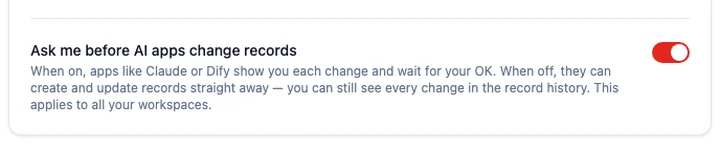
An administrator can also turn on Always ask before AI apps change records in this workspace under Settings → AI Permissions. While that is on, the app must ask even if someone turned their own switch off.
A workspace that is archived, or closing, stays read only. The app can look and you can still export. It cannot change records there.
Disconnect an app
Section titled “Disconnect an app”Open Settings → Connected AI apps and press Disconnect on the app. HARi asks first. Confirm, and the app loses access to the workspaces you had allowed. Cancel leaves it connected. You can connect it again later. Disconnecting does not delete your records.
A connection key is disconnected on Settings → Connect to AI, in Your connection keys. HARi asks first. After you confirm, that key stops working.
An administrator also sees other people’s connections for this workspace, and can remove this workspace from one of them. That person can still use the app in any other workspace they had ticked.
Your admin’s AI Permissions apply
Section titled “Your admin’s AI Permissions apply”The app acts as you. It can open only records you can already open, and it can change them only when two things are true: you allowed changes on the connection, and an administrator allowed that kind of change under Settings → AI Permissions. Reading, creating, editing, and archiving are separate switches. If AI is switched off for you, the app cannot use the workspace until an administrator turns it back on.
The same permissions govern the AI assistant inside HARi. Who may see a record is unchanged: see Who can see this record? and Permissions and security.
Installing the Claude Code skill is a different path. That download talks to HARi with your sign-in or an API key from Settings → Profile. This page is for an AI app that connects with the link, or with a connection key.