
How to Use Kanban Board View
How to Use Kanban Board View
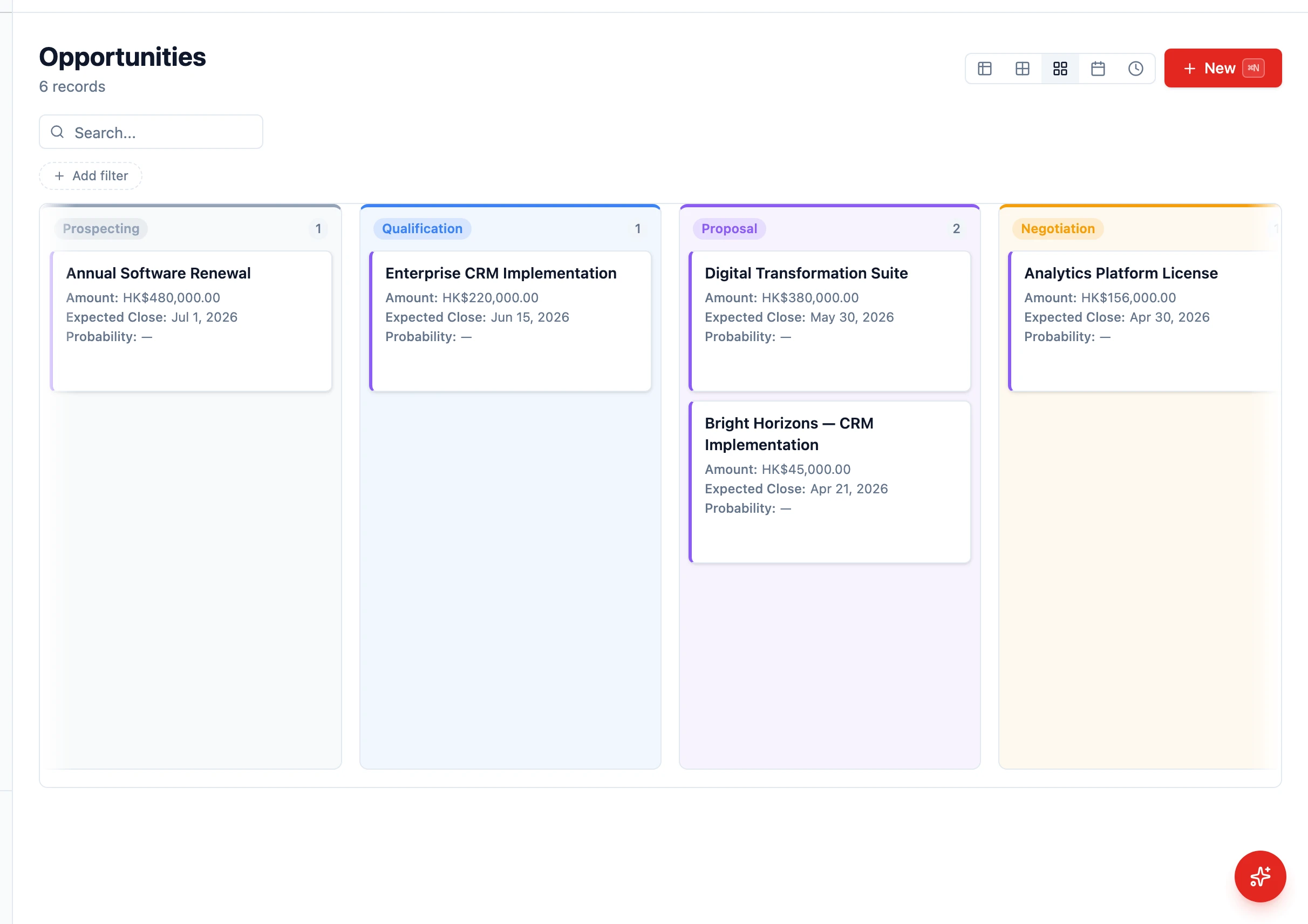
Section titled “How to Use Kanban Board View”The Kanban view displays your records as cards organized into columns, where each column represents a stage or status. It is the fastest way to see where everything stands and to move items between stages.
Switching to Kanban View
Section titled “Switching to Kanban View”- Navigate to any entity list whose entity has a select field (e.g. Opportunities with a Stage field, Tasks with a Status field)
- In the view-mode toolbar, click the Kanban icon
- The list transforms into a board with one column per option of that select field
If the entity has more than one select field, use the group-by selector at the top of the board to pick which field drives the columns.
Understanding the Board
Section titled “Understanding the Board”- Columns — Each column is one option of the select field (e.g. Qualification, Proposal, Negotiation, Won, Lost)
- Cards — Each card is a record showing the entity’s display field plus the configured card fields. Linked-record, lookup, and choice fields on a card show the human name (for example, Client: Acme Ltd) — never a raw record ID — matching how the same fields read in the list view
- Column counts — The header of each column shows how many records are in that column
- Orphaned column — If a record’s value doesn’t match any current option, it appears in a synthetic “no value” column
Moving Records Between Stages
Section titled “Moving Records Between Stages”- Click and hold a card
- Drag it to the target column
- Drop it — the record’s field value updates instantly
If the target stage is governed by a Business Process Flow and has required fields, HARi prompts you to fill them in before the move completes.
Filtering the Board
Section titled “Filtering the Board”The same filters available in table view work in Kanban view:
- Open the filter bar
- Add filter conditions (e.g. Owner = me, Close date = this month)
- The board updates to show only matching records
Customising Card Content
Section titled “Customising Card Content”The fields shown on each Kanban card come from the entity’s card configuration — set up by an admin via Settings > Schema > Forms tab. To change what every Kanban card shows, edit the card layout there. There is no per-user toggle on the Kanban toolbar.
Card thumbnails. If the entity has a header image field configured (the same field that shows the large photo at the top of a record’s edit page), each Kanban card displays a small thumbnail of that image to the left of its title — so you can recognise a record at a glance. Records without an image simply show no thumbnail and the card layout is unchanged. No toolbar setting is needed; the thumbnail appears automatically wherever a header image field is set.
Saving a Kanban View
Section titled “Saving a Kanban View”- Set your filters and group-by, then switch to Kanban
- Open the views menu and click Save current view
- Give it a name (e.g. “My active deals”)