
Send email from HARi through Outlook or Microsoft 365
Connecting your Microsoft 365 mailbox is the quickest way to send real email from HARi. You sign in once with your Microsoft account, and from then on every email HARi sends leaves through your own mailbox — from your real Outlook address, with your signature and reply-to, landing in your Outlook Sent Items exactly as if you’d typed it there yourself.
There is no DNS to configure, no password to hand over, and no limit on how much you send: the volume is your Microsoft account’s business, not your HARi plan’s.
What you need before you start
Section titled “What you need before you start”- A Microsoft account with the mailbox you want to send from — normally your Microsoft 365 work or school account, the same one you already use for Outlook. A personal Microsoft account may or may not be accepted at the sign-in step depending on how the connection is registered with Microsoft; if yours is refused there, use a work or school account.
- Permission to grant an app access to your mailbox. Most organisations allow this; some require an administrator to approve it once for the whole tenant. If your sign-in ends with a message about needing admin approval, that’s what happened — see When it doesn’t work.
You do not need to be a HARi administrator to connect your own mailbox. Any user can connect theirs.
Connect your mailbox
Section titled “Connect your mailbox”-
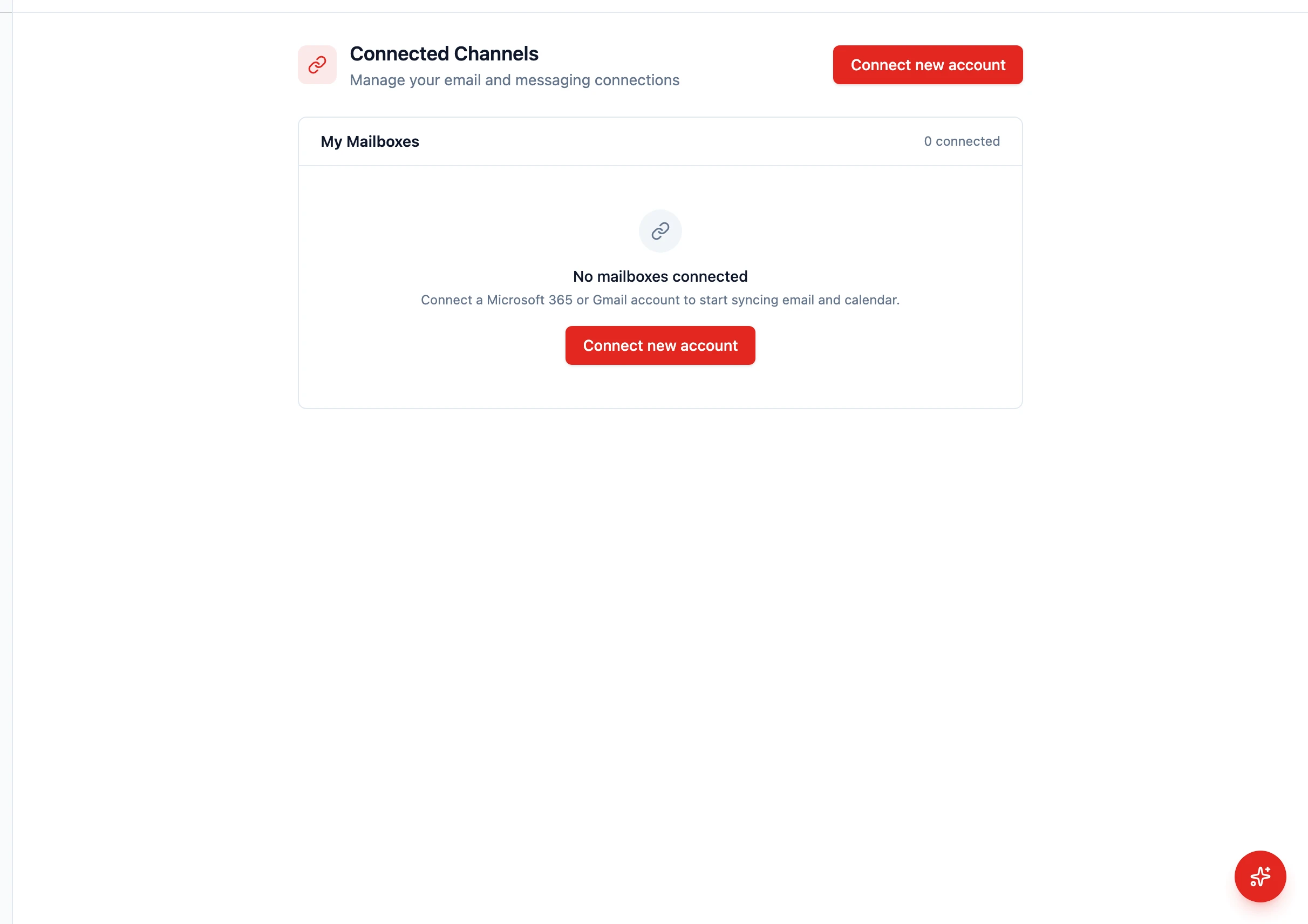
Open Settings → Connected Channels in HARi.
-
Click Connect new account. A short dialog asks you to choose a provider.
-
Choose Microsoft 365 — described as “Connect your Outlook email and calendar”.
-
Sign in to Microsoft in the popup window that opens, using the account whose mailbox you want to send from. HARi shows “Complete the sign-in in the popup window. This page will update automatically.” while it waits.
-
Review what you’re granting and accept. Microsoft lists the permissions HARi asks for: reading and sending mail as you, and reading and writing your calendar. Accepting is what allows HARi to send on your behalf; declining cancels the connection.
-
Wait for the page to update. When the popup closes, your mailbox appears under My Mailboxes with its email address. That’s the connection done.
-
Make it the sender. Open Settings → Email Sending (called Outbound Email in earlier versions), find your new mailbox under Your senders and mailboxes, and click the star toggle on its card — it reads My default for a mailbox you connected yourself, or Workspace default for a shared one. Outgoing mail now leaves through that mailbox. If several people have connected their own, each can set their own default, and an administrator can set one as the workspace default.
-
Test it. Click Test send on that same mailbox card — it emails your own account. The test should arrive in your inbox and appear in your Outlook Sent Items. That second half is the real proof, because it means the message genuinely went through your mailbox rather than around it.
What this method costs you
Section titled “What this method costs you”Nothing, on the HARi side. Mail sent through a connected mailbox is unlimited and never draws on your plan’s sending allowance or your credits — you are sending through infrastructure you already pay Microsoft for, so HARi has no reason to meter it.
What does still apply is pacing. HARi spreads bulk campaign sends over time rather than dumping them all at once, because a sudden spike from a mailbox that normally sends twenty emails a day is one of the fastest ways into the spam folder. Google’s own sender guidelines tell every sender to “start with a low sending volume to engaged users, and slowly increase the volume over time” (Google, Email sender guidelines), and HARi’s pacing follows that shape for you.
Leave the send rate on Automatic (recommended) and it starts conservatively, then climbs on its own as your mail keeps landing cleanly. Pacing applies only to bulk campaigns — one-to-one emails, replies, and test sends always go out immediately.
Is my domain already authenticated?
Section titled “Is my domain already authenticated?”Usually yes, and that is exactly why this method needs no DNS work from you: the message leaves Microsoft’s servers as you, so whatever authentication your Microsoft 365 domain already publishes is what the recipient checks.
One thing is worth verifying, though, because it catches organisations out — and it concerns DKIM, the cryptographic signature a sending server adds to each message so the recipient can prove the mail was authorised by your domain. Microsoft signs automatically only for the built-in domain your subscription was created with (the one ending .onmicrosoft.com, which Microsoft calls the MOERA domain). Its documentation is explicit: “If you use only the Microsoft Online Email Routing Address (MOERA) domain for email (for example, contoso.onmicrosoft.com): You don’t need to do anything.” For a custom domain — yourcompany.com — an administrator has to enable DKIM signing once, which means adding two CNAME records and switching it on in the Microsoft Defender portal (Microsoft, How to use DKIM for email in your custom domain).
This matters more than it used to. From 5 May 2025, Outlook.com began treating unauthenticated mail from domains sending more than 5,000 messages a day as junk, and moved on to refusing it with 550; 5.7.515 Access denied, sending domain [domain] does not meet the required authentication level (Microsoft, Outlook’s New Requirements for High-Volume Senders). Gmail has required the same of bulk senders since February 2024.
Tip — If you’re not sure whether your Microsoft 365 custom domain has DKIM enabled, ask whoever administers your Microsoft 365 account to check the DKIM page in the Defender portal. It’s a five-minute, one-time job, and it is the difference between your campaigns arriving and your campaigns being junked.
What else the connection gives you
Section titled “What else the connection gives you”Connecting the mailbox is not only about sending. Once it’s linked:
- Incoming email from people who exist in HARi shows up on their contact timeline automatically, so the history of a relationship is in one place.
- Email threads stay in sync between Outlook and HARi.
- Your Outlook calendar is visible in HARi, and meetings you create from a record land in your real calendar.
See Unified inbox and connected channels for what that looks like day to day.
When it doesn’t work
Section titled “When it doesn’t work”| What you see | What it usually means | What to do |
|---|---|---|
| Microsoft says approval from an administrator is needed | Your organisation restricts which apps can access mailboxes | Ask your Microsoft 365 administrator to approve HARi once. After they do, run the connection again — it will go straight through |
| The popup closes with nothing connected | The sign-in was cancelled, or a browser blocked the popup | Allow popups for HARi and try again. Make sure you complete the Microsoft consent screen rather than closing it |
| You connected the wrong account | Your browser was already signed in to a different Microsoft account | Disconnect the mailbox in Connected Channels, then connect again and choose Use another account on the Microsoft sign-in screen |
| Your mailbox isn’t listed under Your senders and mailboxes | The connection didn’t complete, so there’s nothing to set as sender | Go back to Settings → Connected Channels and connect the account first; it appears under Your senders and mailboxes once the sign-in finishes |
| A test send fails | The connection has expired, usually after a password change or a revoked session | Disconnect the mailbox and connect it again to refresh the sign-in |
| Mail sends but never reaches recipients | A deliverability problem, not a connection one | Check your domain’s DKIM status (above), then read Why are my emails not sending? |
| Campaigns go out slower than you expected | Automatic pacing is working as designed | Nothing — the rate climbs by itself as your sending stays clean. Only override it to Manual if Microsoft has given you a specific rate to hold |
Related
Section titled “Related”- Email Sending — the one page all four methods are chosen and set up on
- HARi Email — the sending method included with your plan
- Your own SMTP server — if you’d rather use SMTP credentials than sign in
- Plunk — a dedicated sending service on your own account
- Outlook / Microsoft 365 integration — the wider integration, including calendar sync
- Email sending allowance — why a connected mailbox is unlimited