
How to Reset Your Password
You’ve forgotten your password or need to change it for security reasons.
From the login page
Section titled “From the login page”- Go to the HARi login page.
- Click “Forgot password?” below the password field.
- Enter the email address associated with your HARi account.
- Check your inbox for a password reset email. It will arrive within a few minutes.
- Click the reset link in the email. The link is valid for 1 hour.
- Enter your new password. It must be at least 8 characters.
- Click “Set new password” and log in with your new credentials.
From inside your account
Section titled “From inside your account”- Click your avatar or initials in the top-right corner.
- Select “My Profile”.
- Click “Change password”.
- Enter your current password, then your new password twice.
- Click “Save”.
Common issues
Section titled “Common issues”- “No account found with this email” — double-check the email address. You may have registered with a different email. Ask your administrator which email is on file.
- Reset email not arriving — check your spam/junk folder. If you use a corporate email with strict filtering, ask your IT team to allow emails from HARi’s domain.
- “Reset link expired” — request a new reset link. Each link is valid for 1 hour only.
- Password requirements not met — ensure your password is at least 8 characters.
Still stuck?
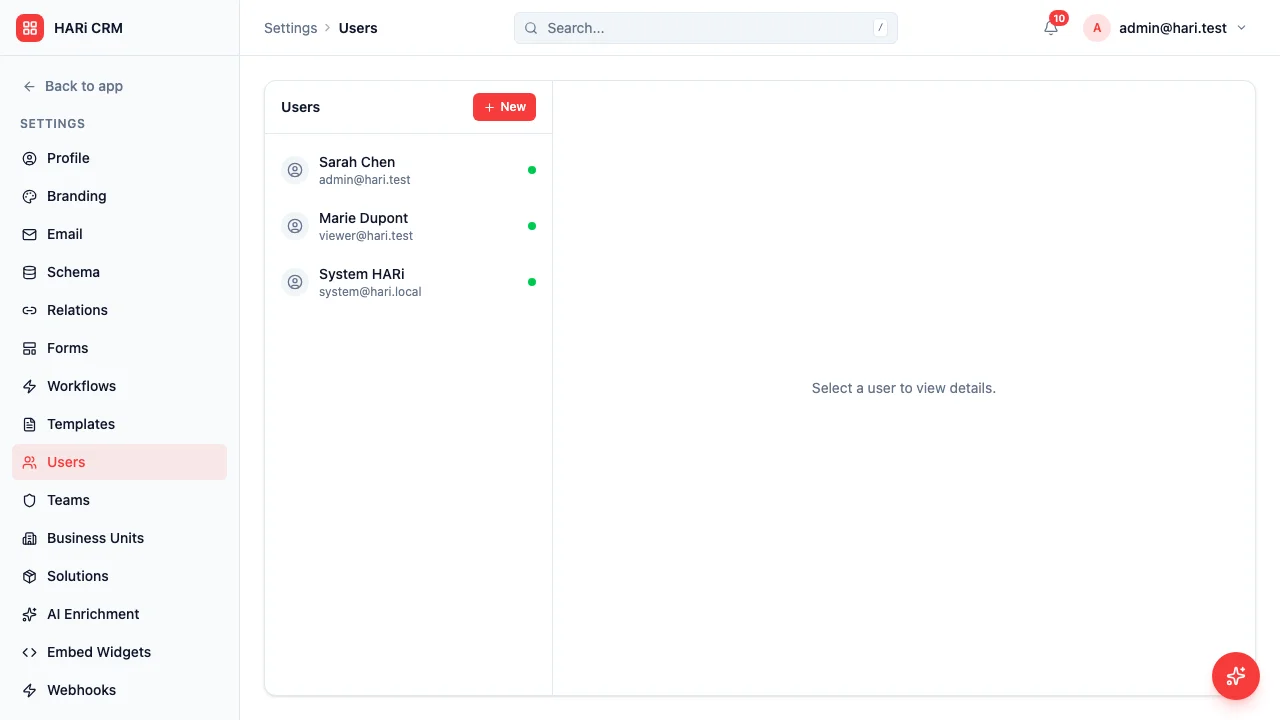
Section titled “Still stuck?”If you can’t access the email address on file, contact your HARi administrator. They can reset your password manually from Settings > Users.