
Email and Document Templates
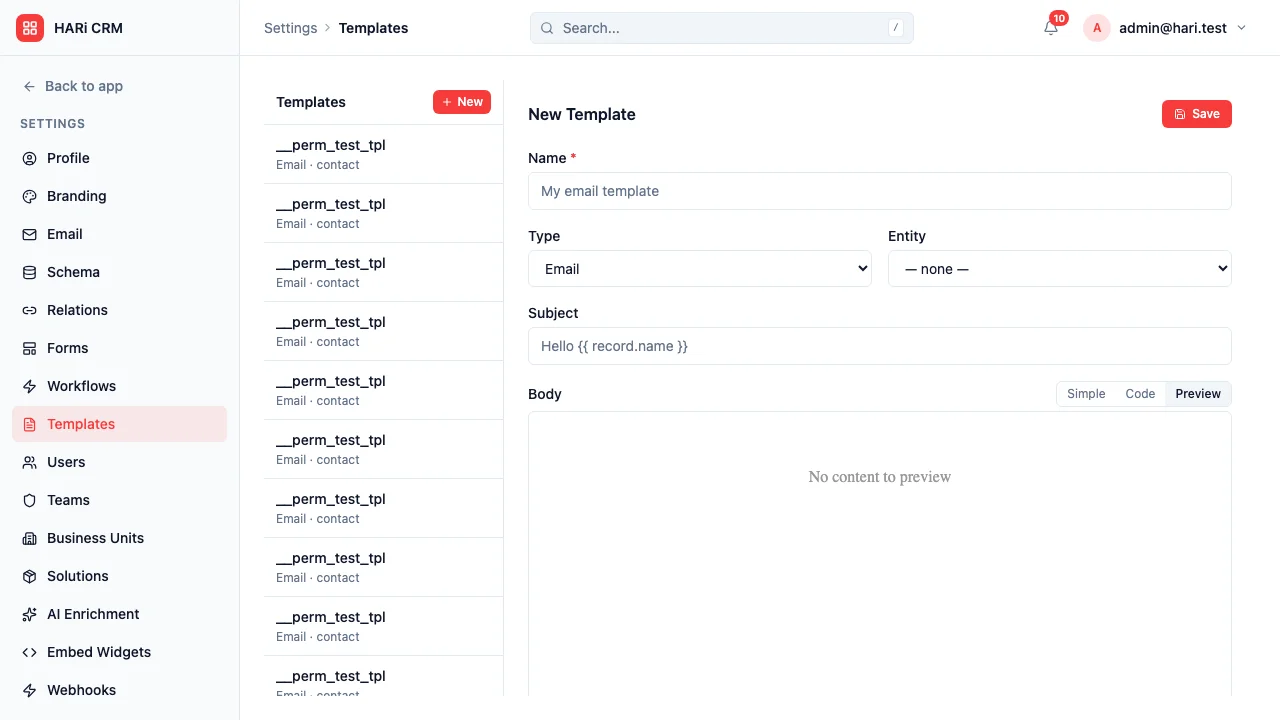
HARi templates let you write once and personalize automatically. Use them for sales emails, follow-ups, proposals, and any document you send repeatedly.
Email templates
Section titled “Email templates”Starting from a template
Section titled “Starting from a template”The first time you open Settings > Templates in a new workspace, the editor shows four starter cards:
- Newsletter — sectioned monthly update (HTML)
- Welcome email — short post-signup intro (plain text)
- Receipt — order summary with a totals table (HTML)
- Announcement — one short message and a CTA button (HTML)
Pick one to pre-fill the editor with sample copy you can edit, or click Start blank to type from scratch. The starter cards disappear once you have at least one saved template — they’re a getting-started aid, not a recurring picker.
Once you have saved templates, opening the Templates page automatically loads the one you edited most recently — so returning users land on the row they were probably about to open, instead of an empty new-template form. To create a fresh template, click + New Template in the sidebar.
Creating a template
Section titled “Creating a template”Go to Settings > Templates > + New Template and choose Email.
Each email template has:
- Name (internal, for your reference)
- Subject line (supports placeholders)
- Body (rich text editor with placeholders)
- Linked entity (Contact, Company, Opportunity, etc.)
Placeholders
Section titled “Placeholders”Use Twig-style placeholders to insert record data dynamically:
Hi {{ first_name }},
Thank you for your interest in {{ company.name }}.Your opportunity "{{ opportunity.name }}" is currentlyat the {{ opportunity.stage }} stage.
Best regards,{{ _user.first_name }} {{ _user.last_name }}
Available placeholders depend on the linked entity and its relations. The template editor shows a list of available fields as you type.
Sending a templated email
Section titled “Sending a templated email”When composing an email from a contact or opportunity record:
- Click Insert Template
- Choose from your saved templates
- Placeholders are replaced with the record’s actual data
- Review, edit if needed, and send
Document templates
Section titled “Document templates”Generate PDF or DOCX documents from templates. Ideal for proposals, contracts, and quotes.
How it works
Section titled “How it works”- Create a template with placeholders (same syntax as email templates)
- From a record page, click Generate Document
- Choose the template
- HARi fills in the placeholders and generates the file
- Download the PDF or DOCX, or attach it to an email
Example: sales proposal
Section titled “Example: sales proposal”PROPOSAL FOR {{ company.name }}
Prepared by: {{ _user.first_name }} {{ _user.last_name }}Date: {{ _now | date('d/m/Y') }}
Dear {{ first_name }},
Based on our discussion, we propose the following:
Opportunity: {{ opportunity.name }}Value: {{ opportunity.amount | currency }}Expected close: {{ opportunity.close_date | date('d/m/Y') }}
[... your proposal content ...]Template preview
Section titled “Template preview”Before saving a template, click Preview to see how it renders with sample data. The preview uses the most recently viewed record of the linked entity, so you see realistic output.
Template management
Section titled “Template management”- Organize by category: group templates into folders (Sales, Support, Billing)
- Share with team: templates are available to all users in the workspace by default
- Version history: every edit is tracked; you can revert to a previous version
- Duplicate: copy an existing template to use as a starting point
Using templates in workflows
Section titled “Using templates in workflows”Templates are a key building block for workflow automation:
WHEN contact createdIF source = "Website"THEN send email using template "Welcome - Web Lead"The workflow engine resolves all placeholders automatically from the triggering record.