
Customer Portal Booking
Portal booking lets the customers who sign in to your Customer Portal reserve a room, desk, or appointment themselves. They pick a resource and a free time, HARi checks it is still open, prevents double-bookings, and saves the reservation against their own record — no back-and-forth email, no staff data entry, and nothing for the customer to install.
What is self-service booking?
Section titled “What is self-service booking?”Self-service booking is a “Book a room” flow inside your Customer Portal: a signed-in customer chooses a resource, picks a free slot from a live calendar, and confirms — in as few as three taps. The booking is created instantly as a record in your workspace, linked to that customer, and the slot immediately shows as busy to everyone else.
Customers increasingly expect to handle this kind of task without contacting you. Zendesk’s CX Trends research reports that 69% of consumers “want to resolve as many issues as possible on their own” (Zendesk CX Trends). Booking a meeting room at 11pm on a Sunday is exactly that kind of task — portal booking lets a member handle it in the moment instead of waiting for your office to open.
Portal booking builds on two features you may already use. It reserves against the same free/busy that your public availability widget publishes — the difference is that the availability widget is the anonymous, display-only calendar for your website, while portal booking is the signed-in, write-enabled surface where a known customer actually reserves a slot. And it stores each reservation as an ordinary record, so bookings show up in your lists, reports, and workflows like everything else.
Turning on self-service booking
Section titled “Turning on self-service booking”You set booking up in two places, both of which need no code:
- In Settings → Customer Portal, include the record type your bookings live in (for a coworking space, that is typically “Venue Booking”) and choose the field that links each booking to the customer. Add it as a portal section — for example, “My bookings” — so customers can see their own reservations.
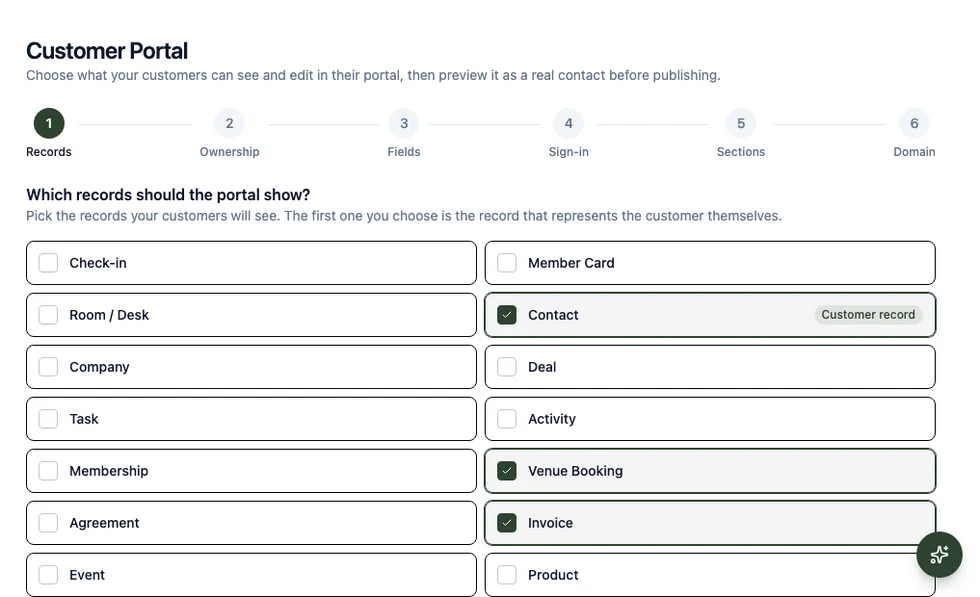
- In Settings → Availability Widgets, make sure the widget that maps your bookings — its start time, end time, and the room or desk each one belongs to — is Active. Portal booking reads availability from this widget, so the same setup that powers your public calendar also drives self-service booking.
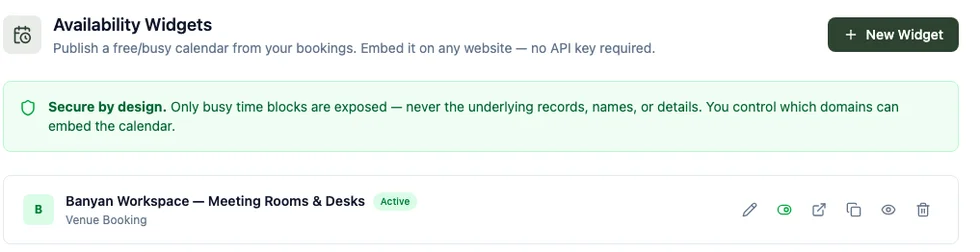
Once a bookings record type is exposed to customers and connected to an active availability widget, the “Book a room” option appears automatically in the portal. If either piece is missing, the option stays hidden — booking fails safe, so a half-finished setup never shows customers a broken button.
How your customers book a room
Section titled “How your customers book a room”When a customer signs in, a Book a room option appears in their portal navigation. The flow is three short steps:
- Choose a room. If your bookings belong to rooms or desks, the customer first picks one — each shown by its name, never an internal code.
- Choose a time. A calendar shows the next two weeks as a row of days; tapping a day reveals its open slots. Times are shown in the customer’s own timezone (labelled at the top), and already-busy or past slots are greyed out and can’t be selected — so a customer can only ever pick a genuinely free time.
- Confirm your booking. A short summary shows the room and the time; the customer taps Book and sees “Your booking is confirmed.”
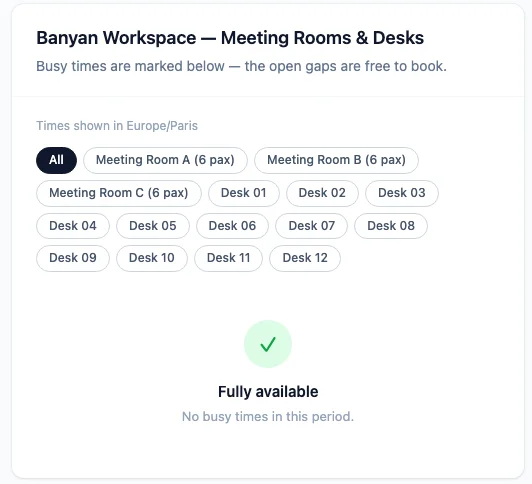
The confirmed booking then appears under the customer’s own “My bookings” list, and they are taken straight there.
Where your bookings land
Section titled “Where your bookings land”Every portal booking becomes a real record in your workspace, owned by and linked to the customer who made it — so it shows up in your normal lists, calendars, reports, and dashboards alongside bookings your team enters by hand. Because it is an ordinary record, your workflows run on it too: you can, for example, notify the front desk the moment a member books a room. Staff see the full booking; the customer only ever sees their own.
How double-bookings are prevented
Section titled “How double-bookings are prevented”Portal booking is conflict-checked on the server at the moment of booking. When a customer taps Book, HARi briefly locks that specific room, re-checks that the requested window does not overlap any existing booking, and only then creates the reservation. If someone else grabbed the same slot a second earlier, the customer sees a friendly “That time was just taken — please pick another slot.” message and the calendar refreshes to show the slot as busy. Two people can never confirm the same room for the same time.
What customers can and cannot change
Section titled “What customers can and cannot change”Customers control only what they should. The booking’s time, room, and status are set by the server from the slot they picked — a customer cannot post a booking for a time or a room the calendar did not offer, and cannot mark their own booking “confirmed” to skip the availability check. Each customer sees and manages only their own bookings; one member can never see or edit another member’s reservations. You decide any remaining editable details (such as a booking’s name or notes) when you expose the record type, following the same field-level rules as the rest of the portal — see permissions for how view-and-edit control works.
Good to know: timing and limits
Section titled “Good to know: timing and limits”- Bookings are conflict-checked live, but the public calendar can lag ~60 seconds. The signed-in booking flow always checks the current, up-to-the-second state before confirming, so double-booking is impossible. The separate public availability widget on your website is cached briefly for speed, so a brand-new booking can take up to a minute to show as busy there.
- There are sensible booking bounds. By default a customer can book up to 90 days ahead, and a single booking can run up to 8 hours — enough for a full-day desk pass, without letting anyone block a room for a month.
- Rooms come from your availability widget. A customer can only book a resource the widget lists, so retiring a room or marking the widget inactive immediately removes it from the booking flow.
For the lighter-weight, no-login way to publish just your open times on your website, see the availability widget. To set up the surrounding sign-in experience, invoices, and document access, see the Customer Portal. And to see where portal booking fits alongside the rest of HARi, start with the introduction.