
AI Enrich fills the fields you added
Click AI Enrich on a contact or a company. HARi uses the name, email and website you already have, researches public sources, and suggests values for every field on that form that has Let AI suggest values switched on in Settings → Schema. It used to fill only Job Title. You tick the rows you want and click Apply selected. Nothing is written until you do.
A contact with no job title, no notes and no company is not a rare case. In a Harvard Business Review study of data-quality scores across organisations, 47% of newly created records had at least one critical (work-impacting) error, and only 3% of scores met even a loose “acceptable” bar (Nagle, Redman & Sammon, Harvard Business Review, 2017). Thomas C. Redman puts the cost in one sentence: “It costs ten times as much to complete a unit of work when the data are flawed in any way as it does when they are perfect.” Filling the fields you actually use, not a single hard-coded title, is how AI Enrich earns its keep.
How do I choose which fields AI Enrich can fill?
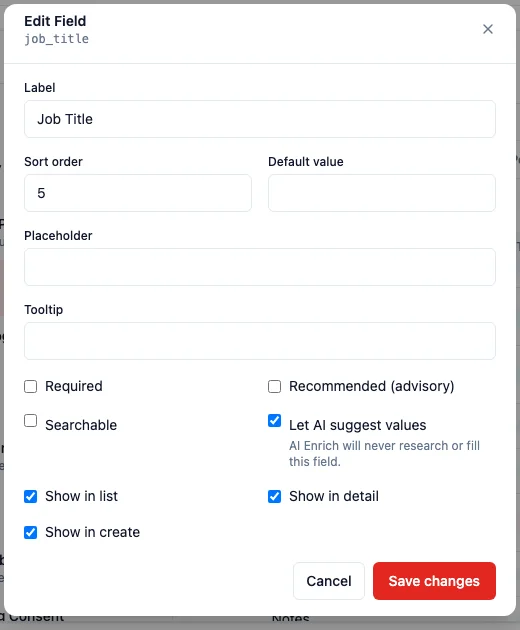
Section titled “How do I choose which fields AI Enrich can fill?”- Go to Settings → Schema.
- Open the entity (Contact, Company, or one you created).
- Click the pencil on the field.
- Tick Let AI suggest values so AI Enrich may research it. Clear the tick if this field must never be filled by AI. The hint under the switch is the off-state: AI Enrich will never research or fill this field.
- Click Save changes.
The switch is on by default. It appears on short text, long text, email, phone, URL, number, date, money, and single-choice fields. It does not appear on a linked record, a formula, a yes/no, or a file.
If every field on the form is switched off, AI Enrich still opens and says no field on this form can be filled by AI. No research runs.
See Custom entities for the Schema Editor.
What do I see when I click AI Enrich?
Section titled “What do I see when I click AI Enrich?”Open the record. Click AI Enrich in the toolbar. A panel titled AI Assistant opens on Enrich Fields.
You review, then apply:
- A Company card when the email domain points to an organisation that is not linked yet. Apply creates or links it; Skip leaves the contact as it is.
- An Identity summary when HARi is sure who the person is, with a short notes paragraph you can apply to Notes.
- A table of your form fields — Job Title, Notes, Source, Address, or any other field you switched on — each with the current value, the suggestion, and a NEW or UPDATE mark. UPDATE rows start unticked so an existing value is not overwritten by accident.
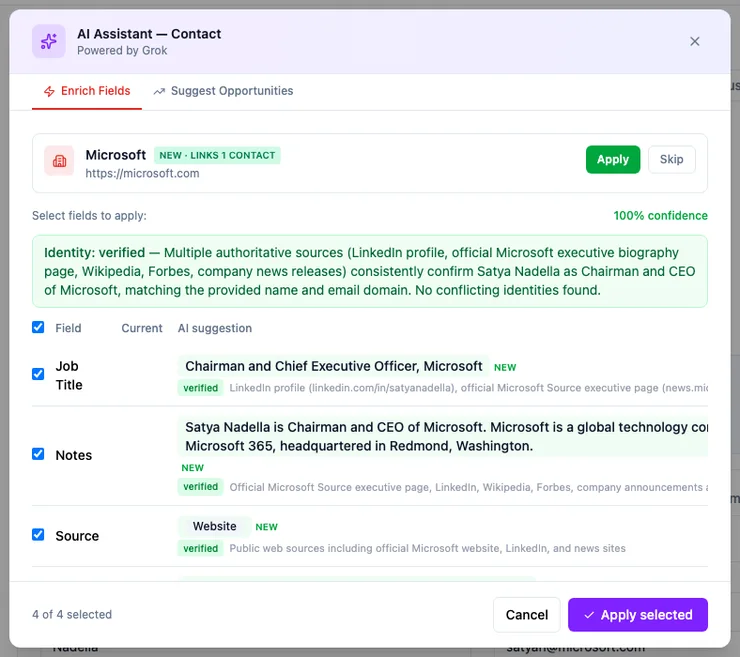
If the contact is already linked to a company, a second table appears under a heading with that company’s name, so you can fill the company’s own fields in the same pass.
Suggestions are highlighted. You can edit a value, untick a row, or close without applying.
How do I enrich many records at once?
Section titled “How do I enrich many records at once?”Select rows on the list, then choose AI Enrich from the bulk actions. Work continues in the background. You are notified when it is done, and you review the suggestions the same way.
You can also start from AI Enrichment in the sidebar: pick the entity, the records, and the fields (only fields suitable for AI Enrich are listed), then run the batch.
Can a workflow enrich a record?
Section titled “Can a workflow enrich a record?”Yes. Add an AI Enrich action to a workflow. Typical uses:
- When a contact is created from the Chrome extension then AI Enrich that contact
- When a contact is imported then AI Enrich the new rows
- When a deal moves to Qualified then AI Enrich the associated company
The action respects Let AI suggest values the same way the button does. See Workflows.
What does it cost?
Section titled “What does it cost?”AI Enrich draws from the same monthly credit wallet as built-in email. An empty wallet stops a run; a full AI Enrichment counter on the usage panel does not. Watch the balance in Settings → Billing. See Email sending allowance.
Results come from public sources. They are usually right and not guaranteed. Review before you use a suggestion in outreach. HARi does not share your CRM data with third parties for training.
Related
Section titled “Related”- Custom entities — Schema Editor, field types, and the Let AI suggest values switch
- Contacts and the Lifecycle
- Workflows
- Email sending allowance — the credit wallet AI Enrich draws from
- AI Assistant — the read-only chat, which does not fill fields