
Attach files to a task
Add a file while you create a task, or open the task and use the Files tab. People who can edit the task can add a file or remove one. Anyone who can open the task can open the file. The timeline shows a paperclip and a count, such as 1 file. Each file can be up to 35 MB.
Adobe Acrobat surveyed 1,118 employed Americans and found that the top issue with digital organization is difficulty finding documents quickly (48 percent). The same report says “A well-structured and easily accessible digital system allows employees to efficiently store, retrieve, and share information, saving valuable time and reducing frustration” (Adobe Acrobat, How digital organization impacts employees and the workplace, 29 September 2023). The file belongs on the task, so the next person opens the task instead of hunting through a shared drive.
How do I attach a file to a task?
Section titled “How do I attach a file to a task?”On the New Task panel, Attach files sits under the form. Drag a file onto Drag & drop files here, or browse, or click browse. The file is listed with its size. Delete takes it off that list before you save. Create saves the task and attaches the file. Create and add another does the same and leaves the panel open.
That panel is Quick create. You can also add the task from a list, then open it and use Files. See how to add a task from a list.
Open the task and choose Files for the same drop zone. The saved file is listed with its size and the date. Open it from the list, or use the download icon. The trash icon asks Delete? before the file is removed.
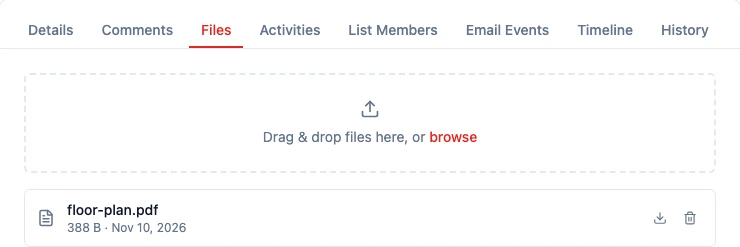
If the task has no files yet, the tab says No files attached and Drop a file above or click to browse.
Who can add, remove, or open a file?
Section titled “Who can add, remove, or open a file?”People who can edit the task can add a file and can remove one. That is the drop zone and, once a file is saved, the trash icon. Anyone who can open the task can open the file and download it. Someone who can open the task but not edit it does not get the drop zone or the trash icon. With no files, that person sees No files yet.
Who can open the task follows the same rule as the rest of the record. See Who can see what and Permissions.
Where does the timeline show the file?
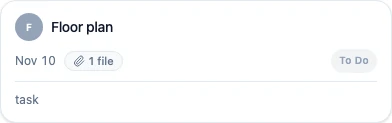
Section titled “Where does the timeline show the file?”On the Timeline, a task with at least one file shows a paperclip and a count next to the date. One file reads 1 file. The count opens that task’s Files tab. A task with no files does not show the paperclip.
Which files are accepted?
Section titled “Which files are accepted?”Each file can be up to 35 MB. HARi accepts PDF; Word, Excel and PowerPoint, including a password-protected Office file; JPEG, PNG, GIF, WebP, SVG, HEIC and HEIF; plain text, CSV and HTML; ZIP, tar and gzip; and JSON and XML.
A file of another type is refused, and the message names the type. A file over 35 MB is refused, and the message names the 35 MB limit.
Related
Section titled “Related”- Quick create — open the New Task panel without leaving the record
- Add a task from a list — start a task from the contact list, then attach from Files
- Who can see what — who can open the task, and therefore the file
- Permissions — who can edit a task, and therefore add or remove a file