
Repeating tasks — a reminder that comes back on its own
Open a task, tick Repeat, and pick how often it should come back: every day, every weekday, every week, every month, every quarter or every year. HARi creates the next occurrence for you, so a birthday call or a monthly chase stops depending on somebody remembering to type it out again. Set Repeat until if the series should stop on a date, or leave it empty to repeat indefinitely.
Repetition is the part of the job people most want taken off their hands. In a survey of 2,000 knowledge workers run by Talker Research for HP between 25 August and 2 September 2025, 85% said repetitive tasks are a top contributor to burnout, and the same respondents reckoned they lose “an estimated half of their day” to tedious, low-value work (Talker Research for HP, Drowning in busywork). Retyping the same reminder every month is exactly that kind of work.
How do I make a task repeat?
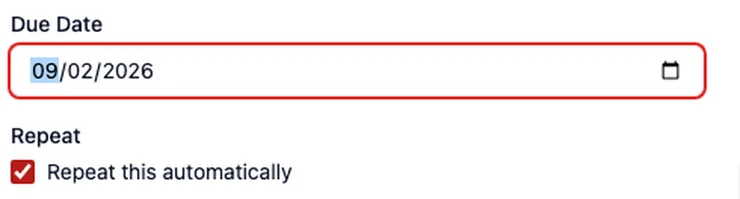
Section titled “How do I make a task repeat?”Repeat sits on the task form, under Due Date. The due date is the date the series counts from, so set it first.
- Open a task, or start a new one.
- Set the Due Date.
- Under Repeat, tick Repeat this automatically.
- In Repeats, choose one: Every day, Every weekday, Every week, Every month, Every quarter, Every year.
- Optionally fill in Repeat until. The hint under it reads Leave empty to repeat indefinitely.
- Save.
The control then says The next one will be created automatically. HARi works the first date out for you shortly after you save, so a series starts straight away rather than waiting a whole cycle to begin. Once the date is set, that same line reads Next one: followed by it.
You will find Repeat on your tasks, and on activities if your workspace tracks those separately. If someone has renamed the task list to something else, the control is still there under whatever you called it.
Repeat is for a fixed rhythm. If what you want is a task created because something happened — a deal going quiet, a form being submitted, a deal reaching a stage — that is a workflow rather than a repeat, and the two can be used together.
When does the next one appear?
Section titled “When does the next one appear?”The next occurrence is created when you close the current one, or when its next date comes round, whichever happens first. It happens exactly once per occurrence, so closing a task and then letting its date pass does not give you two.
- Mark it Done and the next occurrence is made without waiting for the date, already dated for the next cycle.
- Leave it open and the next occurrence appears on the day it falls due. A yearly reminder due 9 February produces next year’s on 9 February, not before.
- The new task keeps the title, description, priority, who it is assigned to and what it is linked to. Its Status goes back to your first status (To Do on a standard setup), not the status you just closed it with.
- Only one occurrence at a time carries the repeat, so the series moves forward a single step at a time. A reminder left untouched for two years does not suddenly produce two years of catching-up occurrences.
Does cancelling one occurrence stop the series?
Section titled “Does cancelling one occurrence stop the series?”No. Setting an occurrence to Cancelled closes it, and closing an occurrence is precisely what hands the series on, so the next one still appears. That is deliberate, and it is the separation calendars have always made: removing one instance is not the same as removing the rule that generates them. The iCalendar standard builds a series from the repeat rule “and then excluding any start DATE-TIME values specified by EXDATE properties” (IETF, RFC 5545, Internet Calendaring and Scheduling Core Object Specification, September 2009) — the excluded date drops out, the rule survives it. Skipping one Tuesday is not cancelling every Tuesday.
If what you meant was “stop this reminder for good”, use the next section.
How do I stop a series?
Section titled “How do I stop a series?”Open the occurrence that is still set to repeat, untick Repeat this automatically, and save. Nothing further is created.
Everything already created stays exactly where it is. Stopping a series never deletes the occurrences behind it, so last quarter’s completed reminders remain on the record and in your reports.
Repeat until does the same thing on a schedule: past that date, no further occurrence is created, and the ones already made are left alone.
Related
Section titled “Related”- Quick create — add a task without leaving the record you are on
- Follow-up reminders — create a task automatically when a deal goes quiet, which is a different job from a task that repeats on a fixed rhythm
- Workflows — the WHEN / IF / THEN rules behind automatic record creation
- Track interactions — logging calls, emails and meetings against a contact