
Dashboards
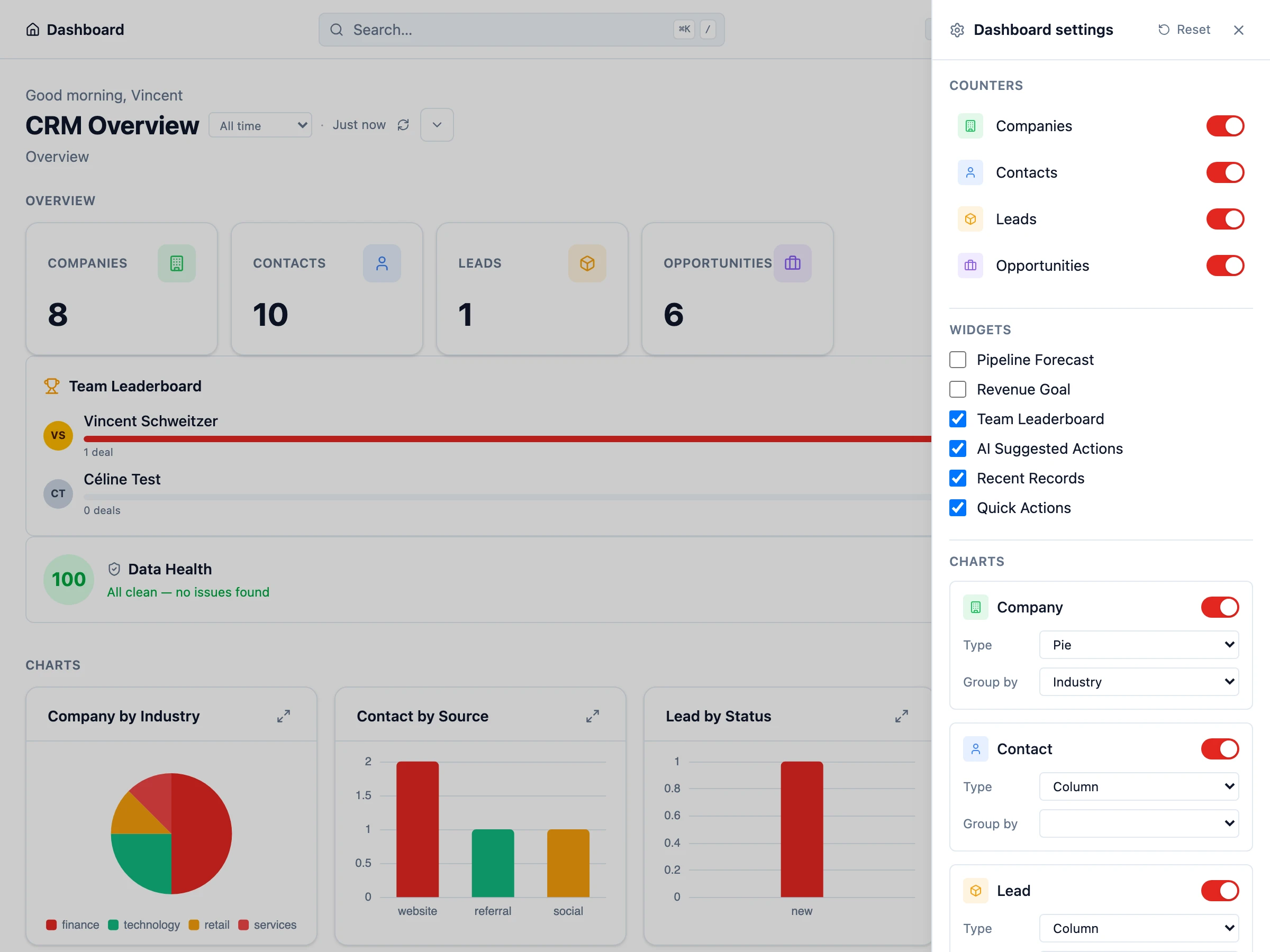 HARi dashboards give you a real-time overview of your business. Track pipeline value, conversion rates, task progress, and any metric that matters to your team — all driven by your CRM data.
Dashboard scopes
Section titled “Dashboard scopes”Dashboards have one of three scopes:
- System — pre-seeded by the platform or a solution. Available to everyone in the workspace, can be customised but should not be deleted by end users.
- Personal — dashboards you create for yourself only. No one else sees them.
- Shared — dashboards visible to your team. Useful for sales meetings, management reviews, and standups.
A dashboard can also be marked as your default — that’s the one HARi opens when you click the Dashboards link in the sidebar.
Built-in widgets
Section titled “Built-in widgets”Every dashboard can mix automatic widgets with custom charts:
- Counters — a tile carrying one live number. That can be a record count, or a real business figure: a total, an average, a smallest or largest value, or a percentage. See Dashboard Metric Tiles
- Pipeline forecast — projected close value based on opportunity stage and probability. You choose which stages mean won and which mean lost, and several stages can mean either — see Sales Forecast
- Revenue goal — progress toward a configurable target with visual progress
- Team leaderboard — top performers by closed revenue
- Data health — coverage and quality indicators across your data
- Recent records — latest activity across the workspace
- Quick actions — shortcuts to common create flows
Each automatic widget can be toggled on or off from the dashboard settings panel.
Custom charts
Section titled “Custom charts”You can add your own charts to any dashboard. Each chart is configured against a specific entity:
| Chart type | Best for |
|---|---|
| Column / Bar (regular, stacked, 100%) | Comparing categories — deals by stage, leads by source |
| Line | Trends over time |
| Area (regular, stacked, 100%) | Cumulative trends |
| Pie / Doughnut | Proportions of a total |
| Funnel | Conversion stages |
For each chart you choose:
- Entity — which records to summarise (Opportunity, Task, Lead, etc.)
- Aggregate — count, sum, average, minimum, or maximum of a field
- Group by — the dimension to split by (stage, owner, source, month)
- Date grouping — when grouping by a date field, roll up by day, week, month, or year
- Filters — narrow the dataset (e.g. only deals closing this quarter)
- Sort & limit — value ascending/descending, label alphabetic, or a Top-N / Bottom-N pill
Charts are interactive — click a segment to drill into the underlying records.
Downloading chart data
Section titled “Downloading chart data”Every chart has a small download icon next to its fullscreen icon. Click it to save the chart’s underlying numbers as a CSV file (<chart-title>-<date>.csv). The file has two columns — Label and Value — and opens directly in Excel, Numbers, or Google Sheets. Useful for ad-hoc analysis, board reports, or pasting into a deck.
Custom HTML widgets
Section titled “Custom HTML widgets”In edit mode, click Add Widget, set Type to Custom HTML, and pick an Entity to put your own page on a dashboard — a board-ready summary, a styled one-pager, a layout the built-in chart types don’t cover. You write ordinary HTML, and the widget reads your live workspace data as it loads, so the figures are current every time someone opens the dashboard.
What a custom widget is allowed to read
Section titled “What a custom widget is allowed to read”You choose an entity when you add the widget, and the worked example is written against it. The widget may read any entity that dashboard already shows, and only the records the person looking at the dashboard could already open for themselves. Two colleagues opening the same dashboard can therefore see different totals, each correct for them.
A custom widget runs code you paste into it, so it is worth being precise about the boundary: the record-level limit is real and per-viewer, but the entity limit is the dashboard’s, not the individual widget’s. If a dashboard also charts Deals, a custom widget on that dashboard can read Deal totals too. It can also show values pulled from records linked to those entities — their name, or another field on them — never more than the person viewing could see. Put widgets you did not write yourself on a dashboard that shows only what they need.
You don’t have to learn an API to start. Insert example drops a working snippet into the editor showing how to read a single number, and Preview renders your HTML as you type. Before the dashboard is saved the preview runs your HTML but cannot read data yet — save the dashboard with the widget on it, reopen the widget, and the preview shows your real numbers.
Why a custom widget runs on its own web address
Section titled “Why a custom widget runs on its own web address”Each custom widget is served from a separate web address and kept isolated from the rest of the app. That isolation is the whole point: the widget can display your numbers without being able to reach into the application around it, so a mistake in your HTML stays inside the widget.
Its access is deliberately narrow. The short-lived credential the widget uses:
- reads through a single data endpoint and is refused on every other address
- is limited to the entities that dashboard displays — not to the single widget
- carries the identity of the person viewing, so the widget can never show more than they could see themselves
- expires after ten minutes, and the dashboard replaces it before it runs out
That credential travels in the part of the address after the #. Browsers keep that part on the client: as RFC 3986 puts it, “the fragment identifier is separated from the rest of the URI prior to a dereference” — so it is never sent to a server, never written into a web-server access log, and never forwarded in a Referer header to another site.
What can and cannot load inside a widget
Section titled “What can and cannot load inside a widget”Scripts and stylesheets must be written inside the widget. A widget that tries to load a script or a stylesheet from another website will not load it — that is the first thing most people hit when they paste a snippet from elsewhere, and it is easy to miss because Preview does not block them. A snippet that works while you are writing it can go blank once the dashboard is saved, so keep everything inside the box.
Pictures are more forgiving. If your HTML points at an image on another website, HARi copies it into your workspace when you save so it keeps working; if it cannot reach the picture, the widget editor tells you which website it could not copy from. An image added by code rather than written as an <img> tag is not copied, and web fonts from another site will not load. Plain <img> tags and inline pictures work; system fonts render with whatever the reader’s own device provides.
Building a dashboard
Section titled “Building a dashboard”- Open Dashboards and pick an existing one or click New dashboard.
- Give it a name and choose a scope (personal or shared).
- Open the settings panel and toggle which built-in widgets you want.
- Add custom charts — or a Custom HTML widget — then drag them on the grid to position and resize.
- Save. Your layout is stored on the dashboard, not in the browser, so it follows you across devices.
Layout and responsiveness
Section titled “Layout and responsiveness”Dashboards use a flexible grid. Widgets can be moved and resized in edit mode, and on smaller screens they collapse into a single column in the order you arranged them.
Examples
Section titled “Examples”Sales manager dashboard:
- Pipeline funnel (leads to closed-won)
- Revenue by month (line chart)
- Pipeline forecast widget
- Team leaderboard
- Top-10 deals closing this month (custom chart)
Individual rep dashboard:
- My open deals by stage
- Tasks due today
- Revenue goal toward monthly target
- Recent records feed