
Track Interactions
Track Interactions
Section titled “Track Interactions”Every phone call, email, meeting, and note should be recorded in one place. HARi’s record timeline gives you a complete history of all interactions with a contact, company, or deal.
The Record Timeline
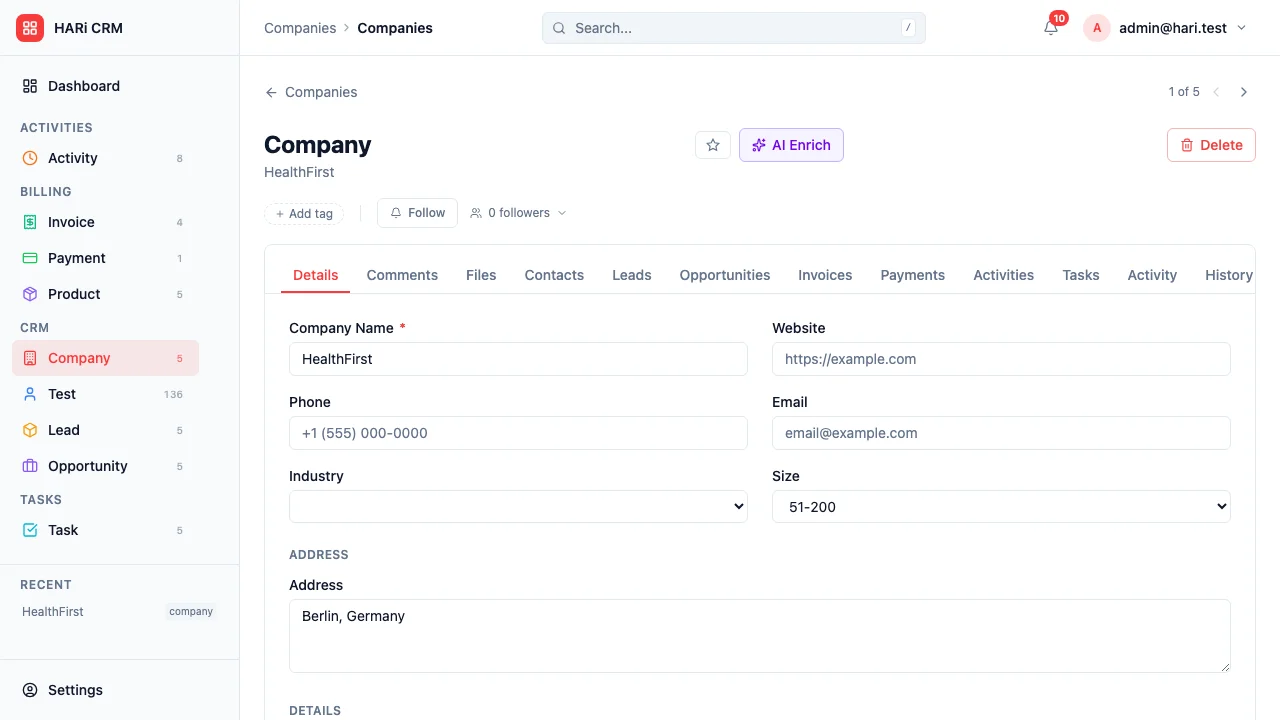
Section titled “The Record Timeline”Open any record. The Timeline tab shows a chronological list of everything that happened on that record:
- Emails sent and received
- Phone calls logged
- Meetings logged
- Social messages (LinkedIn, WhatsApp, WeChat)
- Notes added by team members
- Stage changes and field updates (visible on the History tab)
- Tasks created and completed
Logging an Interaction
Section titled “Logging an Interaction”HARi uses a single Log interaction action. The dialog asks “What happened?” and gives you a picker:
- Open the contact, company, or deal record
- Click Log interaction in the activity area
- Pick the interaction type:
- LinkedIn message
- WhatsApp message
- WeChat message
- Phone call
- In-person meeting
- Note / Other
- Describe what happened in the text area
- Save — the entry appears on the record’s timeline with the type, your name, and a timestamp
Adding a Note
Section titled “Adding a Note”For quick updates that do not fit a specific channel, pick Note / Other in the same Log interaction dialog. Notes are timestamped and attributed to the user who wrote them, and any teammate looking at the record sees them.
Email Tracking on the Timeline
Section titled “Email Tracking on the Timeline”When you send an email from HARi (or when your connected inbox receives a reply), the email appears automatically on the timeline. You can see:
- The email subject and body
- Whether it was opened (if tracking is enabled)
- Whether any links were clicked
- The date and time of each event
Viewing Interactions Across Records
Section titled “Viewing Interactions Across Records”A single interaction can appear on multiple timelines. For example, a meeting with a contact about a deal will show up on both the contact’s timeline and the deal’s timeline. Open the company and the same conversation is there too, marked via Contact — see A company’s Timeline includes its contacts’ conversations. This means no matter which record you open, you see the full picture.
Next Steps
Section titled “Next Steps”- Email Setup to connect your email for automatic tracking
- Follow-Up Reminders to automate reminders based on interaction history
- Manage Deals to see how interactions relate to deal progress