
Embedded Forms
An embedded form is a public form you design in HARi and place on your own website with a single line of code. Visitors fill it in without logging in, and every submission becomes a record in your workspace — assigned to the team or the person who should follow it up. No API key, no developer, and nothing to keep in sync by hand.
Speed is the reason to send enquiries straight into your CRM rather than to an inbox. Reviewing how companies handle online queries, Harvard Business Review concluded that “most companies are not responding nearly fast enough” (Oldroyd, McElheran & Elkington, HBR, 2011). A form that lands in a shared mailbox waits for somebody to notice it. A form that lands in HARi is already a record, already owned, and already able to start a follow-up.
Three ways to publish one form
Section titled “Three ways to publish one form”You build the form once. How it reaches visitors is a separate choice, and you can use more than one at a time.
| Way to publish | What the visitor sees | Best for |
|---|---|---|
| Hosted link | A full page at your own workspace address | Sharing in an email, a QR code, a social bio, a printed flyer |
| On the page | The form sits inside your page, where you paste the code | A “Contact us” section, a landing page |
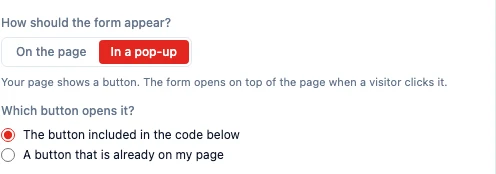
| In a pop-up | Your page shows a button; the form opens on top of it | A “Book a tour” button in a site header or hero |
The embedded form is not a picture of a form — it is the real form, rendered inside your page. It is also sealed off from your site’s styling in both directions: your site’s CSS cannot break the form, and the form cannot restyle your site.
Create a form
Section titled “Create a form”Open Settings → Embed Widgets and choose New Form. Admins can create and edit forms; you do not need one licence per form.
- Give the form a name — this is what you will recognise it by in the list.
- Choose the target entity — the kind of record each submission should create, such as Contact or Company.
- Tick the fields to include.
- Optionally set a success message, a redirect URL, a rate limit, and the allowed origins.
- Click Create Form.
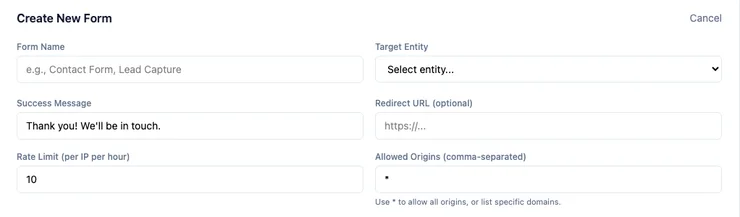
New forms start with a rate limit of 10 submissions per visitor IP address per hour and allowed origins set to *, so a form works the moment you paste it anywhere. Both are explained below.
Choose the fields visitors fill in
Section titled “Choose the fields visitors fill in”Open the form and expand Fields. Every field on your entity that a person could fill in is available; system fields, read-only fields and formula fields are not, because a visitor cannot meaningfully supply them.
Resist adding everything. Baymard Institute’s research on checkout flows found that “most sites need only 8 form fields in total for a checkout flow — yet the average in 2024 was 11.3 form fields” (Edward Scott, Baymard Institute, 2024). An enquiry form is not a checkout, but the lesson carries: each extra field is another reason to abandon the form. Ask for what you need to reply, and gather the rest in the conversation that follows.
Each field on the form has its own settings:
- Required — the visitor cannot submit without it.
- Placeholder — the grey example text inside the box.
- Width — full width, or half width so two fields sit side by side.
- Show in section — group fields under a heading.
- Show choices as — a dropdown, or checkboxes showing every choice at once in two columns.
- How visitors fill this in — on a company or other linked record only. Visitors type their own answer, or they pick from your list. You must choose one.
- Hide from visitors — the field never appears, and every submission gets the preset value you choose.
- Preset value — the value used for a hidden field.
Hidden fields are enforced by HARi, not by the browser. A hidden field is not merely invisible: the server ignores any value sent for it and writes your preset instead. This matters because a public form is open to anyone. Without that rule, someone could hand-craft a submission that overwrote, say, the acquisition source on every lead they sent you. Set a hidden field’s preset once and it is the value you get, whatever arrives on the wire.
How do visitors fill in a company or other linked record?
Section titled “How do visitors fill in a company or other linked record?”You choose, on the field itself, before you save. Visitors type their own answer — they type a name instead of picking from your existing list, so the form never shows them what is already in your database; if the name is new, it is added for you. Visitors pick from your list — people who open this form can search the names already in your database.
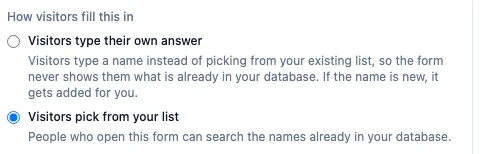
The choice appears only on a linked-record field — Company on a Contact form is the usual case, and the same control is there for any other link you have added to the entity. Open Settings → Embed Widgets, open the form, expand Fields, and expand the field. HARi will not save until you pick one; the message names the field that still needs an answer.
Which to choose depends on who is filling the form. If the visitor is naming a company you may never have seen — a new enquiry, a partner you do not yet record — let them type. If they are choosing from companies you already know, let them pick from your list, so the submission lands on the record you already have rather than a near-duplicate with a slightly different spelling.
On the published form the two options look different. Type-their-own-answer is an ordinary text box. Pick-from-your-list is a search box: the visitor types a few letters and chooses a name from the matches.
Design the page visitors see
Section titled “Design the page visitors see”Expand Design. Nothing here is technical, and the live preview beside the form updates as you type.
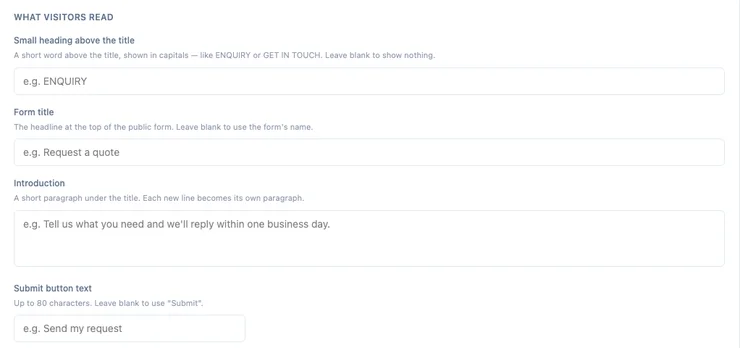
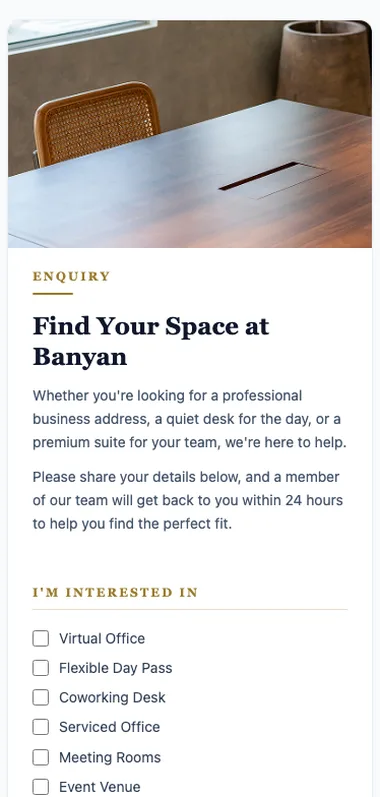
What visitors read — a small heading above the title (shown in capitals, like ENQUIRY), the form title, an introduction, the submit button’s wording, and a footer note.
Layout and branding — the page layout, a side photo, your logo, a header banner, a primary colour for the button and links, an accent colour for headings and dividers, a serif or sans-serif heading style, and a switch to hide the small “Powered by HARi” credit.
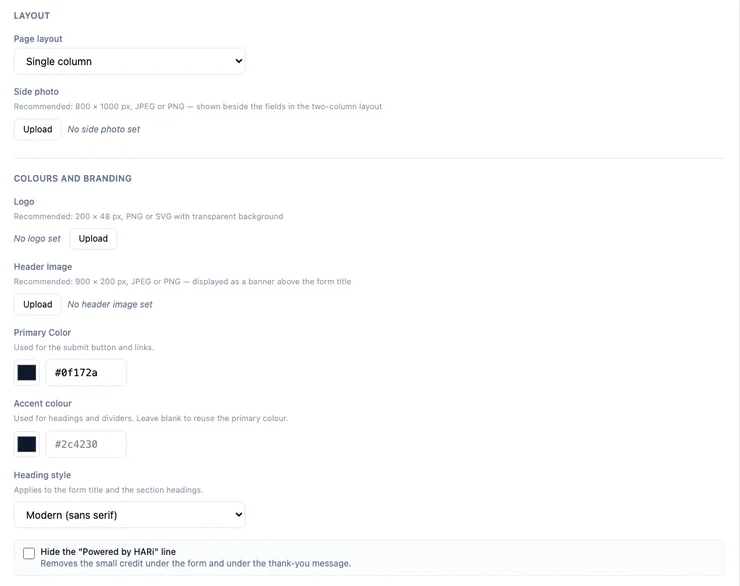
There are two page layouts:
- Single column — the form on its own, centred.
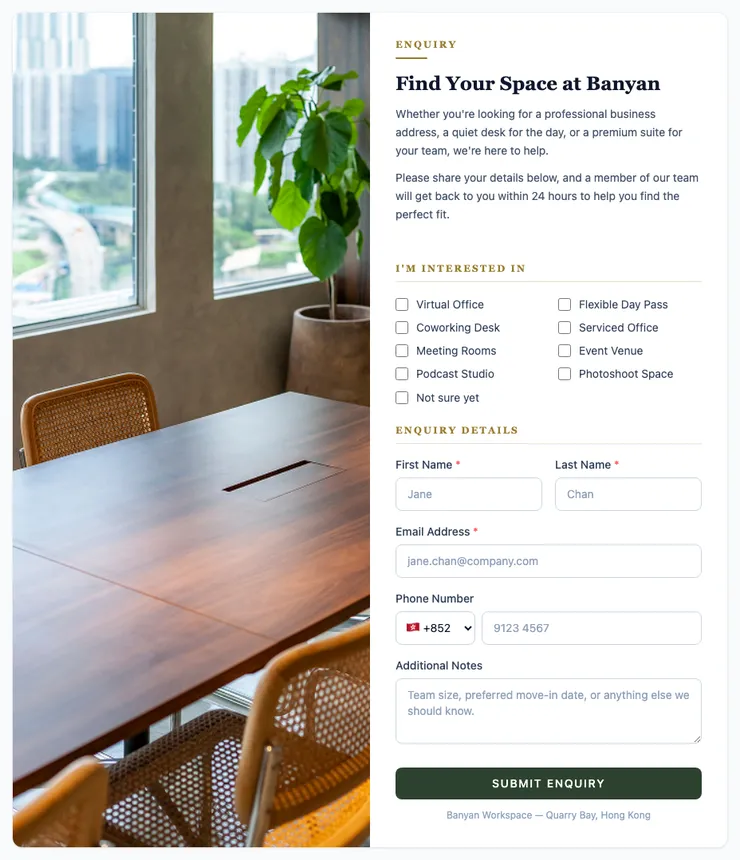
- Two columns with a photo — a photograph beside the fields, as in the example at the top of this page.
The two-column layout needs a side photo. Without one it falls back to a single column rather than leaving an empty half, and the builder tells you so. On a desktop browser the photograph stays put while the fields scroll; on a phone the two panes stack, photo first.
Put the form on your website
Section titled “Put the form on your website”In the forms list, choose Copy embed code on the form you want. Answer How should the form appear? and copy the snippet.
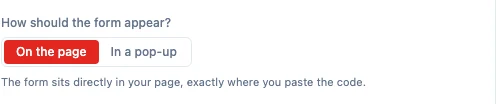
For On the page, paste the snippet at the exact point in your page where the form should appear:
<!-- HARi form — appears exactly where this snippet is pasted --><script src="https://yourworkspace.haricrm.com/embed/v1.js" data-form="00000000-0000-0000-0000-000000000000" data-mode="inline" async></script>For In a pop-up, HARi asks a second question: whether to use the button included in the snippet, or a button already on your page. Choosing the second lets you point the form at something you have already styled — a “Book a tour” button in your header, for instance.
Copy the code exactly as HARi gives it to you; the address and the form’s identifier are both in there. If you change a form later, the code you already pasted keeps working — but if you copy the code again, replace the old copy on your site, because an out-of-date snippet may stop sending you submissions.
To share the form without embedding anything, use Copy form URL instead. That link works on its own, and it keeps working even when embedding is switched off.
Choose which websites may embed your form
Section titled “Choose which websites may embed your form”Allowed origins lists the websites permitted to embed a form. It is the one setting here with a real trade-off, so it is worth understanding before you change it.
Every new form starts at *, meaning any website. That is deliberate: a pasted snippet works first time, on your live site and on the staging copy and in the page builder’s preview, without anyone having to think about domains first. Tightening the list is an opt-in step, not an obstacle you must clear to get started.
To restrict it, replace the * with your domains, separated by commas:
https://example.com, https://www.example.comThree things behave in ways worth knowing:
- An empty box blocks every embed. Clearing the field is not “no restriction” — it is a list that permits nothing, so the form stops appearing on every site. The hosted link keeps working. If you meant “allow anywhere”, put the
*back. - There are no wildcards inside a domain.
https://*.example.comis accepted but matches nothing at all. List each subdomain you actually use. - Spelling is forgiving. Extra spaces, capital letters and a trailing slash are all tidied up for you, so
https://Example.com/andhttps://example.comare the same entry.
One honest limit: this list controls which websites may embed the form, not who may see it. A public form is public by definition — its design and field list are readable by anyone with the link, exactly as they are readable by any visitor to the page it sits on. Do not use a form’s origin list as a way of hiding a form; use Deactivate for that, which stops the hosted page and every embed at once.
Where submissions go
Section titled “Where submissions go”A submission is a record, not a message. It is created in the entity you chose, and it is routed the moment it arrives.
- Assign to a team — every submission is owned by that team, so it shows up in a shared queue.
- Assign to a user — every submission goes to one person.
- Round-robin within a team — submissions rotate through the team’s active members, so each person gets an even share. See auto-assigning leads for the wider picture.
HARi also records where the record came from, writing the form’s name into the record’s source, so an enquiry from your pricing page is distinguishable from one typed in by a colleague.
To act on a submission automatically — send an acknowledgement, create a follow-up task, notify a channel — use the Form received trigger in workflows and automations. It fires for one specific form, or for any form, whenever a submission arrives.
Good to know: what is and is not supported
Section titled “Good to know: what is and is not supported”- Visitors cannot attach files. A public form has no file upload field. If you need a document, ask for it in your reply, or invite the person into the Customer Portal, where signed-in customers do have a document vault.
- A tall two-column form is better as a pop-up than on the page. Placed On the page in the middle of a long page, a two-column form with a photo can be tall enough to take over scrolling on a desktop browser before the visitor reaches the rest of your page. The In a pop-up and hosted-link options are unaffected, and so is every single-column form. If you want a tall form inline, give it a short page of its own.
- Rate limiting is per visitor, per hour. The default of 10 submissions from one IP address per hour absorbs a visitor clicking twice and blunts crude automated abuse. Raise it for a busy public page; lower it for a form you expect a handful of uses from.
- Deactivating is immediate and reversible. An inactive form tells visitors it is no longer accepting submissions, on the hosted page and in every embed. Reactivating restores it; nothing already submitted is affected.
- Required fields and choice lists are checked on the server. A visitor who bypasses the browser’s own checks still gets a plain-language refusal naming every field that needs attention, and a choice value that is not on your list is refused rather than stored.
Related
Section titled “Related”- Availability Widget — publish a free/busy calendar on the same no-API-key basis
- Customer Portal — a signed-in surface for customers who need more than a form
- Contacts — where most form submissions end up
- Workflows — what happens after a submission arrives