
How to Set Up Lead Scoring Rules
How to Set Up Lead Scoring Rules
Section titled “How to Set Up Lead Scoring Rules”Lead scoring assigns a numeric score to each lead (or any other record) based on the interactions they accumulate — emails sent, meetings held, forms submitted, pages viewed. Higher scores surface the prospects most worth your time. HARi also lets you set thresholds that classify records as Cold, Warm, or Hot, and trigger automatic actions when a score crosses a line.
How Scoring Works
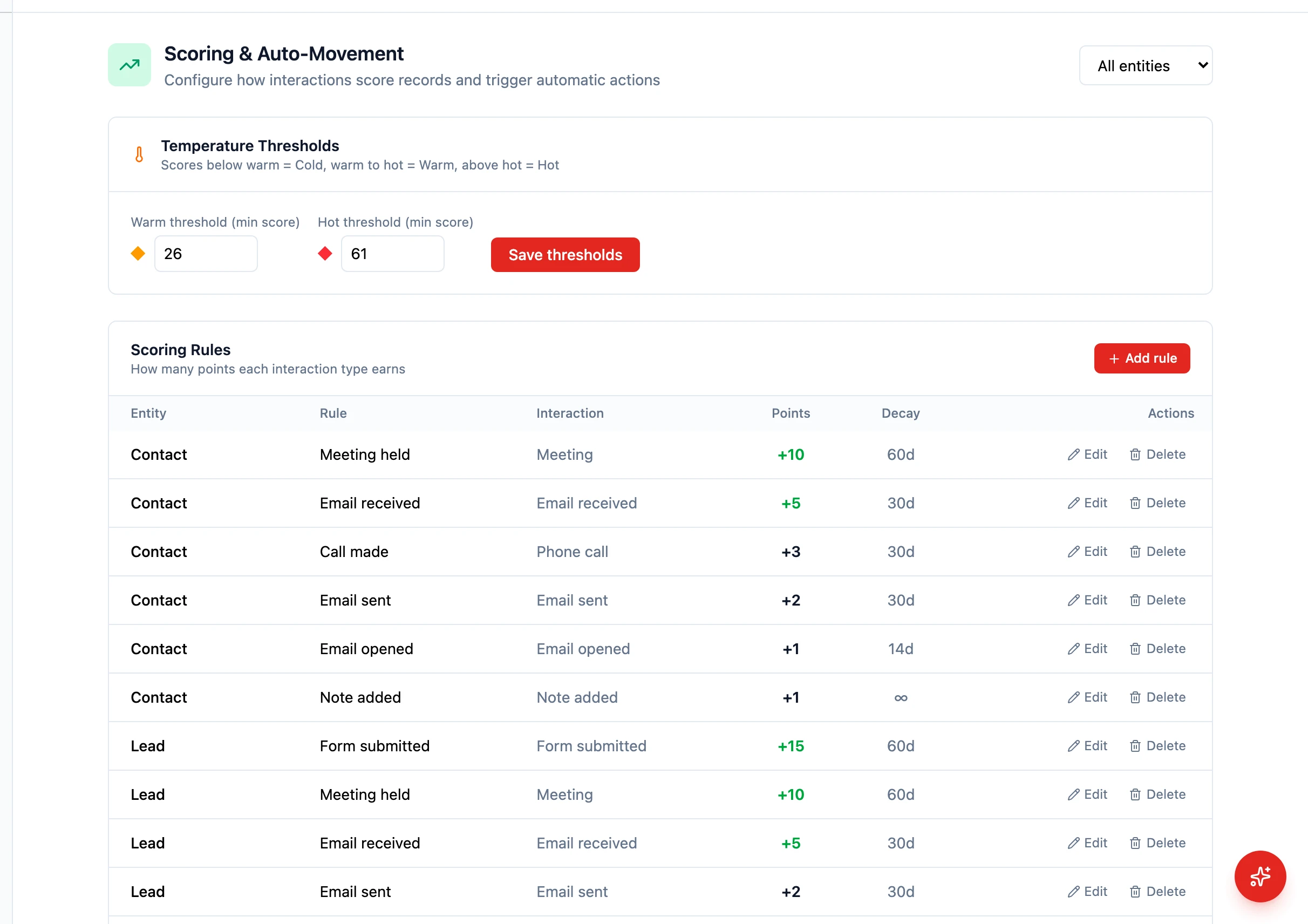
Section titled “How Scoring Works”In Settings > Scoring (full title: “Scoring & Auto-Movement”) you configure two things:
- Scoring Rules — give each interaction type a point value, optionally with a decay window so old activity counts less
- Auto-Movement Rules — when a score crosses a threshold (or a record stays inactive for X days), perform an action automatically (update a field, move pipeline stage, add a tag, send a notification)
Plus a Temperature Thresholds section: set the minimum score for “Warm” and “Hot” — records below Warm are Cold.
Setting Up Scoring Rules
Section titled “Setting Up Scoring Rules”- Go to Settings > Scoring
- In Scoring Rules, click Add rule
- Configure:
- Entity — Which entity this rule applies to (e.g. Contact, Lead)
- Rule Name — Plain-language label (e.g. “Email open bonus”)
- Interaction Type — Email sent, Email received, Email opened, Meeting, Phone call, Note added, Form submitted, Social like, Social comment, Social message, Page viewed
- Points — How many points this interaction earns (use a negative number to subtract)
- Decay (days) — Optional: how many days before the points decay to zero
- Save
Repeat for each interaction type you want to weight differently.
Setting Up Auto-Movement Rules
Section titled “Setting Up Auto-Movement Rules”To act automatically once a record crosses a threshold:
- In Auto-Movement Rules, click to add a rule
- Pick a When condition: Score above threshold, Score below threshold, or No interaction for X days
- Pick a Then action: Update a field, Move pipeline stage, Add tag, or Send notification
- Fill in the action’s parameters (target field/value, target stage, tag name, etc.)
- Save
Setting Temperature Thresholds
Section titled “Setting Temperature Thresholds”Scroll to Temperature Thresholds at the bottom of the page:
- Warm threshold (min score) — Records at or above this score are labelled Warm
- Hot threshold (min score) — Records at or above this score are labelled Hot
- Anything below Warm is Cold
Save the thresholds and HARi labels every record accordingly.
Using Scores in Practice
Section titled “Using Scores in Practice”Once scoring is active:
- Sort leads by score to see the hottest prospects first
- Filter by score range — e.g., show only leads scoring above 50
- Use the temperature label as a Kanban grouping or list column
- Combine with auto-movement to escalate hot leads automatically
- Start simple — Five to ten rules is enough to get started. Add more as you learn what matters.
- Review quarterly — Check if high-scoring leads actually convert. Adjust rules that do not predict success.
- Use negative scores — Subtract points for disqualifying signals (e.g., competitor email domain, wrong industry).