
Link Contacts to Companies
Link Contacts to Companies
Section titled “Link Contacts to Companies”Linking contacts to their companies is fundamental to understanding your business relationships. In HARi CRM, this connection is handled through Linked record fields (sometimes called lookup fields).
How Relationships Work
Section titled “How Relationships Work”Each contact can be linked to a company through a Linked record field. This field stores a reference to the company record, allowing you to:
- See all contacts at a company in the company’s subgrid
- Auto-fill company context when viewing a contact
- Navigate between related records with a single click
- Filter contacts by company
Linking a Contact to a Company
Section titled “Linking a Contact to a Company”When Creating a Contact
Section titled “When Creating a Contact”- Click New at the top of the Contacts list
- Find the Company field on the form
- Start typing the company name — HARi searches existing companies in real time
- Pick the correct company from the dropdown
- Fill in the rest of the contact details and save
On an Existing Contact
Section titled “On an Existing Contact”- Open the contact record
- Find the Company field
- Click the field and search for the company
- Pick the company and save
Viewing Related Contacts on a Company
Section titled “Viewing Related Contacts on a Company”- Open a company record
- Scroll down to the Contacts subgrid
- You will see all contacts linked to this company
- Click any contact to open their record
- You can also add a new contact directly from the subgrid — the company is pre-filled automatically
Bulk Linking via Import
Section titled “Bulk Linking via Import”If you are importing contacts from a CSV and your file has a “Company” column:
- During the import mapping step, map your “Company” column to the Company field on Contact
- HARi resolves the company name to an existing company record
- Contacts whose company names match are linked automatically
- Rows referring to a company that doesn’t exist are reported as errors at the end — create the missing companies first or use the import wizard on Companies before re-importing the Contacts file
Creating the Relationship (for Custom Entities)
Section titled “Creating the Relationship (for Custom Entities)”If you have created a custom entity and want to link it to another entity:
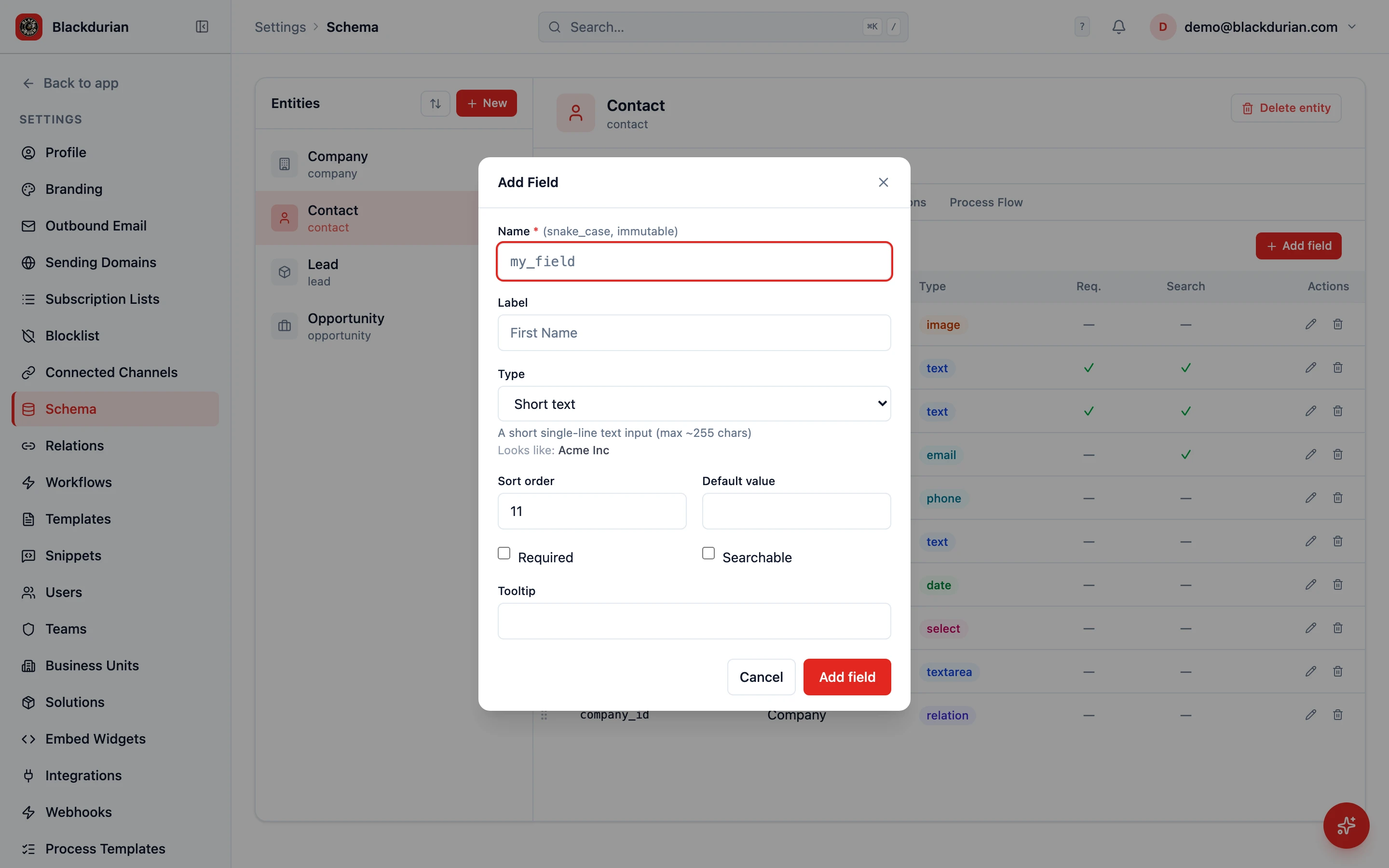
- Go to Settings > Schema and select your entity
- Click Add field on the Fields tab
- Set the type to Linked record
- Pick the related entity (e.g. “Company”)
- Save — the field now appears on the form, and a subgrid of related records shows up on the linked entity
Next Steps
Section titled “Next Steps”- Setup a Lookup Field for creating relationships between any entities
- Segment Contacts to filter contacts by company or other criteria
- Import Contacts from Excel for bulk linking during import