
Outlook / Microsoft 365 Integration
import { Aside } from ‘@astrojs/starlight/components’;
What it does
Section titled “What it does”HARi integrates with Microsoft 365 via OAuth. Connect your M365 account in Settings > Connected Channels to send emails from your Outlook identity and sync your calendar.
Features
Section titled “Features”Email:
- Send emails from HARi using your Outlook address
- Incoming emails from CRM contacts appear on their timeline
- Full thread sync between Outlook and HARi
- Email tracking (open notifications)
Calendar:
- View Outlook calendar events in HARi
- Create meetings from CRM records (auto-fill attendee emails)
- Meeting outcomes logged as activities on contact records
- Two-way sync: changes in Outlook reflect in HARi and vice versa
How to connect
Section titled “How to connect”- Go to Settings > Connected Channels
- Click Connect Microsoft 365
- Authorize HARi via OAuth
- Choose which features to enable (email, calendar, or both)
- Select sync preferences
What data syncs
Section titled “What data syncs”| Direction | Data |
|---|---|
| HARi to Outlook | Sent emails, created calendar events |
| Outlook to HARi | Incoming emails, calendar events with CRM contacts |
| Bidirectional | Email threads, meeting updates |
Alternative: SMTP
Section titled “Alternative: SMTP”You can also send emails via SMTP using your Outlook/Microsoft 365 credentials:
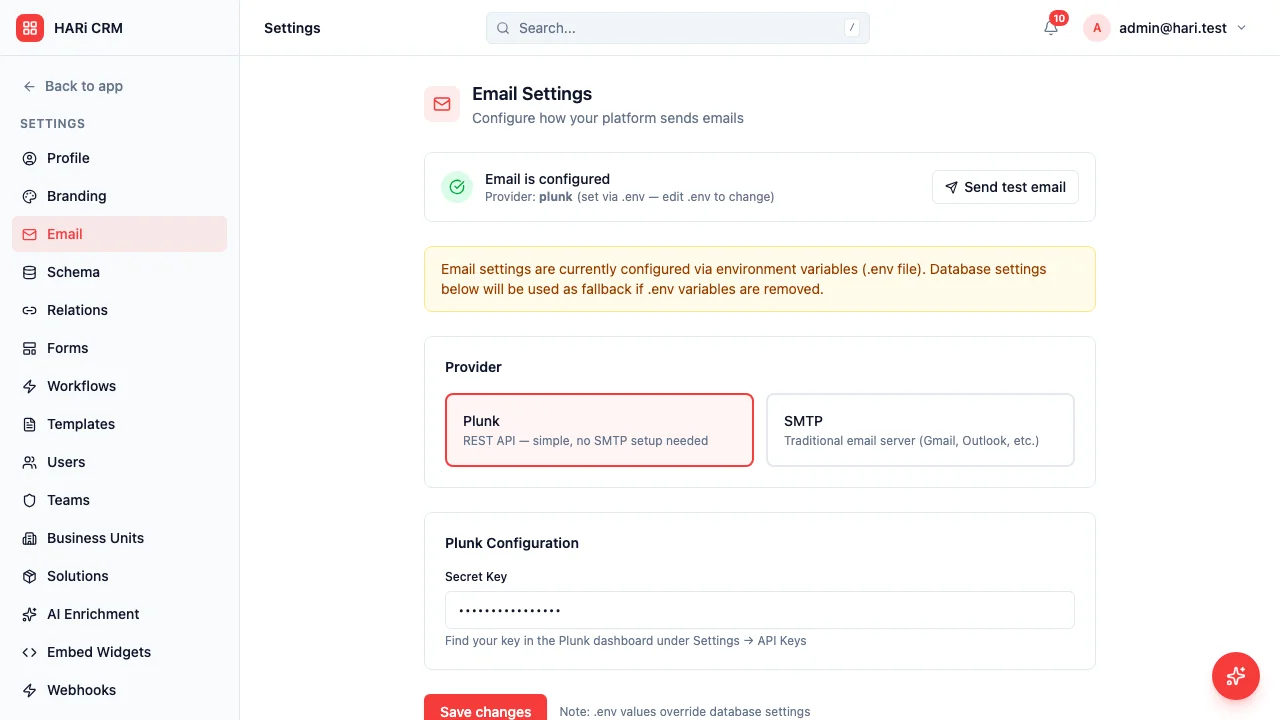
- Go to Settings > Email > SMTP
- Enter Outlook SMTP settings (smtp.office365.com, port 587)
- Use your Microsoft 365 email and password (or app password)