
Import Contacts from Excel
Import Contacts from Excel
Section titled “Import Contacts from Excel”This guide walks you through importing contacts into HARi CRM from a CSV file (the format every spreadsheet app — Excel, Numbers, Google Sheets — can export).
Heads up: HARi’s import wizard accepts CSV files only. If your data is in
.xlsx, save a CSV copy first using File > Save As > CSV (UTF-8).
Preparing Your Spreadsheet
Section titled “Preparing Your Spreadsheet”Before importing, organize your spreadsheet for a clean import:
- One contact per row — each row represents a single person
- Headers in the first row — column headers help HARi auto-map fields (e.g. “First Name”, “Email”, “Phone”)
- Consistent formatting — use the same date format throughout (YYYY-MM-DD recommended)
- No merged cells — unmerge before exporting
- Save as CSV (UTF-8) — ensures special characters (accents, Chinese, etc.) survive the import
Importing Step by Step
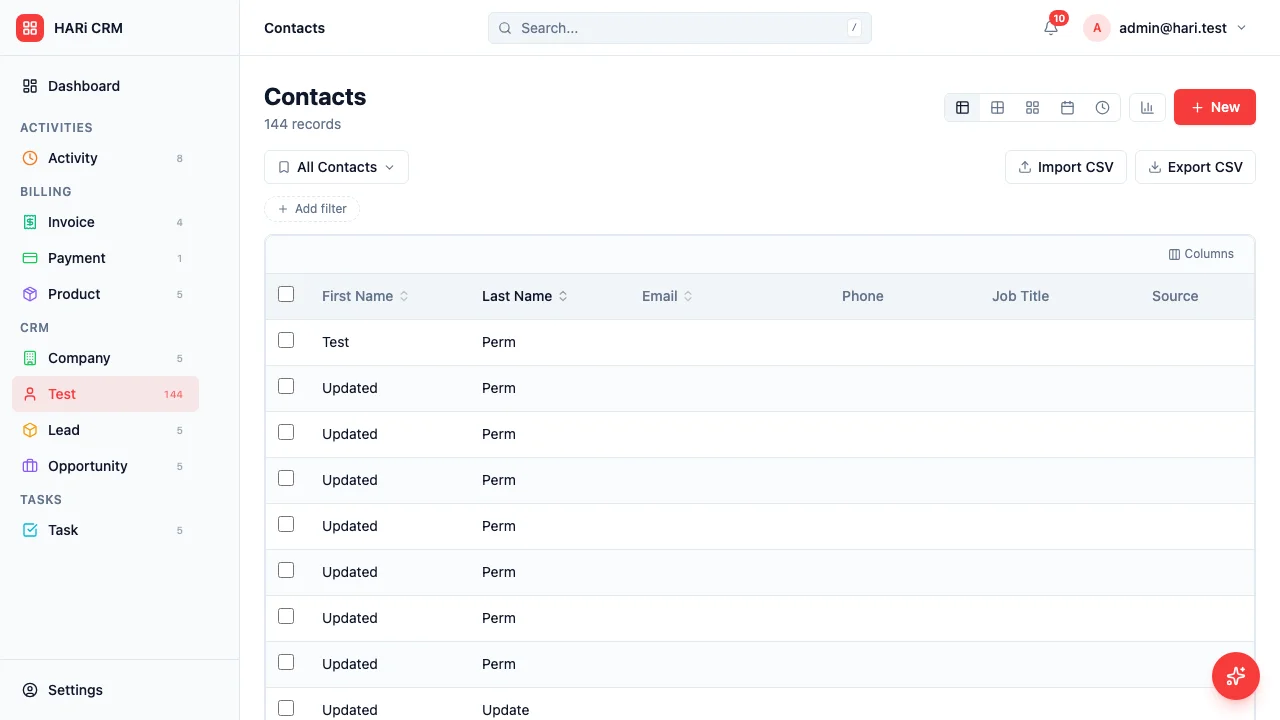
Section titled “Importing Step by Step”- Navigate to Contacts in the sidebar (in Table view)
- Click the Import CSV button in the toolbar
- Drag-and-drop your CSV onto the upload area, or click to browse
- HARi uploads the file and shows a preview of the first rows
Mapping Columns
Section titled “Mapping Columns”The mapping screen shows each CSV column with a dropdown to pick the corresponding HARi field:
- HARi auto-suggests mappings based on header names — review each one
- Correct any mismatches by picking the right field from the dropdown
- Leave columns unmapped if their data isn’t needed
- Required fields are highlighted — every required HARi field needs a mapped column before you can proceed
- Click Next
Linked-record fields (e.g. linking a contact to a Company) accept names — HARi resolves them to existing records automatically. If a referenced company doesn’t exist yet, the row is reported in the results step.
Running the Import
Section titled “Running the Import”- Review the mapping summary
- Click Import to begin
- HARi processes the file and shows a progress indicator
- When complete, the Results screen shows: records created, records skipped, and errors with descriptions
Handling Errors
Section titled “Handling Errors”If some rows fail to import:
- The Results screen lists each failed row with the reason (missing required field, invalid email, unresolved Linked record, etc.)
- Fix the issues in your spreadsheet and re-import only the corrected rows
Next Steps
Section titled “Next Steps”- Link Contacts to Companies to connect imported contacts with their organizations
- Merge Duplicates to clean up any duplicates that slipped through
- Importing Contacts for an overview of the import system