
Let people sign up to a list from your website
Turn website sign-up on for a list, and a visitor who posts an email address receives a confirmation email. The button in that email opens a confirmation page. The form stores the address as Waiting for confirmation. They are Opted in only after they click Yes, subscribe me on that page. A campaign can then go to List Members of that list whose status is Opted in. A form that already knows the email updates that person instead of creating a second contact.
How do I let people sign up from my website?
Section titled “How do I let people sign up from my website?”An administrator opens Settings → Communication → Subscription Lists and edits the list. Turn on Let people sign up from your website, type each website that may post the form, and save. Open the list again and copy Sign-up address. The form stores them as Waiting for confirmation. They are Opted in only after they open the confirmation page and click Yes, subscribe me.
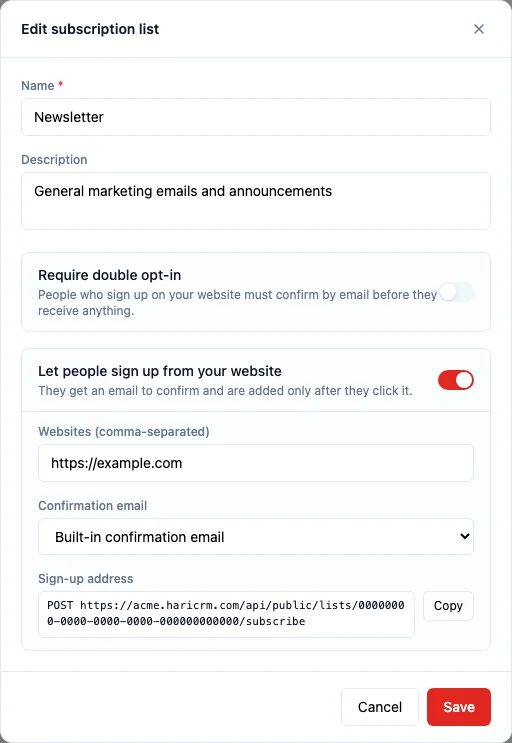
Require double opt-in can stay off. The address on this dialog still sends the confirmation email. Websites takes https://example.com, or * for any site. An empty box means no site can sign up. Copy copies the POST line after the list is saved. Only an administrator can change this.
Google tells list owners to “Confirm each recipient’s email address before subscribing them,” and to “Keep spam rates reported in Postmaster Tools below 0.10% and avoid ever reaching a spam rate of 0.30% or higher” (Google, Email sender guidelines). The UK Information Commissioner’s Office quotes the UK GDPR: “Silence, pre-ticked boxes or inactivity should not therefore constitute consent” (ICO, What is valid consent?). Opening the email does not subscribe anyone. The button in the email only opens the confirmation page. The form has already stored the address as Waiting for confirmation. They are Opted in only after Yes, subscribe me.
What does the confirmation email say?
Section titled “What does the confirmation email say?”The built-in subject is Please confirm your subscription. It says You asked to receive our emails, names every list that address is still waiting to confirm, and the button is Confirm my subscription. Ignoring the email adds nobody. The link lasts 90 days. French or Traditional Chinese is used when the form asks for that language.
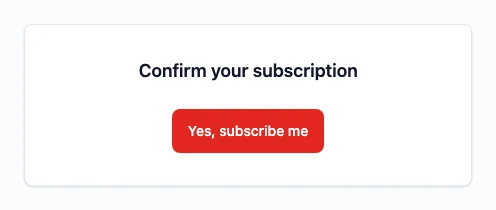
The page is Confirm your subscription, and nothing happens until Yes, subscribe me. Someone already Opted in is not mailed again. Before the click the list shows Waiting for confirmation. Wording for the other results is below. The message comes from your workspace sender (Email sending). See Unsubscribe and preferences.
How do I email the people who opted in?
Section titled “How do I email the people who opted in?”Open Send to, then Add recipients from, then Filter directly. Choose List Member. Set Status to is exactly Opted in, and List > Name to is exactly the list’s name. The list itself is not a filter on that card.
Set Subscription list to the same list. That menu does not add people. They still come from Send to, and a marketing campaign will not send without it. Saved list means a saved filter, not this subscription list.
Waiting for confirmation is outside that audience, so those people are not mailed. An address still waiting on the subscription list you named is left out too. On Exclusions the reason is Has not opted in. On List Members, filter List is the list and Status is exactly Opted in to see them first.
What happens when a form already knows this person?
Section titled “What happens when a form already knows this person?”A form updates the contact when the email matches, instead of creating another. Letter case does not matter. Active contacts match, and so do inactive ones, including someone marked Lost. Archived and deleted contacts do not. Two matches keep the one updated most recently. The same rule applies beyond Contact, to any record with a primary email.
An empty field is filled and a filled field stays, including 0 and No. The owner does not change. The exact rules for notes, choices, and links are below. A new email still creates a record (Embedded forms).
How do I send myself a test of an automation email?
Section titled “How do I send myself a test of an automation email?”Open Automations and select the email step. An administrator sees Send me a test on a draft or a published automation. The step needs a saved template, or a saved subject and message. The email goes to the address you are signed in with.
Unsaved edits make the button read Save first. While it sends, the label is Sending…. The subject starts with [Test]. Success says Test sent to and that address. Failure says The test email could not be sent. Anyone who is not an administrator does not see the button. It is not under Settings → Workflows.
What does my website post?
Section titled “What does my website post?”Send JSON, with Content-Type: application/json, to the address you copied. The body is an object. email is required. page_url, consent_text, and locale are optional. list_ids can name up to 10 further lists, and every one of those lists must have website sign-up on.
* is the only wildcard. Save refuses a pattern such as https://*.example.com. The Websites field then says that entry is not an origin this form can ever be embedded from, and that it expected * or a full origin such as https://example.com. Separate several sites with commas. Each entry is the site, such as https://example.com, not a page path. A server that sends no site header is accepted only when Websites is *.
{ "email": "ada@example.com", "page_url": "https://example.com/newsletter", "consent_text": "Send me the monthly newsletter.", "locale": "en"}Do not send a field named website with text in it. That name is left empty so a bot that fills every field is ignored. A filled website gets the success answer below and signs nobody up.
A locale that starts with fr selects French. One that starts with zh selects Traditional Chinese. Any other value, or none, selects English. page_url is kept only when it is an http or https address. consent_text is stored as plain text.
Success is HTTP 202, and the body is always:
{ "success": true, "message": "Please check your inbox to confirm your subscription."}Show that sentence. Do not say whether the address was new. The same answer comes back when the person is already opted in, when the address is on the blocklist (no confirmation email is sent; HARi may still mark them waiting), when that address has already been sent 3 confirmation emails in the last hour, and when the list is archived, inactive, or an SMS list.
These answers are different, and a form can show the message:
| Status | Message | When |
|---|---|---|
| 404 | This list is not available. | The id is unknown, is not a list id, or website sign-up is off. All three look the same. |
| 403 | This website is not allowed to use this list. | The browser’s site is not in Websites. |
| 422 | Enter a valid email address. | email is missing or not an email address. |
| 422 | Send the sign-up as an object. | The body was not an object. |
| 422 | Choose valid lists. | list_ids is not a list of list ids, or it has more than 10. |
| 429 | Too many sign-ups from here. Please try again in a little while. | More than 10 sign-ups from one network address in an hour, or more than 50 for the workspace in an hour. |
| 503 | We could not check the list. Please try again. | HARi could not finish the check. |
HARi builds the confirmation page on its own host and adds hari_token. The form cannot choose that host. The visitor’s click sends the token. Your site does not call that step.
In a confirmation template, put {{ confirm_url }} in the body for the link and {{ list_names|join(', ') }} for the names. The names are a list. Printing {{ list_names }} on its own makes the template fail, and the built-in email is sent instead. The subject is stored as written and is not filled in, so the link belongs in the body.
What does the page say after the click?
Section titled “What does the page say after the click?”Nothing is confirmed when the link is only opened. After Yes, subscribe me, the page says You’re subscribed to: and names the lists. The same link again says You’re already subscribed to: and changes nothing. A missing or expired link says This link has expired or is not valid. Please sign up again on the website.
A click that cannot be finished says We couldn’t confirm your subscription. Please try again. One click confirms every list that address was still waiting on. The source stored on the membership is Website sign-up form. A link sent after they unsubscribed from all marketing email turns that choice off for the lists named in the email. An older link does not. Lists they left one by one stay left. Your own template replaces the built-in email when it renders. If that email never contains the link, HARi adds the link. If the template cannot be rendered, the built-in email is sent.
How does a matching form change the record?
Section titled “How does a matching form change the record?”New multi-choice options are added after those already stored. A long note or rich text that already has writing gains a blank line, an em dash, the form’s name, a date such as 2026-11-11, and the new text. Text already in the field is not repeated. An empty note stores only the new text.
When the form would change nothing, HARi does not write. The team and the round-robin assignment stay put, as the owner does. A hidden field that has a preset keeps that preset, so a posted value cannot replace it. A link that already points at a record stays pointed there.
Related
Section titled “Related”- Embedded forms covers placing a form on your site
- Contacts covers the person a matching form updates
- Unsubscribe and preferences covers how someone leaves a list
- Email sending covers who the message is sent from