
Private records
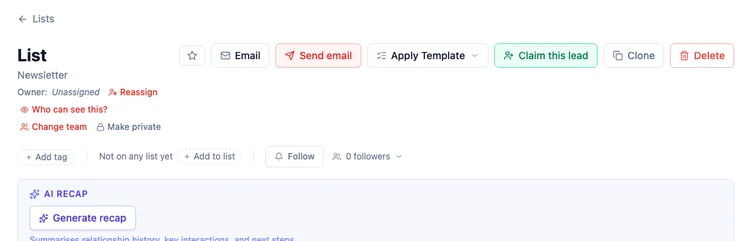
Make private moves a record onto your personal team. Teammates on your work team stop seeing it. People whose role covers the whole business unit — and administrators — still can. The confirmation names that number before you commit.
There is no “secret from everyone including the admin.” Privacy here is soft: honest about who is left.
How do I make a record private?
Section titled “How do I make a record private?”- Open the record.
- Click Make private.
- Read the confirmation. It says the record will sit on your personal team, and whether anyone with wider access can still see it.
- Confirm.
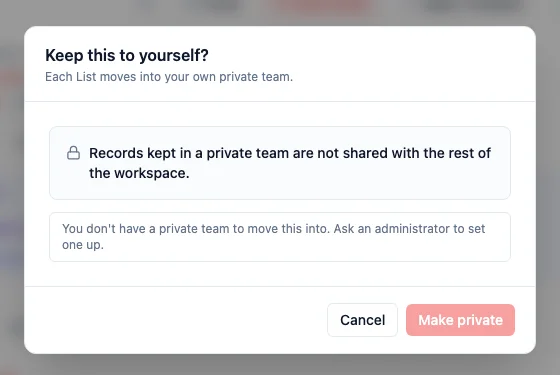
If you do not have a personal team, HARi says so and asks you to talk to an administrator rather than failing silently.
Who can still see it?
Section titled “Who can still see it?”- You (it is on your personal team).
- Anyone whose role reaches the whole business unit or the whole workspace.
- Administrators.
Teammates who only see “records their teams own” cannot. Who can see this? on the header is the live list.
The UK Information Commissioner’s Office is explicit that access control has to match what you told the person: “You must be able to demonstrate that you have appropriate security measures in place” (ICO, UK GDPR security). Cisco’s 2024 Data Privacy Benchmark Study found 94% of organisations said their customers would not buy from them if they did not protect data properly (Cisco, 2024). Making a note private from the sales floor, while still telling you that two administrators can open it, is that demonstration in one click.
How is this different from Change team?
Section titled “How is this different from Change team?”Change team hands the record to another work team (Sales, Finance). Make private hands it to you. Reassign on Owner only changes who is responsible for follow-up — it does not hide the record.