
Custom Entities
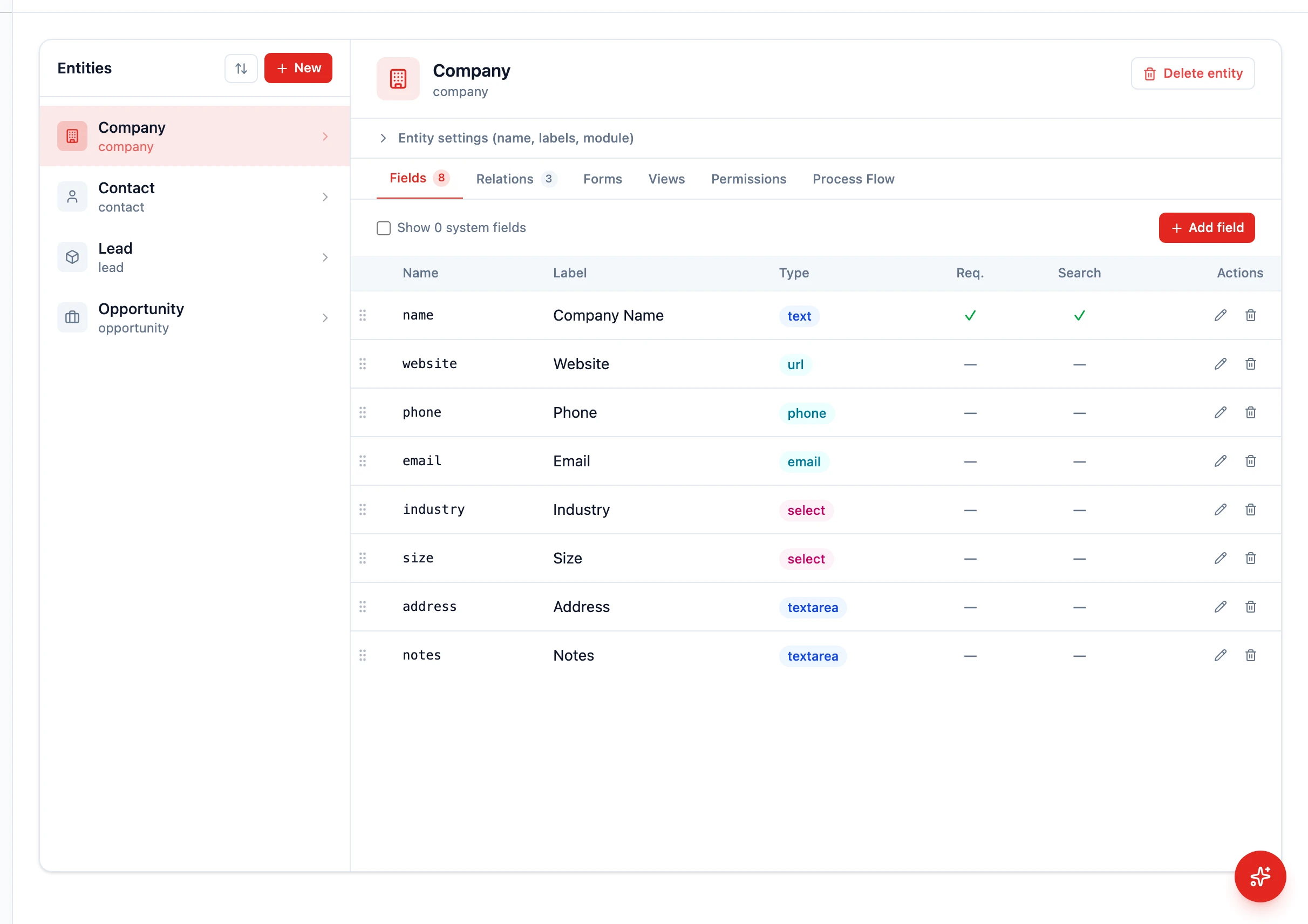 HARi CRM is metadata-driven. You can create custom entity types to match your exact business model.
What is an entity?
Section titled “What is an entity?”An entity is a type of data in your CRM. HARi comes with these built-in (via solutions):
- Contact — people you interact with
- Company — organizations
- Lead — potential customers
- Opportunity — deals in your pipeline
- Task — things to do
- Invoice — billing documents
Creating a custom entity
Section titled “Creating a custom entity”Go to Settings > Schema and click + New Entity.
- Enter a name (e.g., “Property”, “Case”, “Vehicle”)
- Choose an icon and color
- Add fields (text, number, date, select, relation, currency, etc.)
- Configure which fields appear in list view, detail view, and create form
- Save — the entity is immediately available to all users
No deployment. No code. No restart.
Field types
Section titled “Field types”| Type | Description | Example |
|---|---|---|
| Short text | Single-line text | Name, Title |
| Long text | Multi-line text | Description, Notes |
| Rich text | Formatted multi-line text | Body, Article |
| Integer | Whole numbers | Quantity, Age |
| Decimal number | Floating point | Weight (4.5) |
| Money (currency) | Money with currency code | Amount ($1,250.00) |
| Percentage | Percentage value | Discount, Margin |
| Rating | 1–5 star rating | Satisfaction |
| Date | Date picker | Due Date, Close Date |
| Date + time | Date with time | Meeting Start |
| Time of day | Clock time | Opening Hour |
| Email address | Validated email | Email Address |
| Phone number | Phone number | +852 1234 5678 |
| URL | Web link | Website |
| Single choice | Dropdown choices | Status, Priority |
| Multi-select | Multiple choices | Tags, Skills |
| Yes / No | Boolean toggle | Active, Verified |
| Linked record | Link to another entity | Company → Contact |
| File / Image | Single attachment | Logo, Avatar |
| File list / Image list | Multiple attachments | Documents, Gallery |
| Auto number | Auto-incrementing | INV-0001 |
| Formula | Read-only value computed from other fields — see Formula functions | Full name, Days until renewal |
| Colour | Hex colour picker | Brand Colour |
| Secret | Encrypted at rest | API Key |
Display name
Section titled “Display name”The display name is how records appear in dropdowns, links, search results, and relationship columns. By default, it uses the first text field you create.
To customize it:
- In Settings > Schema, click on your entity
- Under Display name, choose a single field — or click Composite to combine multiple fields
- For example, for Contacts you might combine First Name + Last Name + Company so lookups show “Sarah Chen — Acme Ltd” instead of just “Sarah”
- Click Apply composite, then Save
Learn more: What is a Display Field?
Record thumbnail
Section titled “Record thumbnail”If your entity has an image or file field — a contact photo, a company logo, a product shot — you can have HARi show that image as a thumbnail at the top of each record. It gives the record page an immediate visual identity instead of opening to a wall of text.
- In Settings > Schema, click on your entity
- Next to Display name, open the Record thumbnail selector
- Choose any image or file field on the entity (for example, Photo on Contact or Logo on Company), or leave it set to None
- Click Save
The chosen field’s image now appears as the record header thumbnail. The field stays fully editable in the form, so uploading or replacing the image from the record updates the thumbnail too. Records without an image for that field simply show no thumbnail — nothing breaks.
Relations
Section titled “Relations”Link entities together:
- Company → Contacts (one-to-many)
- Contact → Opportunities (one-to-many)
- Invoice → Line Items (one-to-many with subgrid)
Relations are defined in Settings > Relations and automatically create tabs on record pages.