
Workflow Automation
A workflow is a no-code rule that watches your records and acts for you: WHEN something happens (a record is created, a field changes), IF the conditions you set are met, THEN HARi runs the actions you chose — send an email, notify a teammate, update a field, call a webhook. You build them visually under Settings > Workflows; there are no formulas to write and no scripting.
Automating the repetitive parts of a process is where the time goes. McKinsey’s research found that about 60% of all occupations have at least 30% of activities that could be automated with today’s technology (McKinsey Global Institute, 2017). A workflow is how you hand those repetitive activities — the follow-up task, the owner notification, the status bump — to HARi, so your team spends its time on the judgement calls instead.
How workflows work
Section titled “How workflows work”Every workflow follows one simple pattern:
WHEN (an event) → IF (conditions) → THEN (actions)- The event is what starts the workflow — for example a record being created or a field changing.
- The conditions decide whether to run. Leave them empty and the workflow runs on every event; add some and all of them must be true (unless you group them — see below).
- The actions are what HARi does when the event fires and the conditions pass. They run in order, top to bottom.
The rest of this page walks through each part as it appears in the editor.
Choosing when a workflow runs
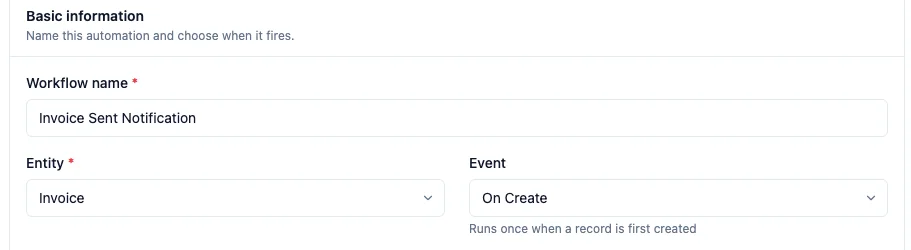
Section titled “Choosing when a workflow runs”The Event selector chooses what starts the workflow. Each option shows a one-line description underneath so you always know what you picked:
- Before Save / After Save — every time a record is saved (a create or an edit).
- On Create — runs once, only the first time a record is added. This is the right choice for a true welcome or intake step: it will never fire again when the record is later edited.
- Before Delete / After Delete — when a record is removed.
- Status Change — when the record’s status field moves.
- Assignment — when a record is assigned to someone.
- On Schedule — on a recurring time-based schedule rather than in response to a change.
When does a record-updated automation run again?
Section titled “When does a record-updated automation run again?”A Record updated or Field changes automation runs the first time a matching record is updated. Creating the record does not run it.
Open the trigger and set Run to Every time it is updated when a later update should start it again. Only the first time a record is updated is what you see when Run was never set.
While that automation is already running or paused for the same record, another update does not start a second copy.
After 20 runs for that record in one hour, the next run is skipped until the hour has passed.
When Every time it is updated is selected, the editor shows: “If a record changes again while this automation is still running for it, that change is included in the current run.”
Building conditions
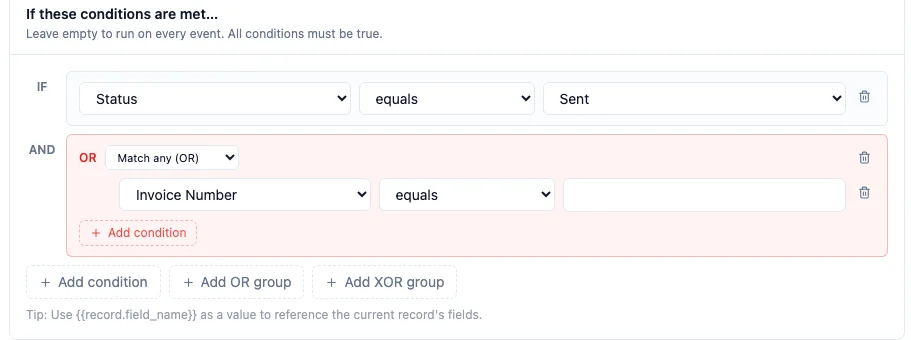
Section titled “Building conditions”Under If these conditions are met… you add condition rows, each with three parts: a field, an operator, and a value. The value editor changes to match the field you picked, so you’re never typing a raw value into a plain box:
- A status or choice field offers its options as a dropdown (equals “Sent”, “Paid”, “Overdue” — you pick from the real choices).
- A date field offers date-aware operators (is before, is after, within the last, more than … ago) and a date picker.
- A linked-record field lets you search the linked records by name instead of pasting an ID.
- Number and text fields use the operators that make sense for them — greater than, contains, starts with, is empty, and so on.
Leave the conditions empty to run on every event. As a shortcut, you can use {{record.field_name}} as a value to compare one field against another on the same record.
Grouping conditions with OR and XOR
Section titled “Grouping conditions with OR and XOR”By default, every condition you add must be true. When you need “any of these” or “exactly one of these” logic instead, add a group:
- Match any (OR) — the group passes if at least one of its conditions is true. Use it for “status is Overdue or amount is above 10,000”.
- Exactly one (XOR) — the group passes only if exactly one condition is true, and no more.
Click Add OR group or Add XOR group, then add conditions inside it. Groups sit alongside your plain conditions, so you can mix a top-level “all must match” rule with a nested “any of these” group in the same workflow.
What a workflow can do
Section titled “What a workflow can do”The Then do this… section holds the actions. Add as many as you need — they run in order. The available actions are:
- Send notification — an in-app notification to one or more people (see below).
- Send email — from a saved template or a custom message you write inline (see below).
- Update record field — change a value on the record that triggered the workflow.
- Generate identifier — fill a text field with a random, formatted code: a Random UUID, a Short code, or a Numeric code (see below).
- Create related record — spin up a linked record (a follow-up task, a related activity).
- Call webhook (URL) — post the record to an external service (Zapier, Make, n8n).
- Add tag to record, Change record state, AI Enrich record, Log message.
- IF/ELSE branch and For each record — for branching logic and looping (below).
Sending a notification to several people
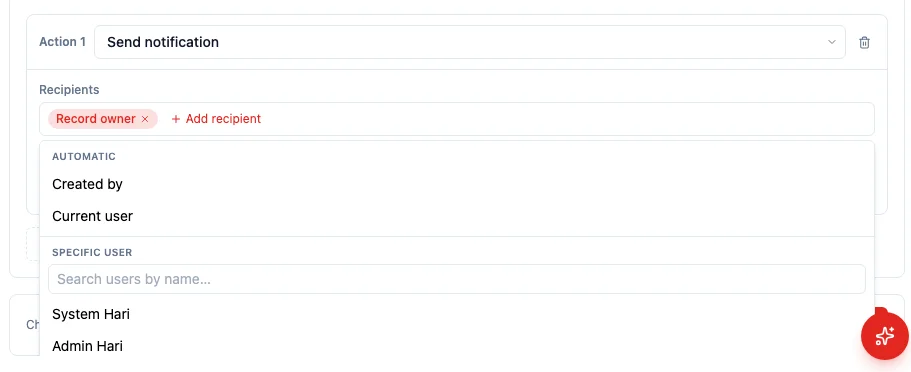
Section titled “Sending a notification to several people”The Send notification action takes multiple recipients through a picker — no user IDs to look up or type. Click Add recipient and choose from three groups:
- Automatic — Record owner, Created by, or Current user. These resolve at run time to the right person for each record.
- From a record field — point at a user field on the record (for example the salesperson linked to a deal), and HARi notifies whoever that field names.
- Specific user — search your team by name and pick a named person.
Each recipient shows as a labelled chip you can remove with a click, and any {{record.field}} reference in a recipient resolves to the record’s actual value when the workflow runs.
Sending an email: a template or a custom message
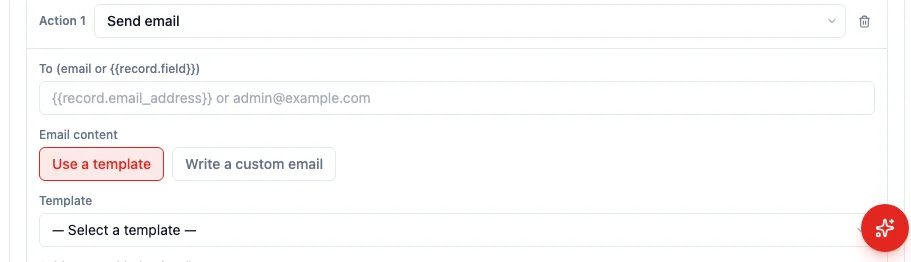
Section titled “Sending an email: a template or a custom message”The Send email action lets you choose the Email content two ways:
- Use a template — pick one of your saved email templates. Every template you or the HARi assistant creates shows up here, exactly as it does in campaigns and quick-send. You can add a Subject override to reuse a template’s body under a different subject line.
- Write a custom email — type the subject and body inline for a one-off message.
A saved template is shown by its name — not a hidden ID — so reopening the workflow makes it obvious which template will be sent.
Generating a unique code automatically
Section titled “Generating a unique code automatically”The Generate identifier action fills a text field on the record with a random, ready-to-use code the instant it runs — a voucher code, a ticket number, a referral number — with no separate numbering system or developer involved. It’s the same generator whether you add it as a THEN action here in Settings > Workflows or as a Generate identifier node on the Automations canvas.
Pick the Entity type and the Field to fill, then choose a Code format:
- Random UUID — a full, globally unique identifier. The birthday-paradox math behind a random (version-4) UUID’s 122 bits means you’d need to generate 103 trillion of them before the odds of any two colliding even reach one in a billion (Wikipedia, “Universally unique identifier,” citing Mathis, A Generalized Birthday Problem, SIAM Review, 1991) — plenty of headroom for an internal reference nobody will ever read aloud.
- Short code — letters & numbers — a compact, base36 code (mixed letters and digits) sized by Length — easier for a customer to read aloud or type into a redemption box than a UUID.
- Numeric code — digits only, for systems (a till, a phone keypad) that expect a plain number.
An optional Prefix (for example VOUCH-) and the Length field (for the short and numeric formats) let the result read as your own numbering scheme rather than a random string. Generation happens on HARi’s server, and if a freshly-minted code ever collides with one you’ve already issued under a unique field, HARi retries automatically — you never see or hand out a duplicate.
Example — minting a voucher code: on a Voucher entity, add an On Create workflow with a Generate identifier action: Field to fill = Code, Code format = Short code, Length = 8, Prefix = VOUCH-. Every voucher gets its own redeemable code — like VOUCH-K3F9QZ2P — the moment it’s created, with no manual numbering and no chance of issuing the same code twice.
Editing a saved workflow
Section titled “Editing a saved workflow”Reopening a saved workflow shows every stored value intact — the event, each condition (with its field pre-selected), every recipient chip, and the linked template by name. Nothing is left blank where you had set a value, so editing an existing workflow is safe: change one thing, leave the rest exactly as it was, and save. If a linked template has since been removed, the editor keeps the link on save rather than silently dropping it, and tells you the template is unavailable.
IF/ELSE branching
Section titled “IF/ELSE branching”Workflows support full branching logic through the IF/ELSE branch action:
IF score > 50: → Move to "Qualified" → Assign to senior repELSE IF score > 20: → Send nurture emailELSE: → Tag as "Cold" → Create follow-up task in 14 daysThe first branch whose conditions match runs its actions.
FOR_EACH loops
Section titled “FOR_EACH loops”The For each record action processes multiple records in a single workflow:
FOR EACH contact WHERE source = "webinar": → AI enrich → Update score → Send welcome emailLimited to 1,000 records per execution for safety.
Examples
Section titled “Examples”Welcome only brand-new web leads
Section titled “Welcome only brand-new web leads”When: On Create If: Source = “Website” Then: Send the “Welcome” email template, notify the record owner. Because the event is On Create, the welcome only ever fires once — never again when the contact is edited later.
Auto-qualify hot leads
Section titled “Auto-qualify hot leads”When: Field value changed (score) If: Score is greater than 20 Then: Update status to “Qualified”, notify the sales manager.
Escalate an at-risk deal
Section titled “Escalate an at-risk deal”When: After Save If: (Match any / OR) Stage equals “Negotiation” or Amount is greater than 50,000 Then: Notify the record owner and the current user, create a follow-up task.
Related
Section titled “Related”- Prefer a manual, one-click checklist instead of an automatic rule? See Process Templates.
- New to HARi? Start with the introduction.