
How to Add Notes to a Record
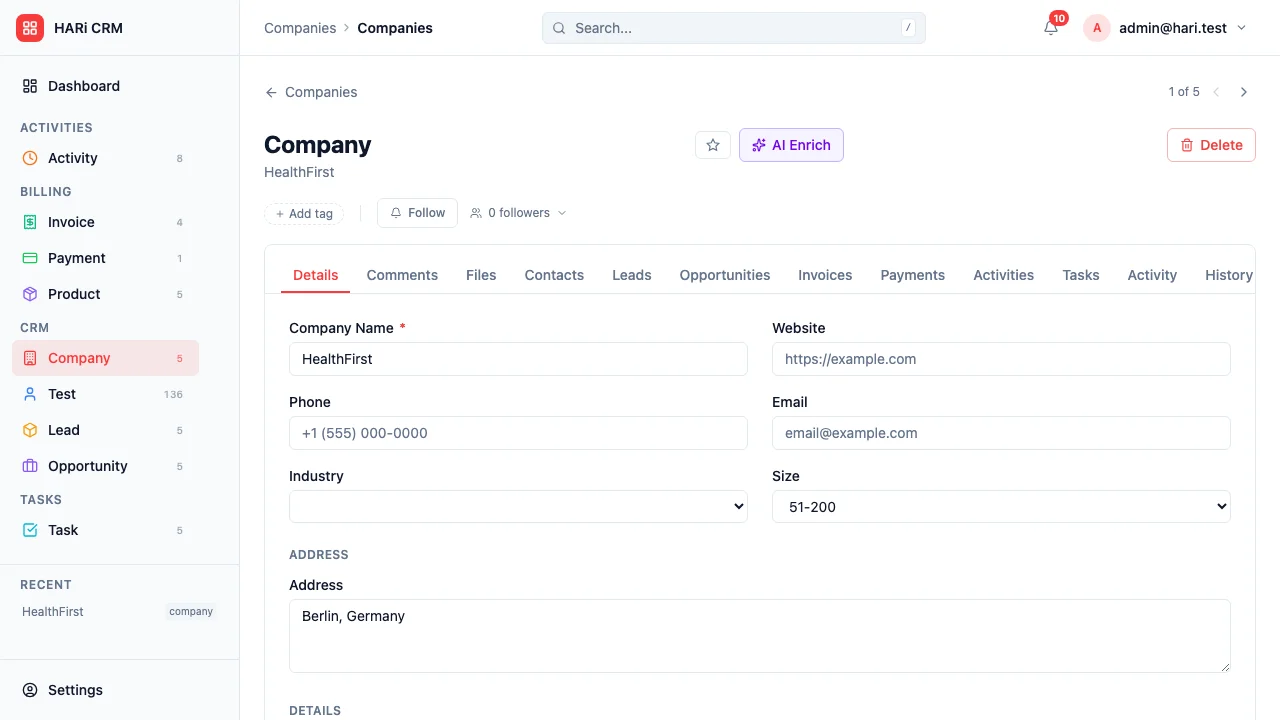
How to Add Notes to a Record
Section titled “How to Add Notes to a Record”Notes — surfaced in HARi as Comments — let you capture information that does not fit neatly into a field: meeting takeaways, customer preferences, internal observations, or anything worth remembering about a contact, company, or deal.
Adding a Comment
Section titled “Adding a Comment”- Open any record (contact, company, opportunity, or any entity)
- Click the Comments tab on the record
- Type your message in the editor at the bottom
- Type
@to mention a teammate (they get a notification)
- Type
- Press Enter or click Send
The comment appears immediately, attributed to you with a timestamp. Teammates with access to the record see it on their next visit.
What to Use Comments For
Section titled “What to Use Comments For”- Meeting summaries — “Met at trade show. Interested in enterprise plan. Follow up next week.”
- Customer preferences — “Prefers email over phone. Decision-maker is the COO.”
- Internal context — “They tried a competitor last year and switched back. Price-sensitive.”
- Action items — Quick reminders that do not need a formal task
Comments vs. Activities
Section titled “Comments vs. Activities”| Comments | Activities | |
|---|---|---|
| Purpose | Capture information | Record an action taken |
| Has a date/time | Timestamp only | Scheduled date and duration |
| Has a type | No | Yes (call, meeting, email, note) |
| Use when | You want to write something down | You made a call, had a meeting, or sent an email |
Use comments for context and observations. Use activities for structured interactions.
Finding Comments Later
Section titled “Finding Comments Later”Comments live on each record’s Comments tab, so they appear whenever you open the record. You can also:
- Mention colleagues with
@nameso they get notified - Reply to a thread by clicking Reply on an existing comment
- Edit or delete your own comments via the menu on each comment
- Check the audit log (the History tab) to see when comments were added or modified
- Keep comments concise — A few sentences are better than a wall of text
- Highlight next steps — If the comment includes an action, bold it or create a follow-up task
- One comment per topic — Multiple short comments are easier to scan than one long one