
Create a Follow-Up Sequence
Create a Follow-Up Sequence
Section titled “Create a Follow-Up Sequence”A follow-up sequence sends a series of communications at timed intervals. HARi CRM lets you build sequences using two complementary tools: Campaigns for the email cadence itself, and scheduled workflows for time-based reminders and task creation.
Planning Your Sequence
Section titled “Planning Your Sequence”Before building, plan your touch points. Here is an example sequence for a new lead:
- Day 0: Welcome email (immediate)
- Day 3: Follow-up with a case study
- Day 7: Check-in email asking about their needs
- Day 14: Final follow-up with a meeting invite
Step 1 — Send the First Email Immediately (workflow)
Section titled “Step 1 — Send the First Email Immediately (workflow)”For the Day 0 welcome email:
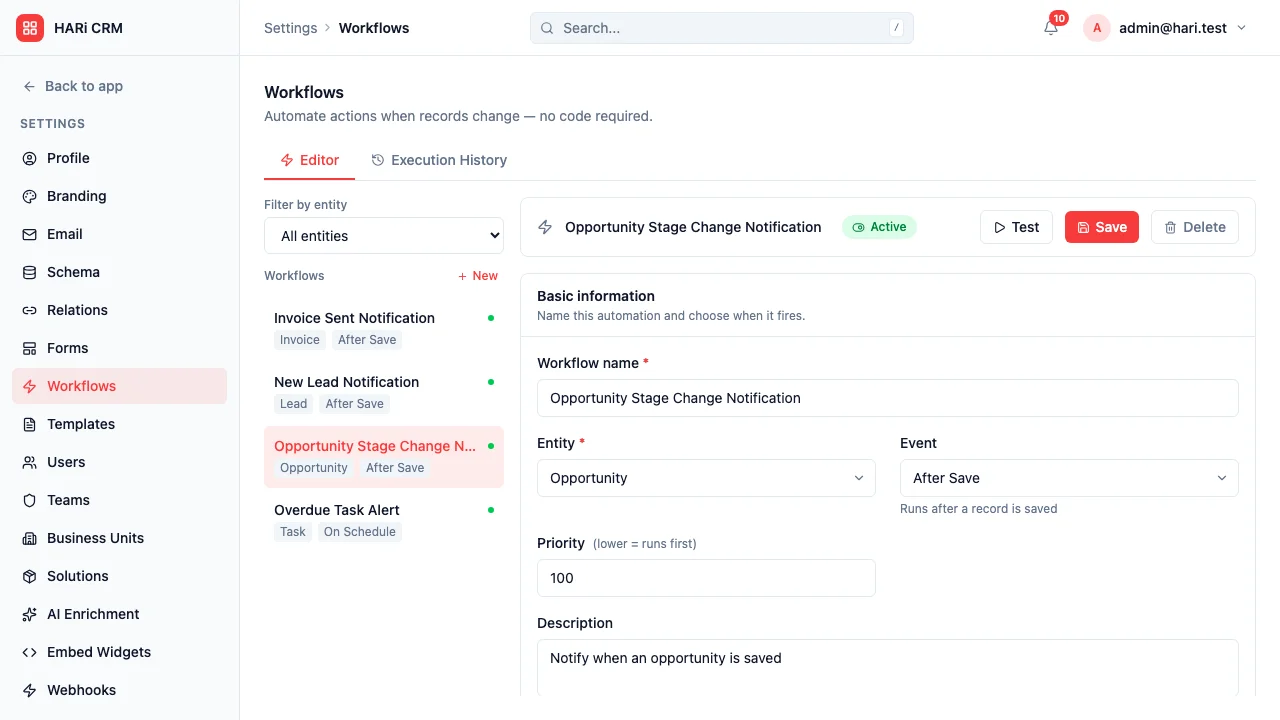
- Go to Settings > Workflows
- Create a workflow:
- Name: “Lead — Welcome email”
- Entity: Lead
- Event: After Save
- In IF, scope to fresh leads:
_versionequals1(created, not yet edited) - Optionally add a source filter:
sourceequalswebsite - In THEN, add a Send email action with the “Welcome” template
- Save and activate
Step 2 — Schedule the Subsequent Emails
Section titled “Step 2 — Schedule the Subsequent Emails”For Day 3, Day 7, Day 14, use a scheduled workflow that runs daily and picks up leads that have hit each milestone:
- Create a workflow:
- Name: “Lead — Day 3 case study email”
- Entity: Lead
- Event: On Schedule
- In IF, target leads that are exactly 3 days old and still in early-funnel state:
created_atis more than 3 days ago AND less than 4 days agostatusis notqualifiedAND notconvertedAND notlost
- In THEN, add Send email with the “Case study” template
- Save and activate
Repeat for Day 7 (“Check-in” template, 7-8 day window) and Day 14 (“Meeting invite” template, 14-15 day window).
Adding Exit Conditions
Section titled “Adding Exit Conditions”You do not want to keep sending follow-ups if the lead has already replied or converted. Tighten the IF conditions on each scheduled workflow so a lead in qualified, converted, or lost status never receives the next email.
Combining Emails with Tasks
Section titled “Combining Emails with Tasks”For a more personal touch, alternate between automated emails and tasks for manual outreach. Use the Create related record action in a workflow’s THEN section to spawn a Task linked to the lead:
- Day 0: Send email (automated)
- Day 3: Create a task “Call {{record.title}}” assigned to the lead owner
- Day 7: Send email (automated)
- Day 14: Create a task “LinkedIn connect with {{record.title}}“
Monitoring Sequence Performance
Section titled “Monitoring Sequence Performance”- Open rates and link clicks on each campaign appear on the campaign report
- The workflow execution history (Settings > Workflows > History tab) shows every send + every skipped record with the reason
Native multi-step Campaign sequences (Day 0 + Day 3 + Day 7… in one Campaign) are on the roadmap. The pattern above ships the same outcome today using one workflow per touchpoint.
Next Steps
Section titled “Next Steps”- Send Automated Emails for single-email workflow setup
- Follow-Up Reminders for deal-based reminders
- Lead Qualification to score leads as they engage with your sequence