
How to Set Up Webhooks
How to Set Up Webhooks
Section titled “How to Set Up Webhooks”Webhooks let HARi CRM send real-time notifications to external systems whenever something happens — a new lead is created, a deal changes stage, a task is completed. Instead of checking the CRM periodically, external tools receive updates the moment they happen.
What Is a Webhook?
Section titled “What Is a Webhook?”A webhook is a URL that HARi calls automatically when a specific event occurs. The external system listening at that URL receives the event data and can act on it — create a record, send a notification, update a spreadsheet, or anything else.
Think of it like a doorbell: instead of checking if someone is at the door every five minutes, the doorbell rings when someone arrives.
Outgoing vs Incoming Webhooks
Section titled “Outgoing vs Incoming Webhooks”HARi supports both directions:
- Outgoing — HARi calls an external URL when a record changes
- Incoming — An external service calls HARi at a unique URL to push data in (HARi creates / updates a record from the payload)
This guide focuses on outgoing webhooks; incoming webhooks follow the same pattern in reverse.
Creating an Outgoing Webhook
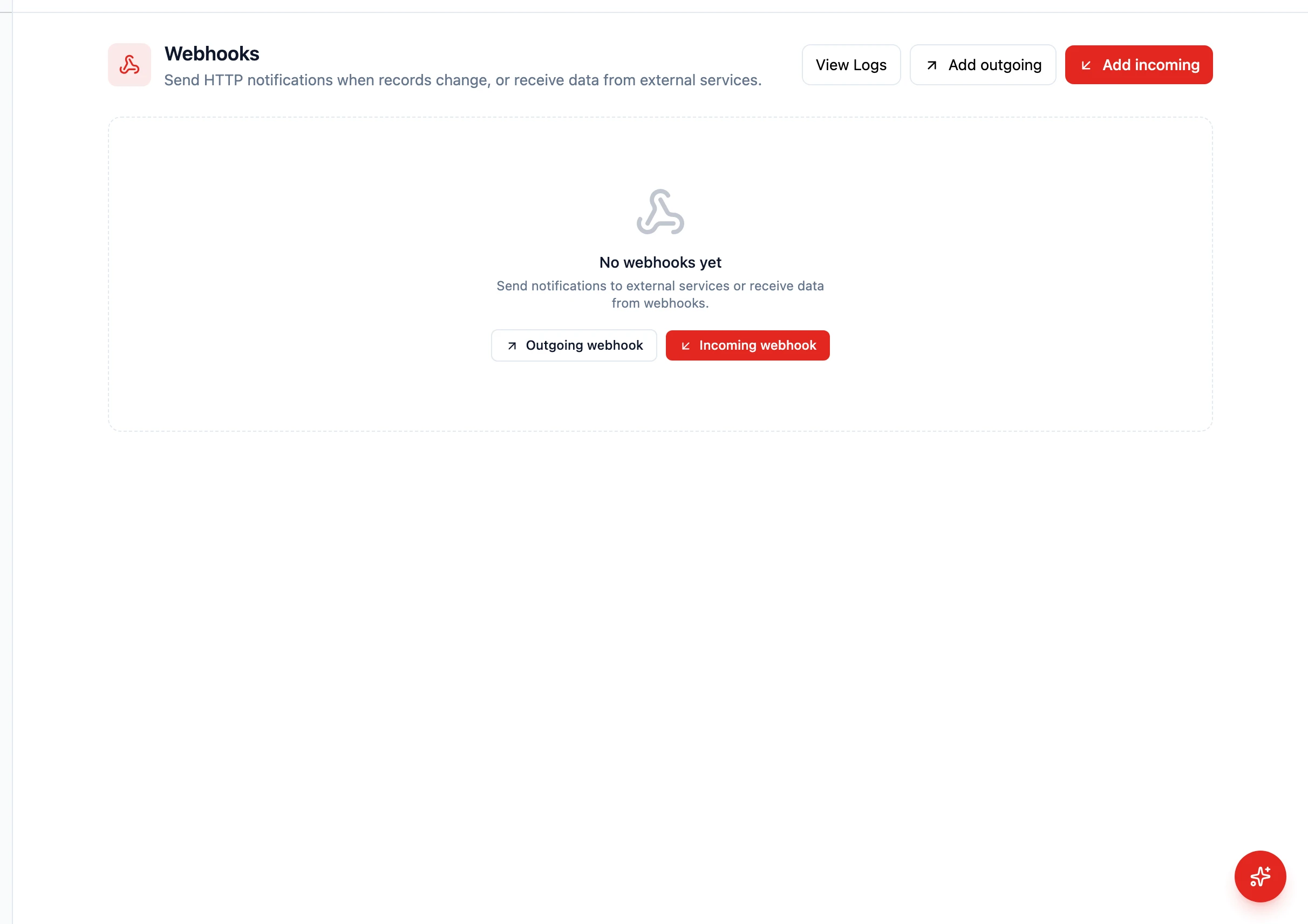
Section titled “Creating an Outgoing Webhook”- Go to Settings > Webhooks
- Click Add outgoing
- Configure the webhook:
- Name — A descriptive label (e.g. “Zapier – New Contact”)
- Entity — Which record type to watch (e.g. Contact)
- Webhook URL — The endpoint that will receive the data (provided by the external system)
- Event — One of:
- After record save — Any save (create or update)
- After record create — Only when a new record is added
- After record update — Only when an existing record is modified
- After record delete — When a record is removed
- Secret (optional) — A signing secret HARi sends as the
X-Webhook-Secretheader so your endpoint can verify the request
- Click Create outgoing webhook
Testing Your Webhook
Section titled “Testing Your Webhook”- After creating the webhook, click the Send test icon next to it
- HARi sends a sample event to your URL and shows the HTTP status it got back
- Check the external system to confirm it received the data
- If it did not work, verify the URL is correct, your endpoint accepts POST, and (if set) the secret is being verified correctly
What Gets Sent
Section titled “What Gets Sent”When a webhook fires, HARi sends a JSON payload containing:
- Event type — What happened (created, updated, deleted)
- Entity name — Which type of record
- Record data — The full record with all its fields
- Timestamp — When the event occurred
- User — Who performed the action
Common Webhook Destinations
Section titled “Common Webhook Destinations”- Zapier — Use Zapier’s webhook trigger for no-code automations (learn more)
- Slack — Post messages to a channel using Slack’s incoming webhooks
- Custom applications — Send data to your own backend systems
- Google Sheets — Use a Google Apps Script web app to receive data
Managing Webhooks
Section titled “Managing Webhooks”- Activate / Deactivate — Toggle a webhook off without deleting it
- View Logs — Click the View Logs button to see every delivery, the response status, and the payload that was sent
- Regenerate secret — Roll the signing secret if you suspect it leaked (the icon next to the test button)
- Delete — Remove a webhook you no longer need
- Use HTTPS URLs — Always use secure endpoints to protect your data in transit
- Handle failures gracefully — HARi retries failed deliveries, but your endpoint should return a 200 status quickly
- Filter events — Only subscribe to the events you need to avoid unnecessary traffic