
Create a Custom Entity
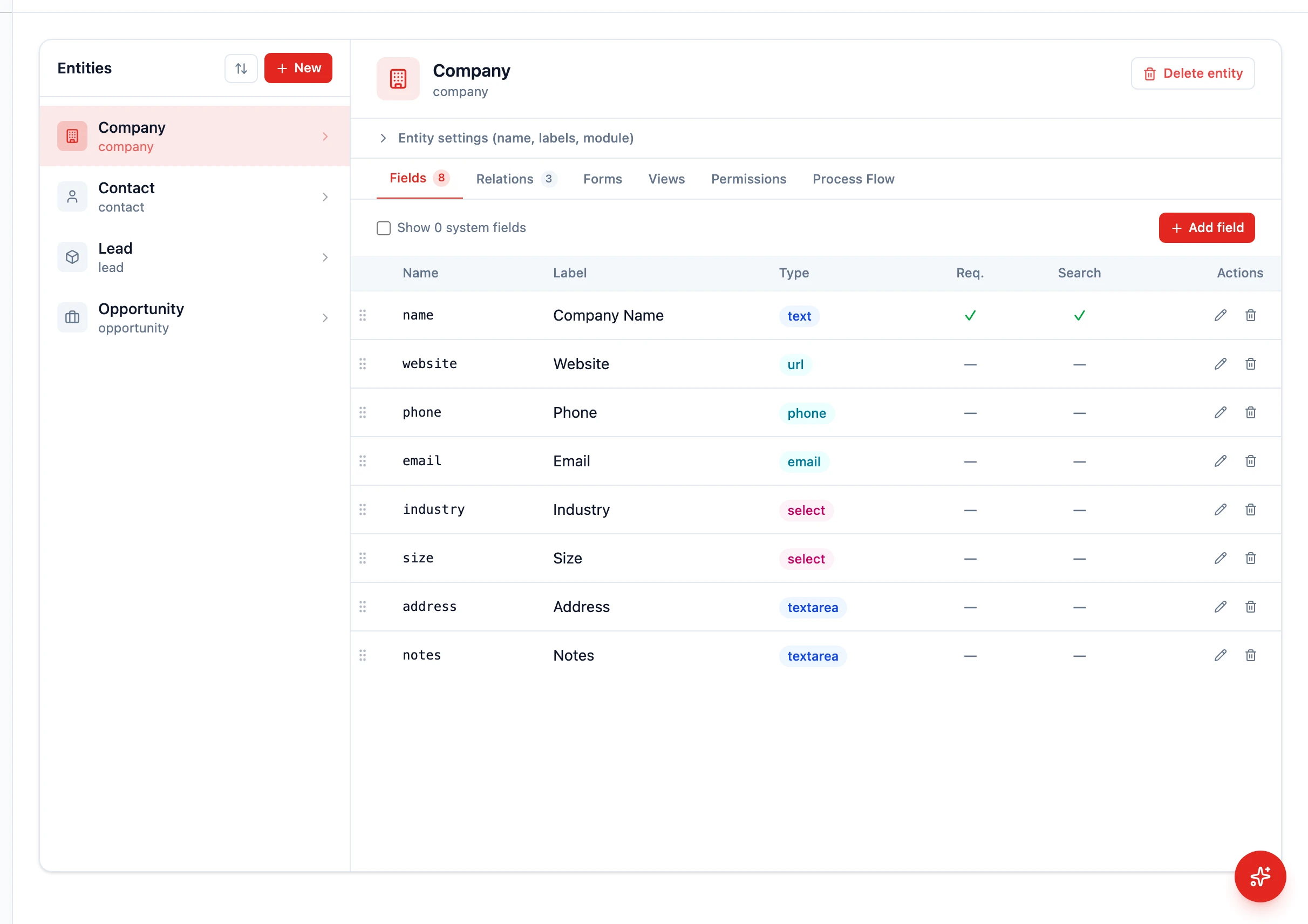
Create a Custom Entity
Section titled “Create a Custom Entity”HARi CRM is not limited to contacts, companies, and deals. You can create custom entities to track anything your business needs — products, projects, locations, contracts, support tickets, or anything else.
What is an Entity?
Section titled “What is an Entity?”An entity is a type of business record. Each entity has its own fields, forms, views, and permissions. Think of it as a table in a database, but presented as a user-friendly interface with forms, lists, and relationships.
Creating a New Entity
Section titled “Creating a New Entity”- Go to Settings > Schema
- Click the New button at the top of the entities list
- Fill in the dialog:
- Name — machine name (lowercase, immutable). Used internally.
- Label — the singular name users see (e.g. “Product”)
- Label (plural) — the plural form for list views (e.g. “Products”)
- Icon — pick an icon for the sidebar
- Color (hex) — optional accent colour (e.g.
#10b981) - Module — optional grouping (e.g.
inventory)
- Click Create entity
HARi creates the entity with default system fields (_state, _version, created_by, created_at, updated_at, owner_id) and a default form layout.
Adding Fields
Section titled “Adding Fields”After creating the entity, add the fields you need:
- Open the new entity from the entities list — the Fields tab is selected by default
- Click Add field for each piece of data you want to track
- Configure each field’s label, type, and options
For example, a “Product” entity might need:
- Product Name (Short text)
- SKU (Short text)
- Price (Money (currency))
- Category (Single choice)
- In Stock (Yes / No)
- Description (Long text)
See Add a Custom Field for the full list of field types.
Setting the Display Name
Section titled “Setting the Display Name”The display name controls how records appear in lookups, links, search results, and relationships. For example, a Contact might display “Sarah Chen” while a Company displays “Acme Ltd”.
- In the entity header, find the Display name control
- Either pick a single field (e.g.
name) or assemble a Composite display by clicking the fields in order - Save
See What is a Display Field? for more details on composite display names.
Setting Up the Form
Section titled “Setting Up the Form”- Click the Forms tab
- Organize your fields into tabs and sections
- Drag fields to reorder them — put the most important fields first
- Save the form layout
Creating Relationships
Section titled “Creating Relationships”Connect your custom entity to existing entities by adding a field of type Linked record:
- On the entity’s Fields tab, click Add field
- Type: Linked record
- Pick the target entity (e.g. Contact)
- Save
This creates a two-way link: the source entity shows the linked record, and the target entity gets a subgrid of related records.
Configuring Permissions
Section titled “Configuring Permissions”By default, only admins can see new entities. To give your team access:
- Open the entity in Settings > Schema
- Click the Permissions tab
- Pick a profile (e.g. “Sales Rep”) and toggle Create / Read / Edit / Delete
- Save
Setting Up Views
Section titled “Setting Up Views”The new entity starts with a default table view at /{entity-name} in the sidebar. Customize it:
- Navigate to the entity
- Use the column-settings menu to add, remove, or reorder columns
- Apply filters, then click Save current view in the view picker to save it for your team
Next Steps
Section titled “Next Steps”- Add a Custom Field for detailed field configuration
- Setup a Lookup Field to create relationships with other entities
- Customize Form Layout to design the record form